How to Manage Everest Forms Submissions in WordPress
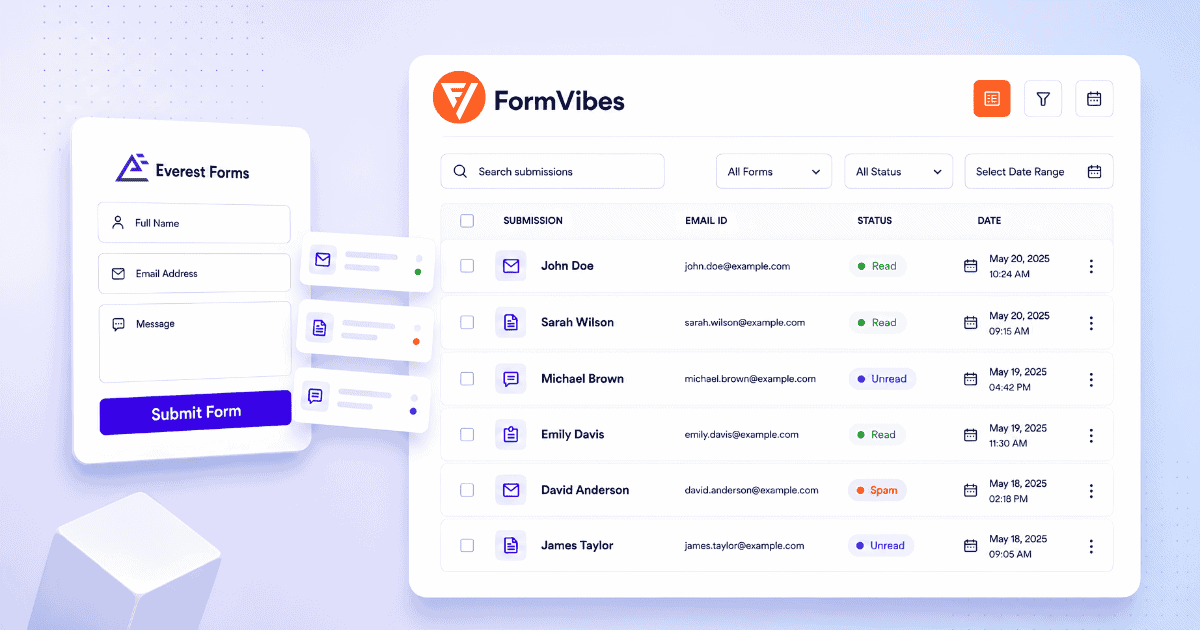
Everest Forms stores every submission automatically from the moment your form goes live. Viewing a handful of entries works fine from the start. The challenge comes when volume increases, multiple forms are running, and you need to find specific entries quickly, export data for reporting, clean out spam, and understand how your forms are performing over time.
This guide covers every native Everest Forms entry management tool available, how to view, filter, export, and mark spam, and then covers how Form Vibes adds analytics, advanced filtering, status marking, and deletion tracking on top of what Everest Forms already provides.
For a complete walkthrough of building and configuring Everest Forms from scratch, see the complete Everest Forms guide for WordPress.
Before You Start
Everest Forms installed and active on your site
At least one form published on a page
Admin access to your WordPress dashboard
Form Vibes installed for better management
How Do You Access and View Everest Forms Submissions?
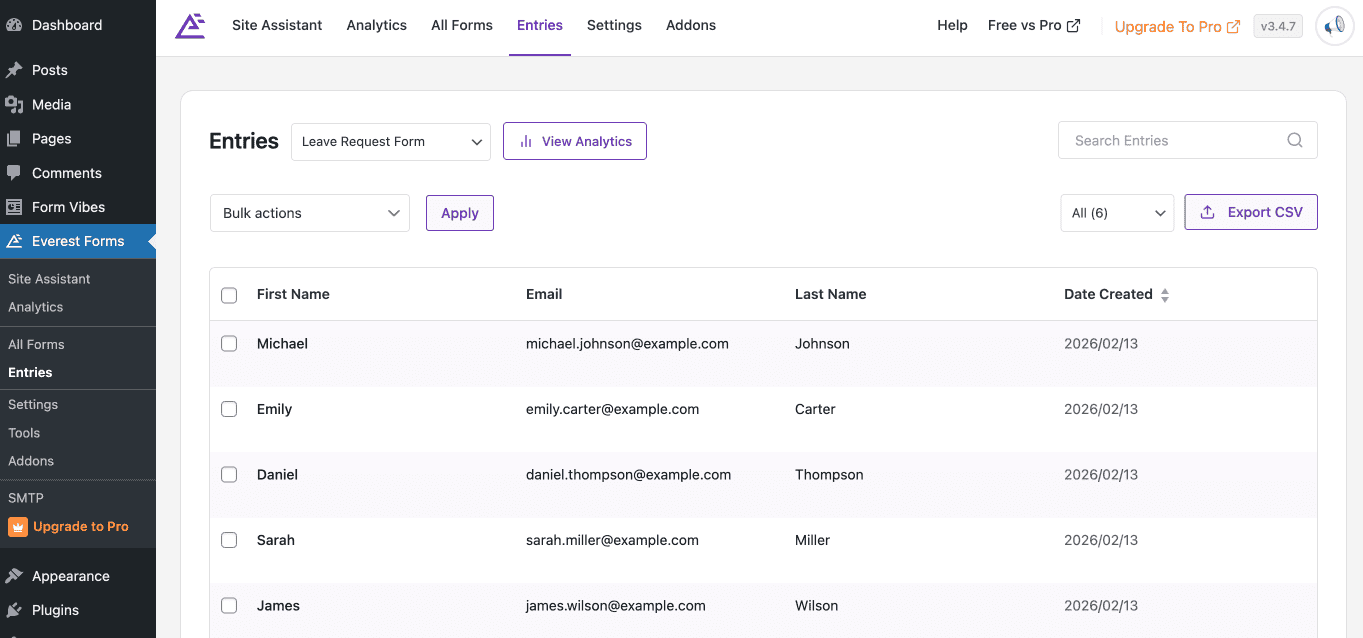
Go to Everest Forms > Entries in your WordPress admin. If you have more than one form, use the dropdown beside the Filter button at the top of the page to select the specific form whose submissions you want to review. Once selected, every submission from that form appears in a table showing the key field values, the submission date, and the entry status.
How Do You Open a Single Entry to See All Its Details?
Click View on any entry row to open the full detail view for that submission. This shows every field value the visitor submitted, the exact date and time of submission, the visitor’s IP address if IP capture is enabled, and any notes attached to the entry. Use the Next and Previous buttons inside the detail view to move between entries without returning to the list.
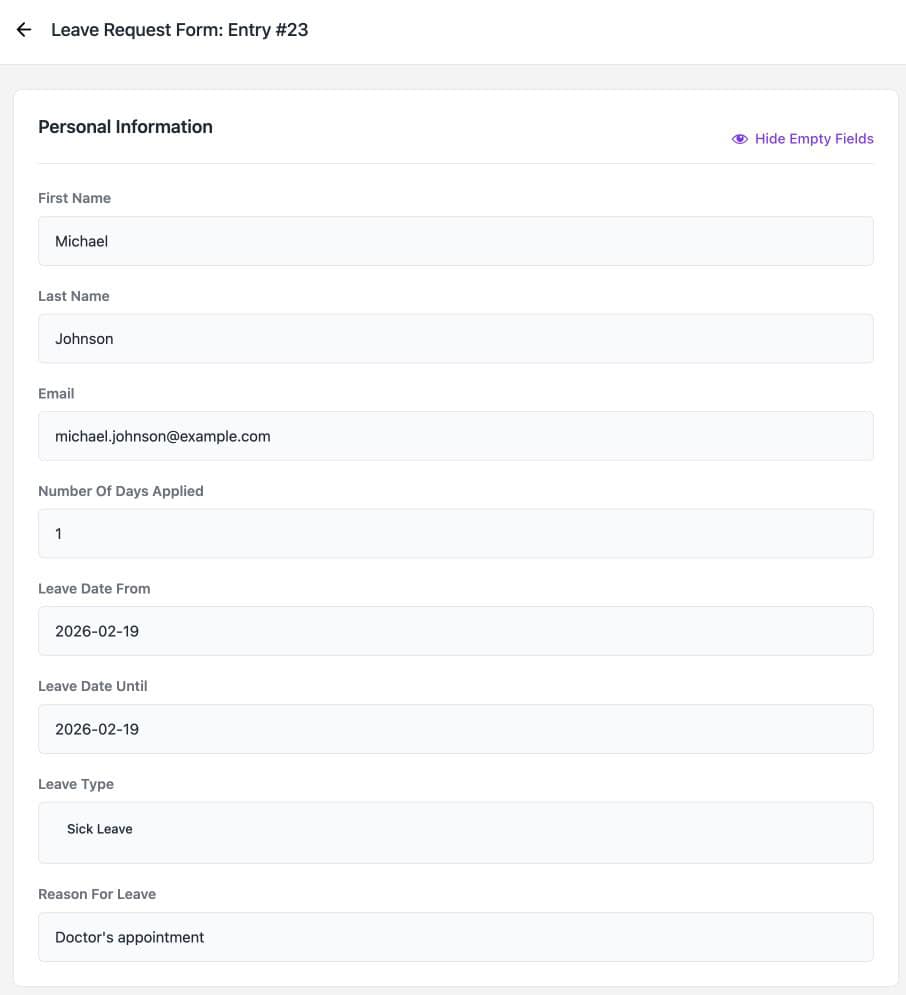
complete submission data
Which Options Help You Filter Entries by Form?
Use the form dropdown beside the Filter button at the top of the Entries page to select any active form, then click Filter. The entry list updates to show only submissions from that form. This is the fastest way to separate entries across multiple forms when you have several active on your site.
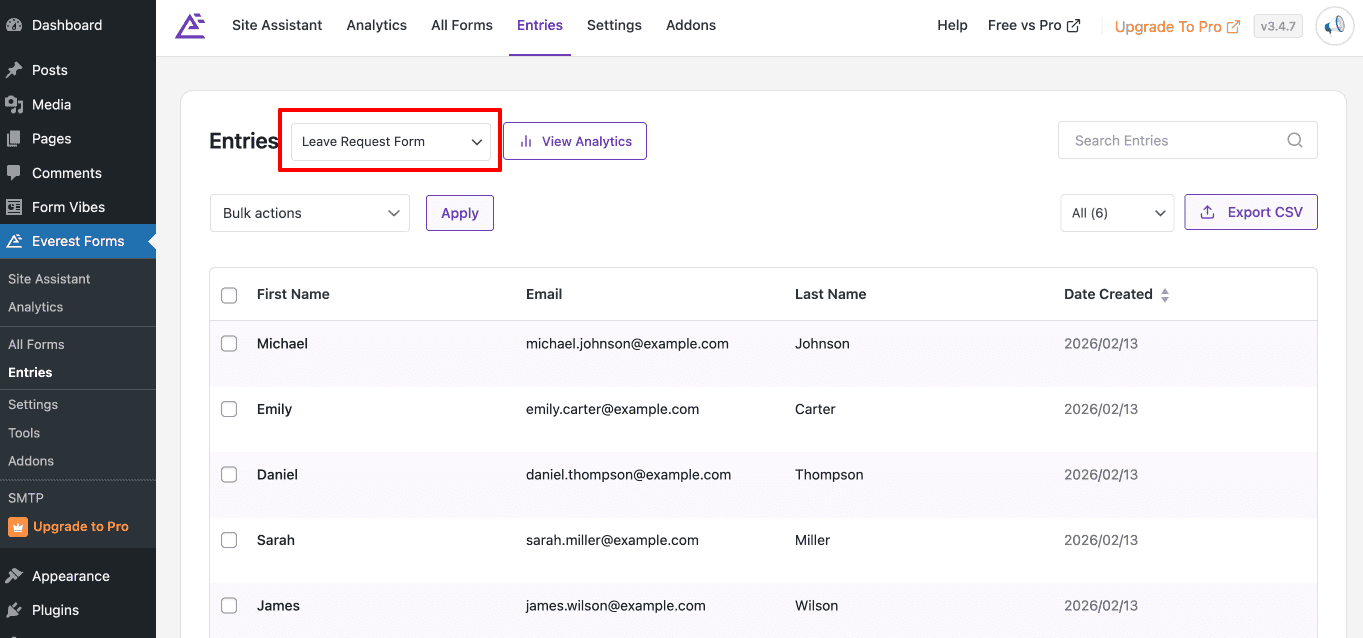
Notes: Everest Forms only supports basic form-level filtering in the native Entries page. For date range and advanced field-based filtering, you can use Form Vibes.
Need smarter filtering for Everest Forms submissions? Form Vibes adds free date range filters and advanced field-level filtering in Pro without changing your existing forms.
What’s the Best Way to Manage Spam in Everest Forms?
Publicly accessible forms attract spam. Everest Forms gives you direct control over spam entries from the Entries page without needing a separate spam plugin.
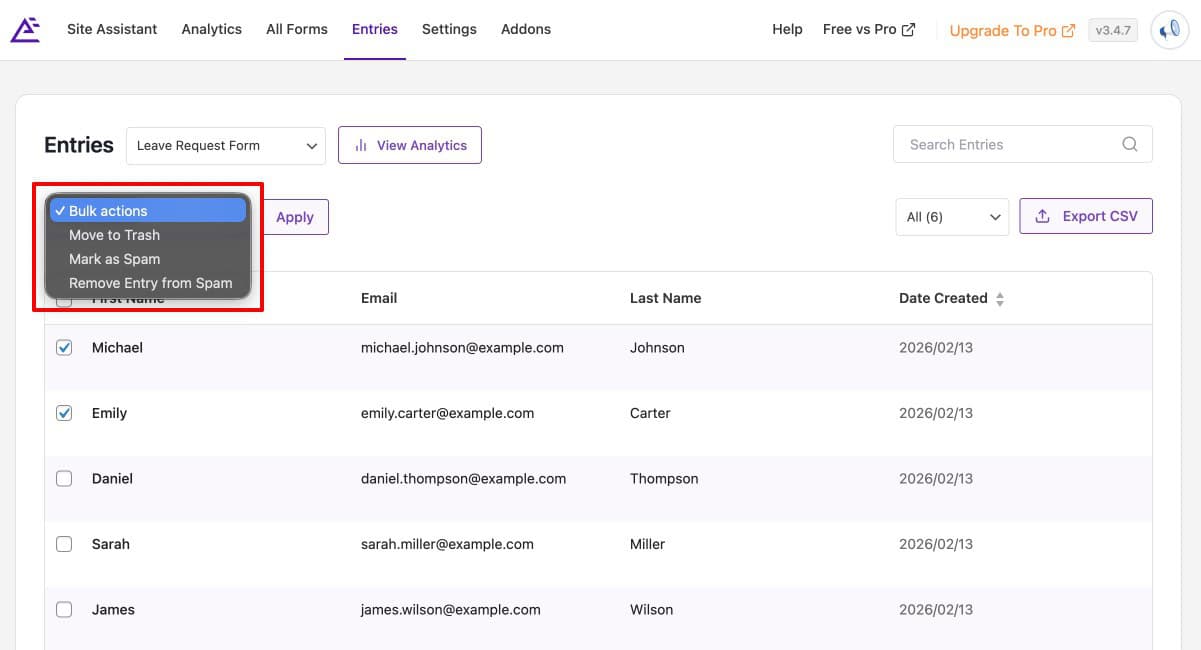
To mark a submission as spam, locate the entry in the list and choose the Mark as Spam option from its action controls. To handle multiple spam entries at once, select them using the row checkboxes and apply the Mark as Spam bulk action. Spam entries are moved out of the main entry list and into the Spam tab at the top of the Entries page, keeping your active submissions clean and organised.
How Do You Export Everest Forms Entries to CSV?
Go to Everest Forms > Entries, select the form whose entries you want to export using the form dropdown, then click the Export CSV button in the toolbar above the entry table. The CSV file downloads immediately and opens in Excel, Google Sheets, or any spreadsheet application. Each field appears as a column and each submission as a row.
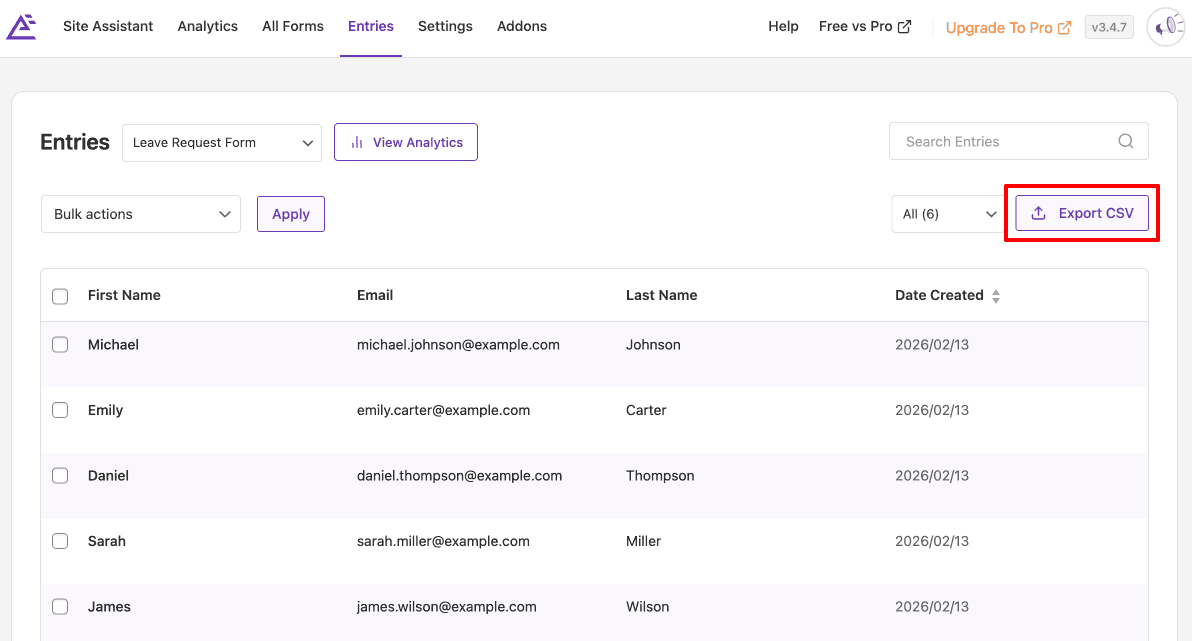
Use CSV export for creating submission backups, sharing data with clients or team members who do not have WordPress access, or importing entries into a CRM or reporting tool.
For a full walkthrough of importing and exporting Everest Forms data including form structures and entry migration between sites, see the guide on how to import, export, and migrate Everest Forms in WordPress.
Tips: Manually exporting and uploading Everest Forms submissions to Google Sheets can quickly become repetitive. Form Vibes Pro automatically syncs submissions to Google Sheets in real time, so your data stays updated without extra work.
Where Can You Check Which Pages Use Your Everest Forms?
Before editing, replacing, or removing a form, it helps to know exactly where it is currently embedded on your site. Everest Forms makes this easy from the forms list.
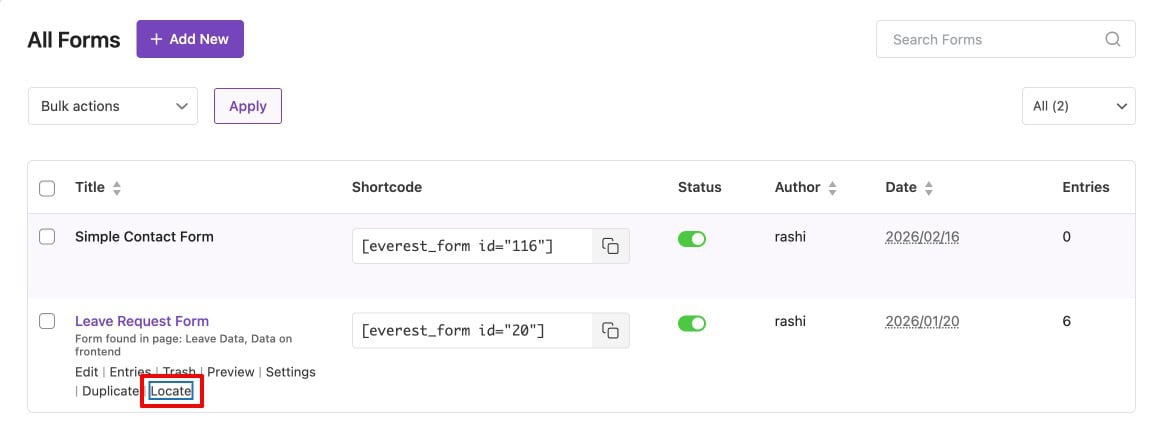
Go to Everest Forms > All Forms. Hover over the form you want to check. A set of action options appears beneath the form name. Click the usage option and Everest Forms shows you every page, post, and other location where that form is currently embedded.
Key Takeaway:
Always check form usage before making changes. A form you think is only on your contact page may be embedded in three or four other locations. The usage checker shows all of them in seconds, so no placement gets accidentally broken.
What Does Form Vibes Add That Everest Forms Does Not?
Everest Forms handles the essentials well – entry storage, starring, search, spam management, and CSV export. Everest Forms Pro adds analytics, read/unread status, and entry editing on top of that.
If you are already using Everest Forms and capturing submissions, here is what Form Vibes adds features that are not available in Everest Forms at any plan level.
Install Form Vibes from Plugins > Add New (search “Form Vibes”, install, activate). It connects to Everest Forms automatically – nothing in your existing setup needs to change.
Filter Submissions the Way You Actually Need To
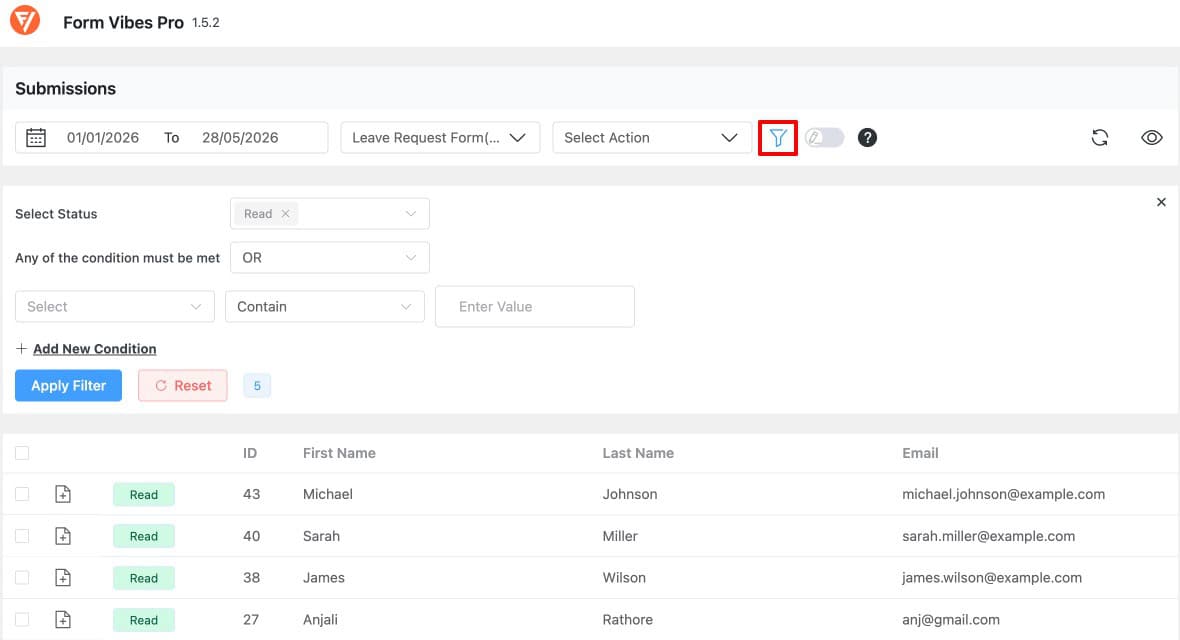
Everest Forms lets you switch between forms that is as far as its filtering goes. There is no way to filter by date, by what a visitor typed in a field, by where they submitted the form from, or by whether the entry has been reviewed.
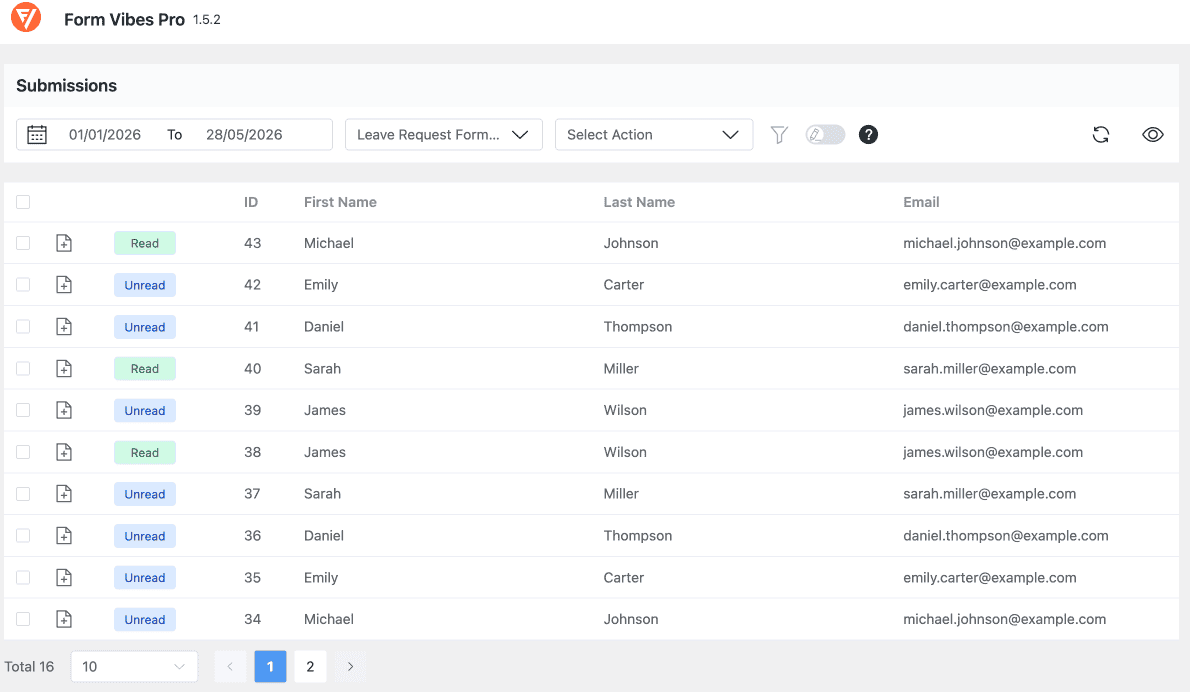
Form Vibes solves this by adding advanced filtering options on top of your Everest Forms data, including filters by date range, field values, submission status, and more.
A Single Dashboard for All Your Form Plugins
Everest Forms only shows its own entries. If your site runs Contact Form 7, WPForms, Elementor Forms, or any other form plugin alongside Everest Forms, those submissions live in completely separate places.
Form Vibes captures submissions from all nine supported form plugins and shows them in one unified dashboard. Switch between Everest Forms, Contact Form 7, WPForms, Gravity Forms, and others using a single dropdown – one login, one interface, every form on your site.
A Full Activity Log for Every Entry
Everest Forms has no record of what happens to a submission after it is saved. If a team member edits a field value, deletes an entry, or changes a status — there is nothing in Everest Forms that tells you it happened.
Form Vibes keeps a complete Event Log for every submission. Every edit, every deletion, every status change, every note added — all logged with a timestamp and the username of the person who made the change. If a lead goes missing, you know exactly what happened and when. This is a free Form Vibes feature.

Team Notes on Individual Entries
Everest Forms has no way to add internal comments to a submission. If someone on your team followed up with a lead, sent a quote, or booked a call that context lives in their inbox, not with the submission.
Form Vibes Pro lets you attach notes directly to any Everest Forms entry. Add something like “Spoke with client on 8th May — sending proposal by Friday” and it stays with the submission record, visible to everyone on your team with Form Vibes access. Each note is timestamped so the timeline is always clear.

Conclusion
Everest Forms comes with more entry management capability than most users realise. The search bar, starring system, spam tab, form usage checker, and CSV export are all built in and free, they just take a few minutes to discover.
Once you know those tools well, Form Vibes adds the layer that Everest Forms does not provide: analytics charts showing submission trends over time, a unified status workflow for teams managing entries across multiple form plugins, and a deletion audit trail that keeps everyone accountable.

Your Everest Forms submissions can do more
Your Everest Forms entries deserve more than a basic submission list. Form Vibes adds advanced filtering, activity logs, team notes, and Google Sheets sync – all while working alongside your existing Everest Forms setup.
Frequently Asked Questions
Common questions about Everest Form in WordPress.
Does Everest Forms save submissions to the database automatically?
Yes. Everest Forms stores every form submission automatically in the WordPress database from the first entry onwards. No configuration is needed. All submissions are accessible under Everest Forms > Entries in your WordPress admin immediately after being submitted.
How do I export Everest Forms entries to a spreadsheet?
Go to Everest Forms > Entries, select the form you want to export from the dropdown, and click the Export CSV button in the toolbar. The CSV file downloads immediately and opens directly in Excel or Google Sheets, with each form field as a column and each submission as a row.
Does Everest Forms Pro have built-in analytics for form submissions?
Yes. Everest Forms Pro includes an Entries Dashboard Analytics view showing total submissions, completed submissions, and incomplete submissions with bar chart, pie chart, and line graph options.
How is Form Vibes analytics different from Everest Forms Pro analytics?
Everest Forms Pro analytics covers submission trends and abandonment data for Everest Forms only. Form Vibes analytics shows daily, weekly, and monthly submission trends across every form plugin on your site in a single dashboard, covering Everest Forms alongside Contact Form 7, WPForms, Elementor Forms, and others simultaneously.
Can I manage Everest Forms submissions alongside entries from other form plugins?
Not within Everest Forms itself, it only shows its own entries. Form Vibes solves this by capturing submissions from all supported form plugins (Everest Forms, Contact Form 7, WPForms, Elementor Forms, Gravity Forms, Ninja Forms, Bricks Builder, Beaver Builder, and WS Form) and displaying them in a single submissions dashboard. Switch between plugins using the form dropdown without changing tools or screens.




Leave a Reply