How to Import, Export, and Migrate Everest Forms in WordPress
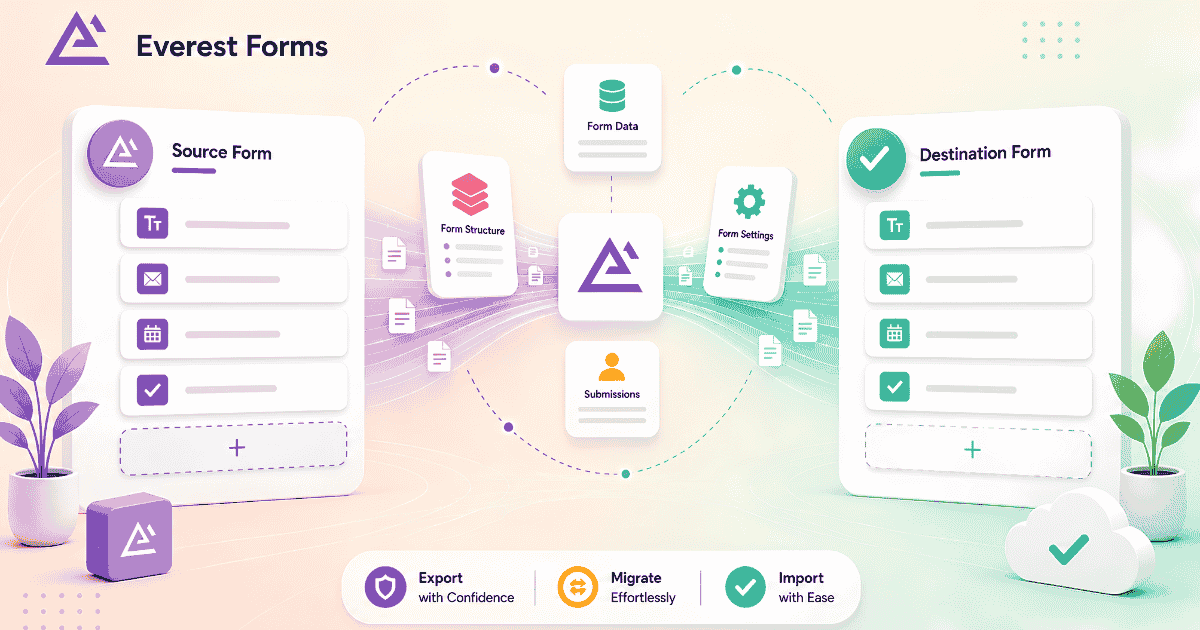
Moving forms between sites, creating backups before major updates, and switching from another form builder are routine needs for any WordPress site running Everest Forms. Everest Forms provides built-in tools for all of these tasks without requiring any third-party plugin.
This guide covers how to export forms as JSON files, import them on any Everest Forms installation, import form entries, and migrate existing forms from Contact Form 7 or WPForms using the built-in Form Migrator.
If you are new to Everest Forms and want to start with form creation and configuration first, see the complete guide on how to build and configure forms with Everest Forms.
Before You Start
Everest Forms installed and activated
For form migration: WPForms or Contact Form 7 installed on the source site
You have admin access to the WordPress dashboard
How Do You Export an Everest Form?
Exporting a form is useful when you want to create a backup, move a form to another WordPress site, or reuse the same form structure in a different project. In Everest Forms, forms are exported in JSON format.
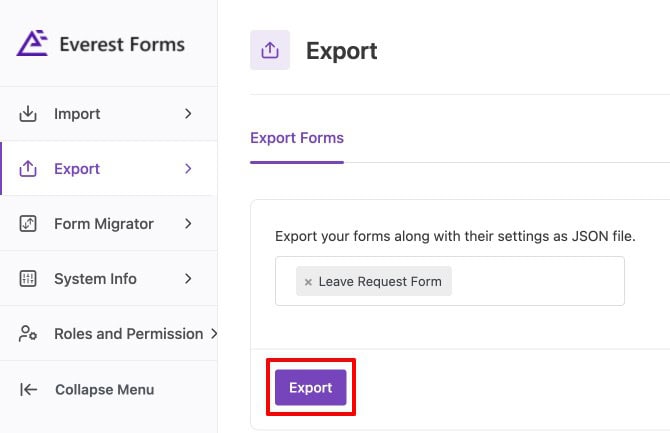
- Go to Everest Forms > Tools
- Click on the Export tab
- Select the form you want to export from the dropdown
- Click the export button
- Download the generated JSON file
The downloaded JSON file contains the complete form structure – all fields, settings, email notifications, and confirmation configuration. Store it safely as a backup or transfer it to another site.
Tips: Export your forms before making significant changes to field structure or settings. A JSON backup takes seconds and means you can restore the original form instantly if something goes wrong during editing.
How Do You Import an Everest Form?
If you have previously exported a form or received a JSON file from another site, importing it into Everest Forms is straightforward.
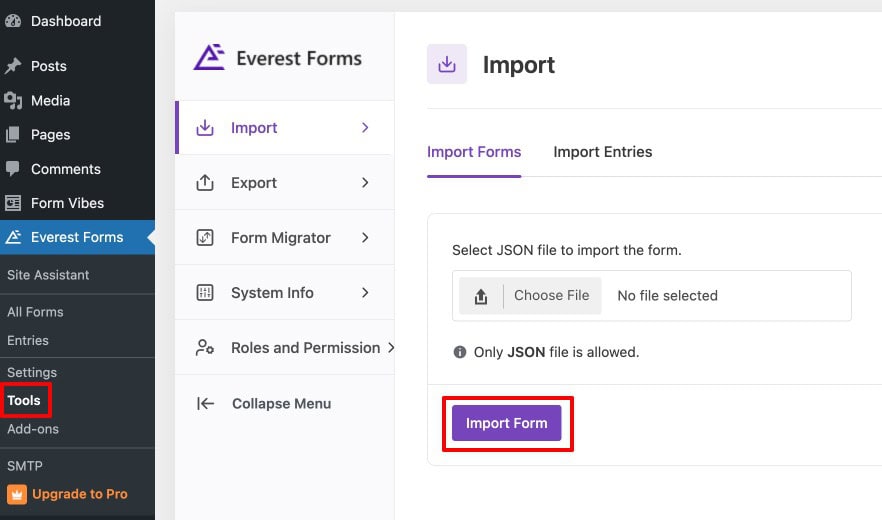
- Go to Everest Forms > Tools
- Click on the Import tab
- Upload the exported JSON file
- Click the import button to complete the process
Once imported, the form appears under Everest Forms > All Forms. You can then edit the form, review its settings, and publish it as needed. All original field configuration, email settings, and confirmation settings from the exported form are preserved on import.
Notes: Importing a form brings across the form structure only – fields, settings, and notifications. Submission entries are not included in the JSON export. To move entries between sites, use the entry import process described in the next section.
How Do You Import Form Entries in Everest Forms?
In addition to importing form structures, Everest Forms allows you to import form entries from a CSV file.
There is one important prerequisite: you must import the form before importing its entries. Entries can only be mapped correctly if the corresponding form already exists in Everest Forms.
Steps to Import Entries
- Go to Everest Forms > Tools > Form Migrator
- Confirm the form has already been imported and exists under Everest Forms > All Forms
- Locate the option to import entries
- Upload the submission CSV file exported from Everest Forms > Entries
- Click the Map CSV button
Once the import process is completed, the entries are available under Everest Forms > Entries
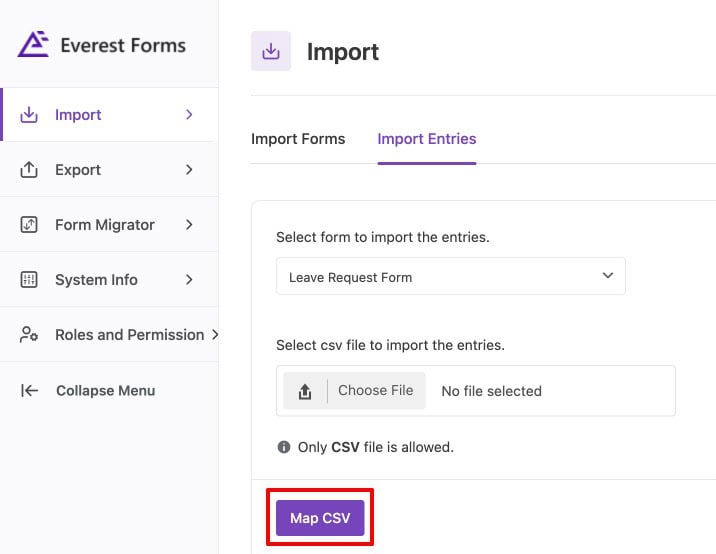
Important: The entry import tool only accepts CSV files exported directly from Everest Forms. CSVs from other form plugins or spreadsheet tools with different column structures will not map correctly. Always use the native export from Everest Forms → Entries as the source file.
How Do You Migrate Forms from Other Plugins to Everest Forms?
Everest Forms includes a Form Migrator feature that allows you to bring existing forms from other supported plugins directly into Everest Forms without rebuilding them manually. Currently, you can migrate forms from WPForms and Contact Form 7.
This is useful when you are switching from another form builder, want to consolidate all forms under Everest Forms, or need to move existing forms without recreating every field from scratch.
To migrate a form:
- Go to the Form Migrator settings
- Click the dropdown to view supported external form plugins
- If a supported plugin is not installed on your site, its status shows as “Not Installed”
- Select the installed plugin you want to migrate from – for example WPForms or Contact Form 7
- A list of forms created with that plugin appears
- Select the forms you want to migrate and click Import Selected Forms for bulk import, or click Import Form beside an individual form to import it separately
Once the import process is complete, the migrated forms appear under Everest Forms > All Forms.
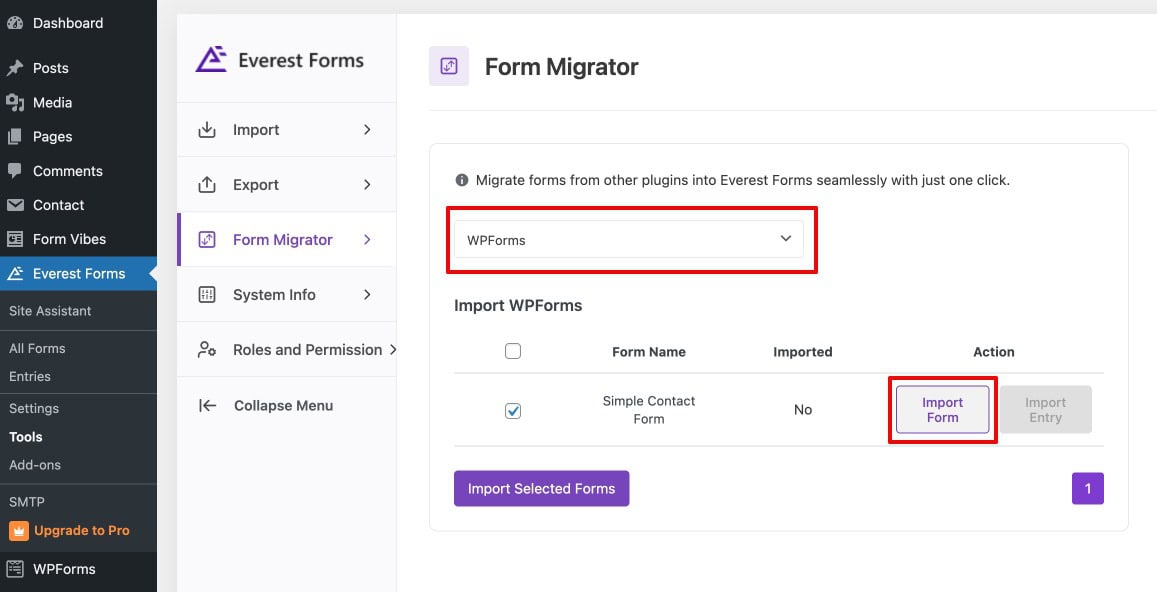
Notes: If a supported plugin is not installed on your site, its status shows as “Not Installed” in the migrator dropdown. The plugin must be active on the same site for migration to work.
Importing Form Entries After Migration
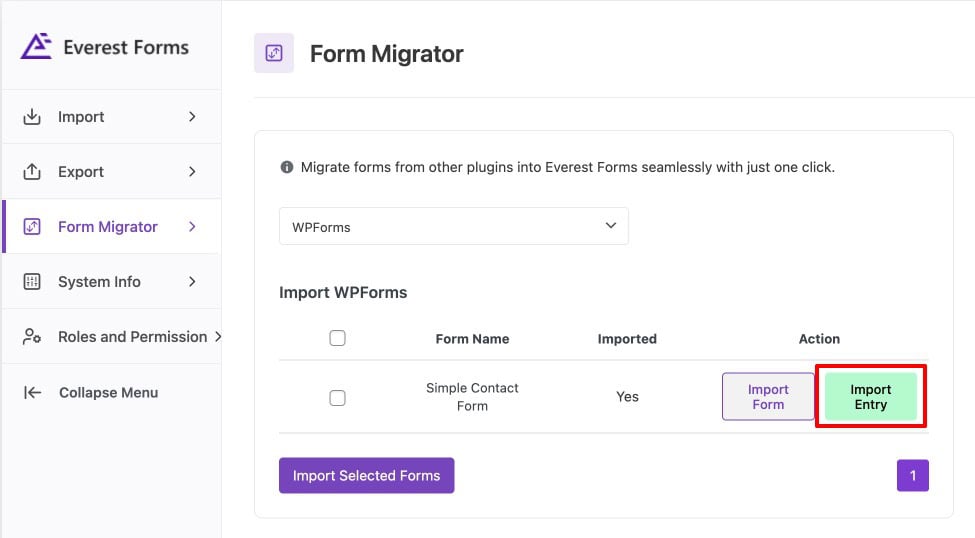
The option to import entries for migrated forms becomes available only after the form has been successfully migrated. To import entries after migration:
- First, import the form using the Form Migrator as described above
- Return to the Form Migrator section
- Use the Import Entry option to import the corresponding entries for that migrated form
Migrating to Everest Forms and want to keep all your existing submissions in one place? Form Vibes captures Everest Forms entries alongside any other form plugin you run — so nothing gets separated during or after a migration.
What Happens to Submission Data After a Migration?
Moving forms between sites or switching from another plugin handles the form structure well. What it does not address is ongoing submission management once the migrated forms are live and collecting new entries.
Everest Forms stores all submissions under Everest Forms → Entries — viewable, filterable by date, and exportable to CSV. That works well for basic submission management.
However, if your website uses multiple form plugins during or after migration — for example, keeping some WPForms forms active while gradually switching to Everest Forms – submissions remain separated across different dashboards.
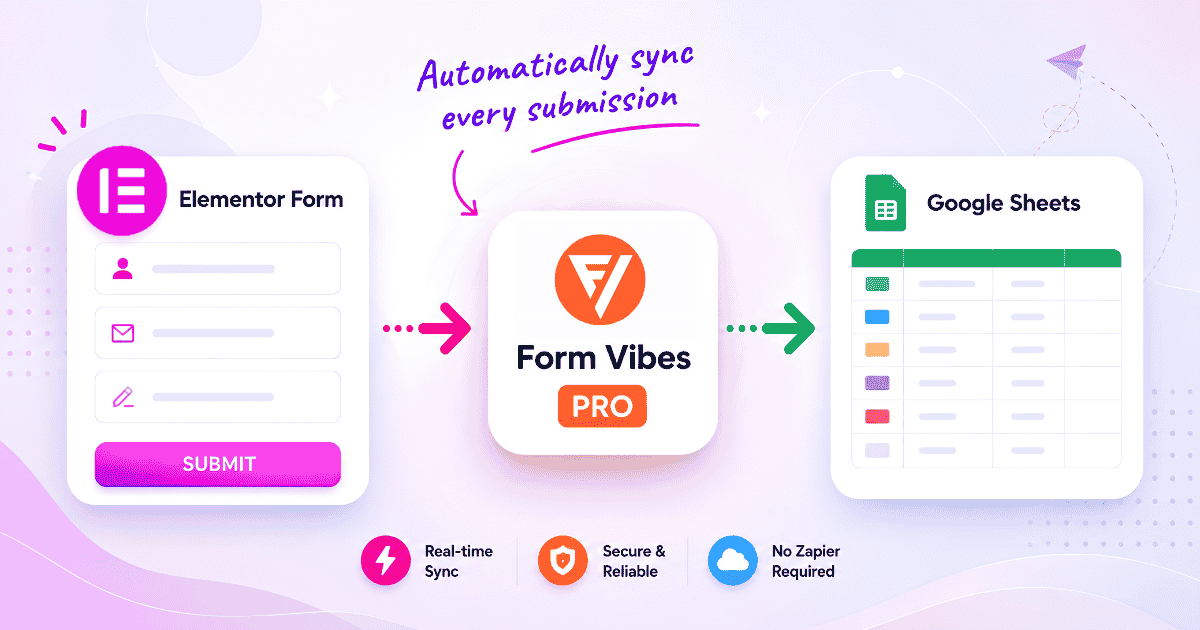
Form Vibes helps solve this by capturing submissions from all supported form plugins into one centralized dashboard.
It also adds submission analytics (daily, weekly, monthly charts), an Event Log tracking every change made to every entry, and a WordPress admin dashboard widget giving you a quick submission count every time you log in.
For a complete walkthrough of managing Everest Forms submissions, see: How to Manage Everest Forms Submissions.
Key Takeaway:
The migration tools move your forms. Form Vibes manages what comes after, making sure every submission from every form plugin on the new site is visible, filterable, and exportable in one place.
Conclusion
Understanding how to import, export, and migrate forms in Everest Forms gives you full control over your form data across sites, environments, and form plugins. Whether you are creating backups, transferring forms to a new installation, or moving existing forms from Contact Form 7 or WPForms, the built-in tools handle each task without additional plugins.
For exporting submission data rather than form structure, Form Vibes Pro’s Export Profiles let you save a reusable submission export configuration – form selection, date range, field filters, and column selection, and re-run it in one click any time without reconfiguring from scratch. See the complete guide on how to export WordPress form submissions with Form Vibes for full details.

Keep your submission data organised after every migration
After migrating forms, Form Vibes helps you centralize submissions, monitor activity, and streamline workflows across your WordPress website.
Frequently Asked Questions
Common questions about Importing, Exporting, and Migrating Everest Forms.
What file format does Everest Forms use for exporting forms?
Everest Forms exports form structures as JSON files. The JSON file contains the complete form configuration including all fields, field settings, email notification setup, and confirmation options. This format can be imported on any WordPress site running Everest Forms and is suitable for creating backups or transferring form structures between sites.
Can I import an Everest Forms export to a different WordPress site?
Yes. The JSON file generated by the Everest Forms export tool can be imported on any WordPress site with Everest Forms installed. Go to Everest Forms > Tools > Import, upload the JSON file, and click Import. The form appears in the forms list with all its original settings intact and ready to edit or publish.
Which plugins can I migrate forms from using Everest Forms?
The Everest Forms Form Migrator currently supports migrating forms from WPForms and Contact Form 7. If a supported plugin is not installed on your site, its status shows as “Not Installed” in the migrator dropdown. Migrated forms appear under Everest Forms > All Forms after the import process completes successfully.
Do form entries migrate automatically when I migrate a form using the Form Migrator?
No. Form entries are not migrated automatically alongside the form structure. After a form has been successfully migrated, you need to use the separate Import Entry option in the Form Migrator to import the corresponding entries. The form must be imported first, entries cannot be imported without the corresponding form already existing in Everest Forms.
Can I export Everest Forms submission entries, not just the form structure?
Yes. To export submission entries, go to Everest Forms > Entries, select the relevant form, and click the Export CSV button. This generates a CSV file of the entries that can be opened in Excel or Google Sheets. The export/import tools under Everest Forms > Tools handle form structure migration, entry export and import are managed from the Entries section.




Leave a Reply