Forms play an important role in collecting valuable information from website visitors. Whether it is a contact form, lead generation form, feedback form, or inquiry form, every submission can contribute to business growth.
Each form entry represents a potential opportunity. Missing even a single submission could mean losing a potential lead, customer inquiry, or important feedback.
Most form plugins send email notifications whenever a form is submitted. While this works for small websites, relying entirely on email notifications is not always reliable.
Several issues can occur when managing submissions only through email, such as:
- Important emails getting buried in your inbox
- Email delivery failures due to server issues
- Losing access to email accounts
- Difficulty organizing submissions in one place
- No simple way to export data for analysis
Because of these limitations, many website owners prefer storing form submissions directly in the database and managing them through a centralized dashboard.
This is where Form Vibes becomes useful.
Table of Contents
What is Form Vibes?
Form Vibes is a WordPress plugin designed to capture, store, and manage form submissions efficiently.
Once installed, the plugin automatically saves form entries in the WordPress database and provides tools to organize, export, and analyze the collected data.
Form Vibes supports multiple popular form plugins, including Elementor Forms, Contact Form 7, WS Form, Gravity Forms, Everest Forms, and more.
In addition to storing submissions, the plugin provides powerful features such as: Submission filtering, CSV export functionality, Analytics reports, Submission management tools, etc.
One particularly useful feature is Export Profiles, which allows you to export form data quickly using predefined settings.
Export Profile Feature in Form Vibes
The Export Profile feature available in Form Vibes Pro allows you to export form submissions using predefined filters and conditions.
Instead of configuring export settings every time, you can create an export profile once and reuse it whenever needed.
This feature allows you to:
- Filter submissions based on conditions
- Select specific form fields to export
- Download data in CSV format
- Quickly export submissions using saved configurations
Once an export profile is created, it saves your settings so you can generate exports instantly in the future.
Steps to Export & Manage Submissions in Form Vibes
Exporting and managing form submissions in Form Vibes is simple once your form starts collecting entries. Follow the steps below to create an export profile and export form submissions quickly.
Step 1: Create a Form to Capture Submissions
Before exporting data, you must first collect submissions.
Create a form using any supported form plugin and place it on your website. Visitors can fill out the form and submit their information.

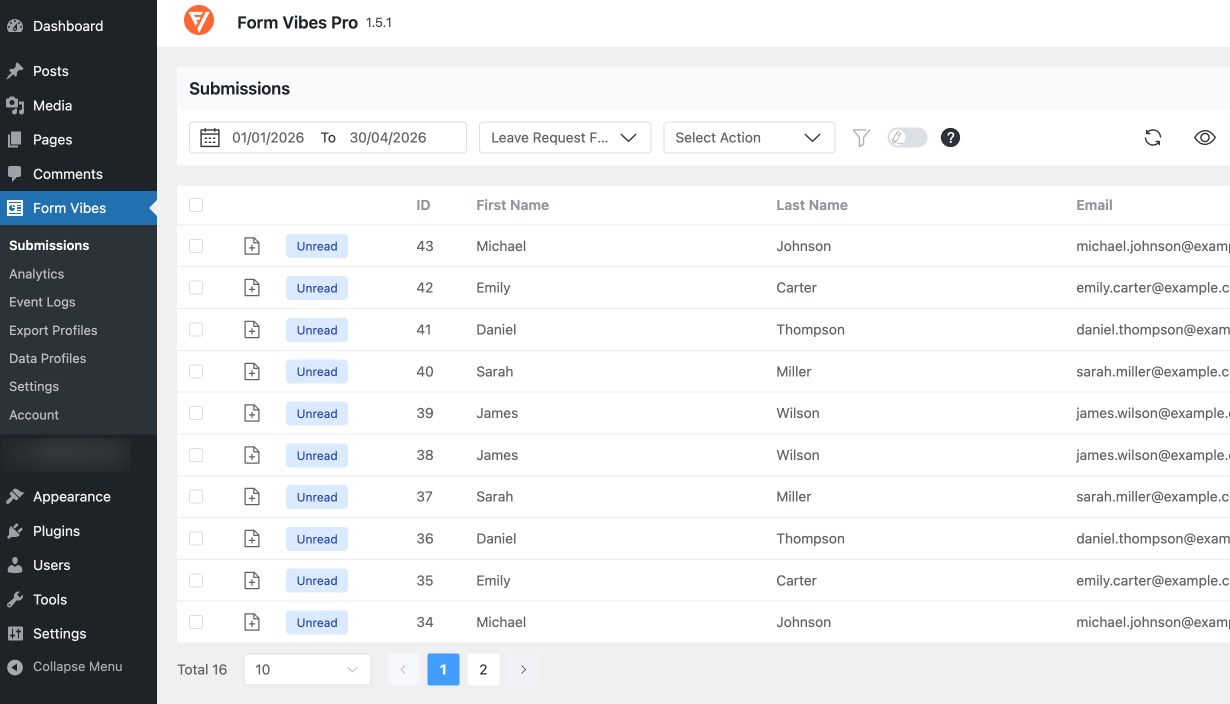
After users submit the form, the captured entries will appear in the Form Vibes dashboard. To view the submissions, Go to Form Vibes → Submissions.
Here you will see all submitted entries displayed in a table format.
Step 2: Create an Export Profile
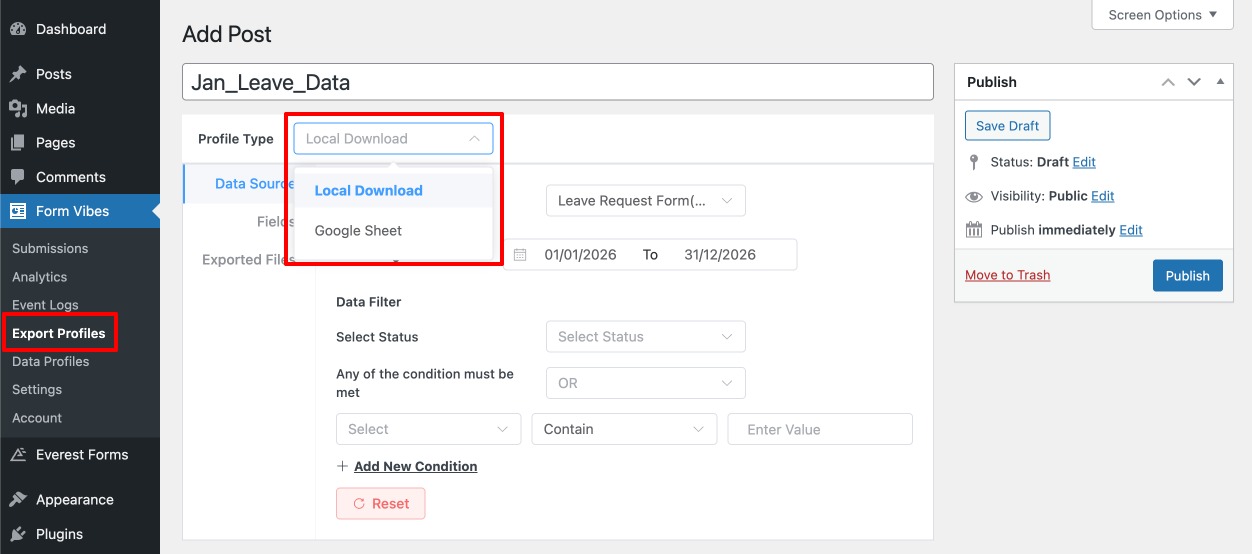
To export form submissions, navigate to Form Vibes → Export Profiles. Then click Add New to create a new export profile.
At the top of the settings page, you will see the Profile Type option. This allows you to choose how you want to export or sync your form submissions.
You can select between the following options:
- Local Download: Exports form submissions as a CSV file that can be downloaded directly to your computer.
- Google Sheet: Automatically sends form submission data to a connected Google Sheet for easier data tracking and collaboration.
After selecting the profile type, you can continue configuring the export settings using the available tabs such as Data Source, Fields, and Exported Files.
Data Source
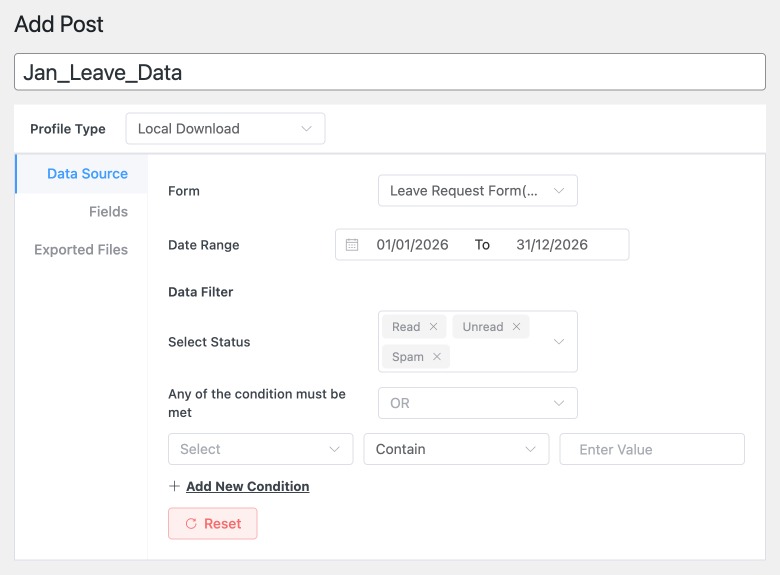
The Data Source tab allows you to choose which form submissions you want to export.
Here you can configure the following settings:
Select Form
Use the Form dropdown to choose the form whose data you want to export. All available forms from supported plugins will appear in this list.
Set Date Range
You can also filter submissions based on time periods, such as: Specific date range or Custom period.
Apply Filter Conditions
Form Vibes allows you to apply advanced filters to export only specific records.
For example, you can export submissions where:
- A field contains a specific value
- A submission meets certain conditions
Multiple conditions can be added using the Add New Condition option.
Fields
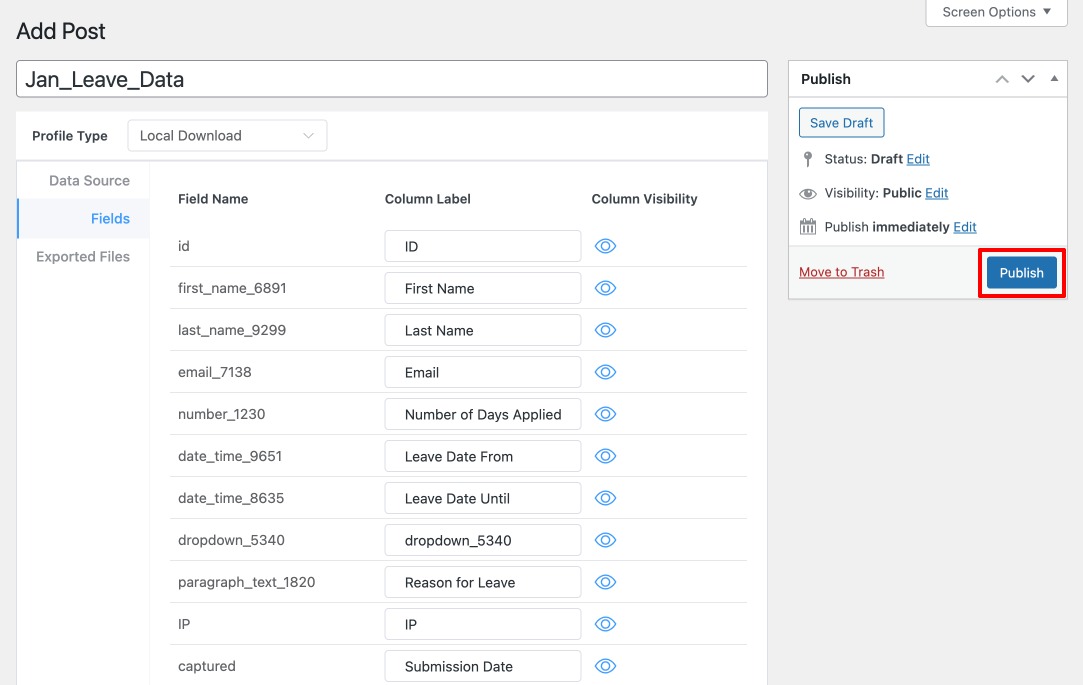
The Fields tab allows you to select which form fields should appear in the exported file. All form fields will be listed here, and you can toggle the visibility of each field.
This allows you to export only the relevant information while excluding unnecessary fields. After configuring the fields, click Publish to save the export profile.
Export Files
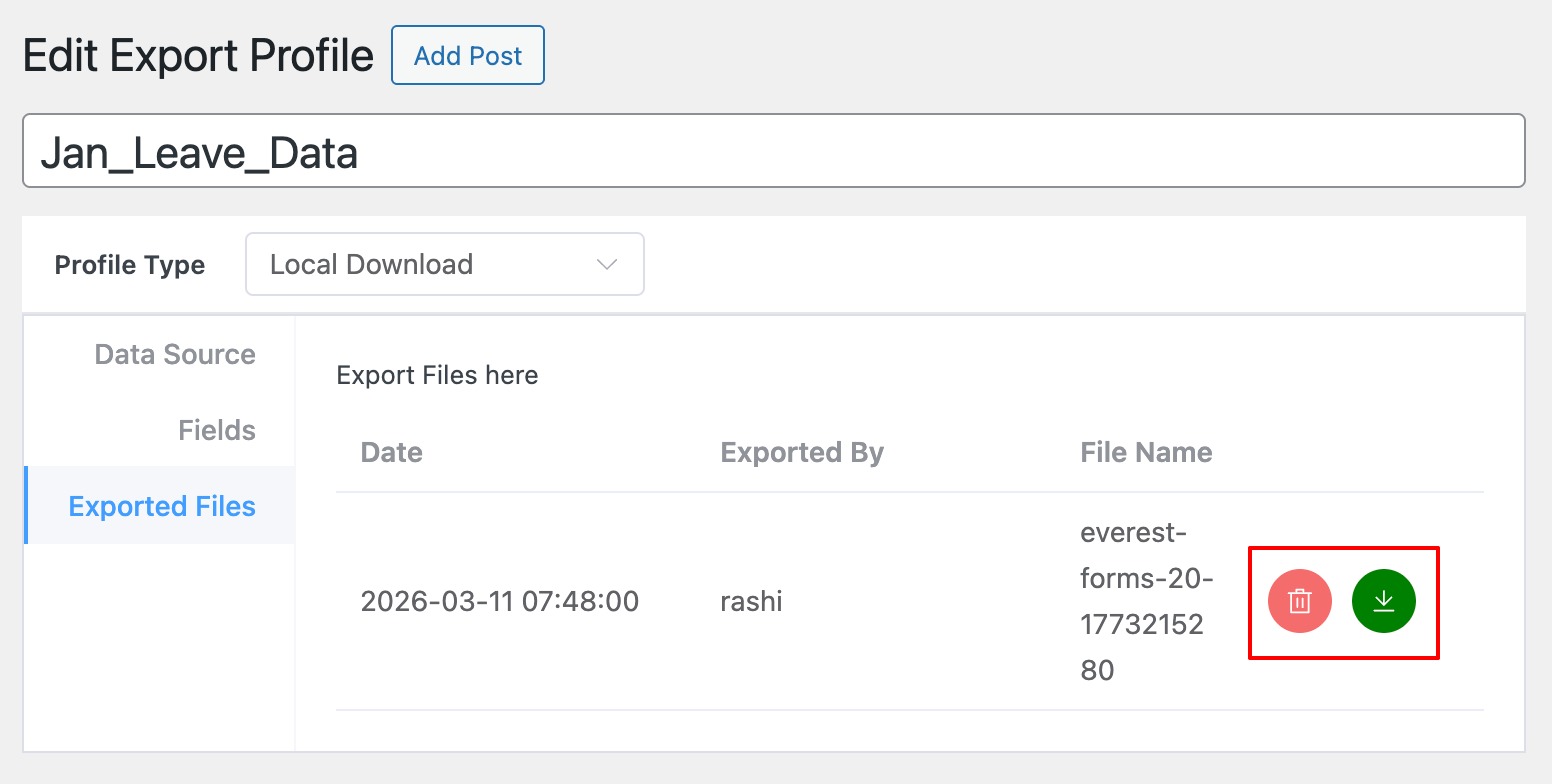
The Export Files tab displays a list of previously exported files.
From this section, you can:
- Download exported CSV files
- Delete unwanted export files
- Manage your export history
How to Download Exported Submissions
Once your Export Profile is created, you can generate and download the submission data.
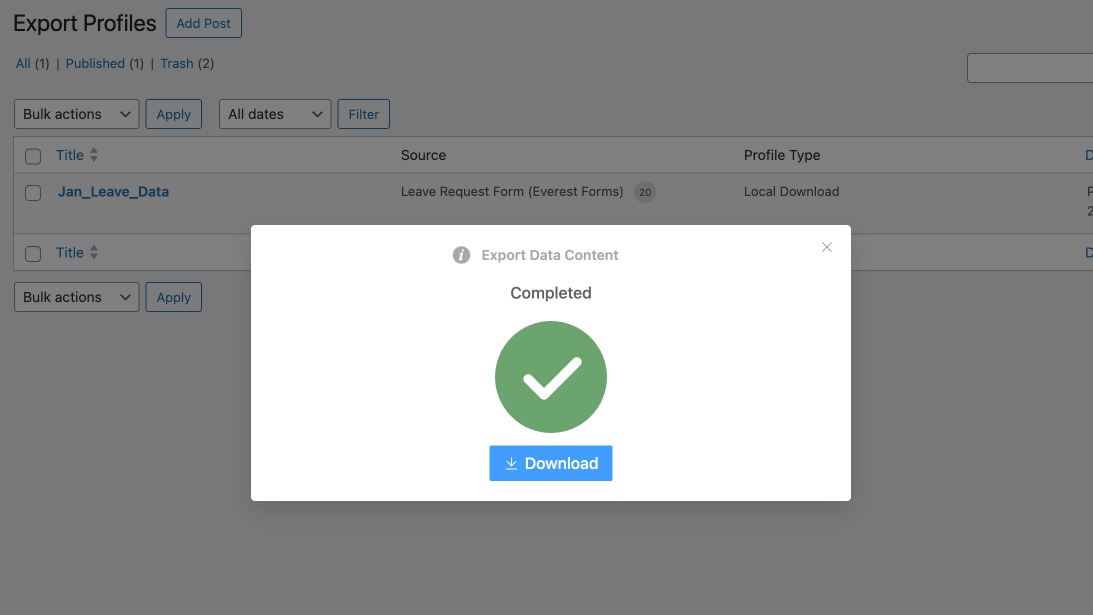
If you are exporting this file submissions for the first time, return to the Export Profile settings page and click the Export Data button.

A small popup window will appear.
Click Download File to generate and download the export file. The submissions will be downloaded in CSV format, which can be opened in tools like Excel or Google Sheets for further analysis.
Conclusion
Managing form submissions efficiently is just as important as collecting them. Relying solely on email notifications can make it difficult to organize, analyze, and export form data.
Using a submission manager like Form Vibes helps store entries safely in the database and provides powerful tools to manage and export submissions quickly.
Features like Export Profiles make it easy to generate filtered export files, helping website owners analyze their data and keep organized records of form submissions.
FAQs on Exporting & Managing Submissions with Form Vibes
How can I export form submissions?
You can export form submissions using plugins like Form Vibes, which allow you to download collected entries as CSV files.
What is an Export Profile in Form Vibes?
An Export Profile allows you to save export settings such as filters, fields, and conditions so you can quickly generate export files without reconfiguring the settings.
Can I export submissions from specific forms only?
Yes. Form Vibes allows you to select a specific form and export only the submissions related to that form.
Can I filter submissions before exporting them?
Yes. You can apply multiple filter conditions and date ranges to export only the required submissions.