How to Migrate Contact Form 7 to Everest Forms Without Losing Your Entries
Contact Form 7 has stopped adding new features. Its creator, Takayuki Miyoshi, announced the feature freeze at WordCamp Asia 2026, and version 6.2 is the last release to bring new functionality. Your existing forms keep working and security fixes continue, but the plugin won’t grow any further.
For many site owners, that’s the moment to look ahead. If you want to build forms by dragging fields into place, or keep every submission inside WordPress instead of only in your inbox, it makes sense to migrate Contact Form 7 to Everest Forms.
Moving the form is the easy part, because Everest Forms’ Form Migrator brings it across in a few clicks. The enquiries you’ve already collected don’t come with it. This guide shows you how to move both: the form with the Form Migrator, and your old entries with Form Vibes, in an order that keeps every submission within reach.
What Does the Contact Form 7 Feature Freeze Mean for Your Forms?
The Contact Form 7 feature freeze means your forms keep working, but new features aren’t planned. In his own blog post, Miyoshi explains that he doesn’t plan to build version 6.3 or later, which makes 6.2 the last release with new functionality.
What continues:
- Your existing forms keep collecting submissions
- Critical security fixes
- Critical bug fixes
What stops:
- New features and improvements
- Updates that expand what Contact Form 7 can do
Why Do Site Owners Migrate Contact Form 7 to Everest Forms?
Site owners usually migrate Contact Form 7 to Everest Forms when they want a form plugin that’s still growing, with a visual way to build forms and a place to see submissions inside WordPress. With Contact Form 7’s features now frozen, those needs won’t be met by future updates.
Here’s what site owners usually look for when they make the move:
- A plugin that keeps growing. Everest Forms is still adding features, so your forms can take on new jobs as your site grows.
- Drag-and-drop form building. Add, arrange, and set up fields visually, and see the form take shape as you build it.
- Submissions saved inside WordPress. Everest Forms keeps every submission in its own Entries screen, so past enquiries are always a click away in your dashboard.
- Multi-column layouts. Place related fields side by side, like first and last name, so longer forms stay compact and easy to scan.
Everest Forms offers plenty more, from form templates to add-ons, and its features page covers the full list.
Neither approach is wrong. Contact Form 7 keeps things simple by design, and plenty of sites never need more. If your forms have grown, though, a visual builder can make them easier to manage.
Whatever your reason to switch from Contact Form 7, the move has two paths: one for the form, and one for its entries.
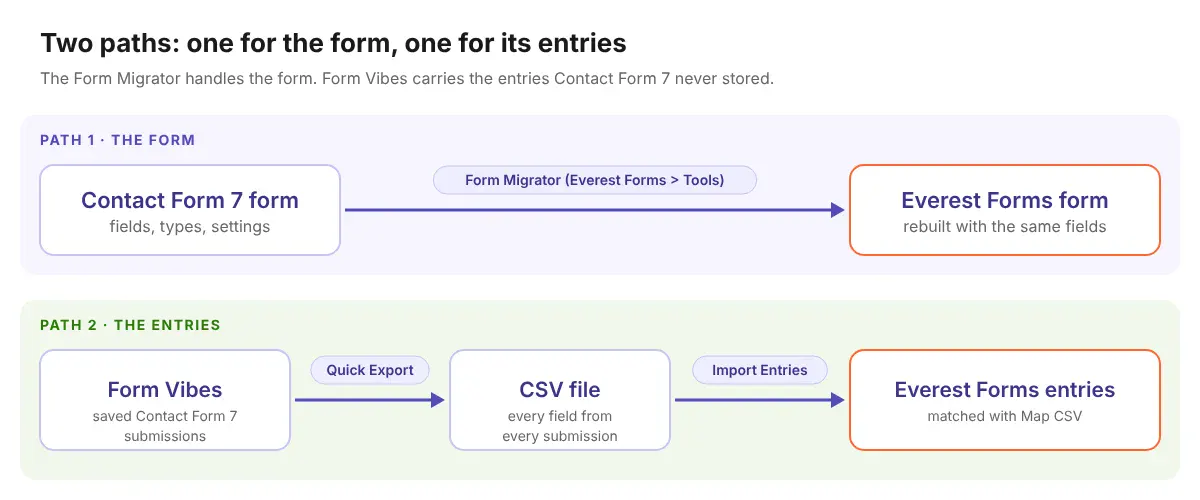
Here’s what each path covers, and what needs your attention along the way:
| Part of your form | Comes across with the Form Migrator? | How to handle it |
|---|---|---|
| The form and its fields | Yes | Form Migrator |
| Field types and required fields | Yes | Form Migrator |
| Email notifications, confirmation message, spam protection | Check after migrating | Review in the new form’s settings |
| Past entries | No | Export from Form Vibes, then import into Everest Forms |
Key Takeaway:
The Form Migrator moves your form. Your past entries need a separate step through Form Vibes, because Contact Form 7 never stored them in WordPress.
Before You Start
Contact Form 7 installed and active
Form Vibes installed, with your Contact Form 7 entries showing in its dashboard
Everest Forms installed and activated (new to it? Our Everest Forms guide covers the basics)
A recent backup of your site
Not saving your Contact Form 7 submissions yet? Form Vibes saves every new Contact Form 7 submission inside WordPress, free. Set it up before you migrate, so every enquiry that arrives while you switch is kept and ready to bring across.
How Do You Migrate a Contact Form 7 Form to Everest Forms?
You move a Contact Form 7 form with the Form Migrator, a tool built into Everest Forms. The Form Migrator reads your existing Contact Form 7 forms and rebuilds them in the Everest Forms builder, which saves you from recreating every field by hand.
Rebuilding by hand is where small mistakes creep in. A required field stops being required, a dropdown loses an option, or a label changes slightly. The Form Migrator copies the structure for you, so the new form matches the one your visitors already know.
1
In your WordPress dashboard, go to Everest Forms > Tools and open the Form Migrator tab.
2
Choose Contact Form 7 from the list of form plugins. Contact Form 7 needs to be active to appear here.
3
Select the form you want to move and click the Import Form button.
When the import finishes, open the new form in the Everest Forms builder and compare it with the original. Field labels, field types, and required fields carry across from Contact Form 7, so a quick check of the fields is usually all they need.
Note: If you also want to move forms between Everest Forms sites, our guide to importing, exporting, and migrating Everest Forms covers that side.
Which Form Settings Should You Check After Migrating?
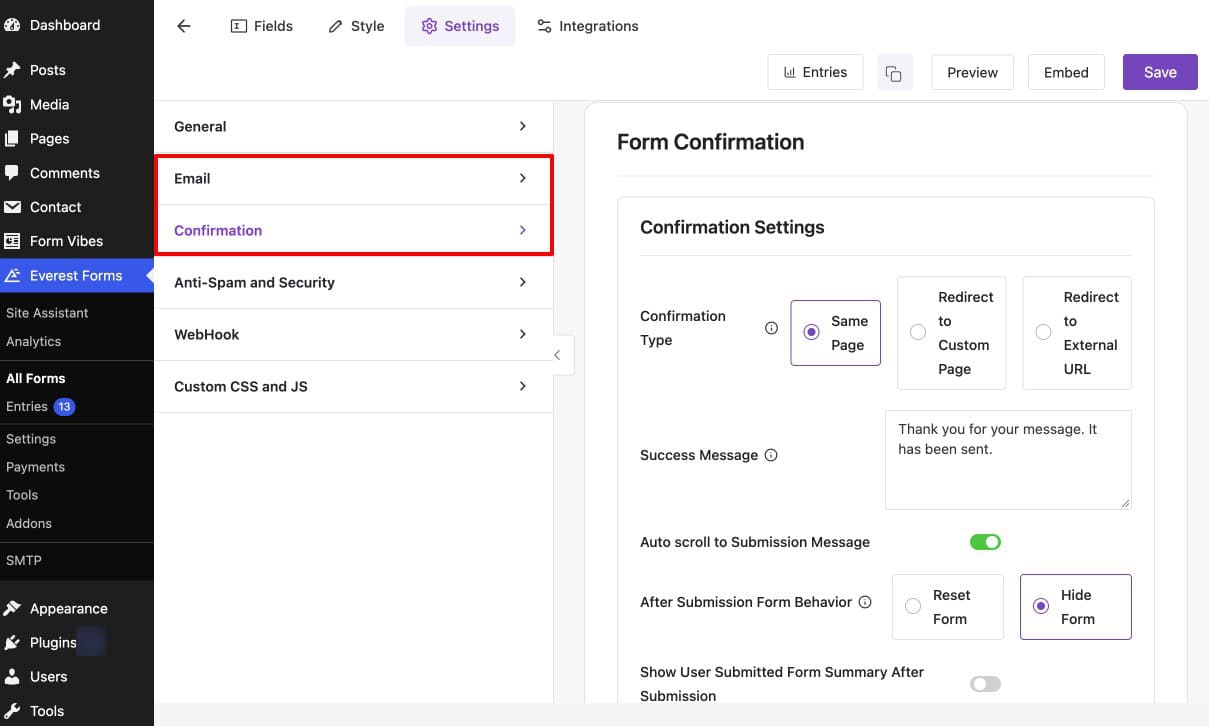
Check the new form’s email notifications, confirmation message, and spam protection before it goes live. In both plugins, these settings live separately from the fields, so a form can look identical in the builder and still behave differently once someone submits it.
Start with the email notifications, because they decide whether enquiries actually reach you. In the Everest Forms builder, open Settings > Email and compare who receives the notification email, and what its subject line says, with your Contact Form 7 setup. If the recipient is wrong or missing, new enquiries could go unnoticed after the switch.
Next, open Settings > Confirmation and check the message visitors see after they submit. Make sure it still says what you want your visitors to read. Then check whether the form has the same spam protection your Contact Form 7 form had, so the new form doesn’t open the door to junk submissions.
If anything is missing, set it up in Everest Forms now, while Contact Form 7 is still handling your live form. Once the form looks and behaves the way it should, the next job is its entries list, which is still empty.
How Do You Export Your Old Contact Form 7 Entries?
You export your old Contact Form 7 entries from Form Vibes. Contact Form 7 doesn’t store submissions, so it has no entries screen and nothing for the Form Migrator to pick up. Form Vibes has been saving each submission, so you can export them all as a CSV file in one go.
That’s why your form arrived in Everest Forms with an empty entries list, and why moving the form alone isn’t enough.
1
Open Form Vibes in your WordPress dashboard.
2
Choose your Contact Form 7 form from the form dropdown.
3
Look through the entries to confirm everything you expect is there.
4
Click Quick Export, below the dropdown, to download the entries as a CSV file.
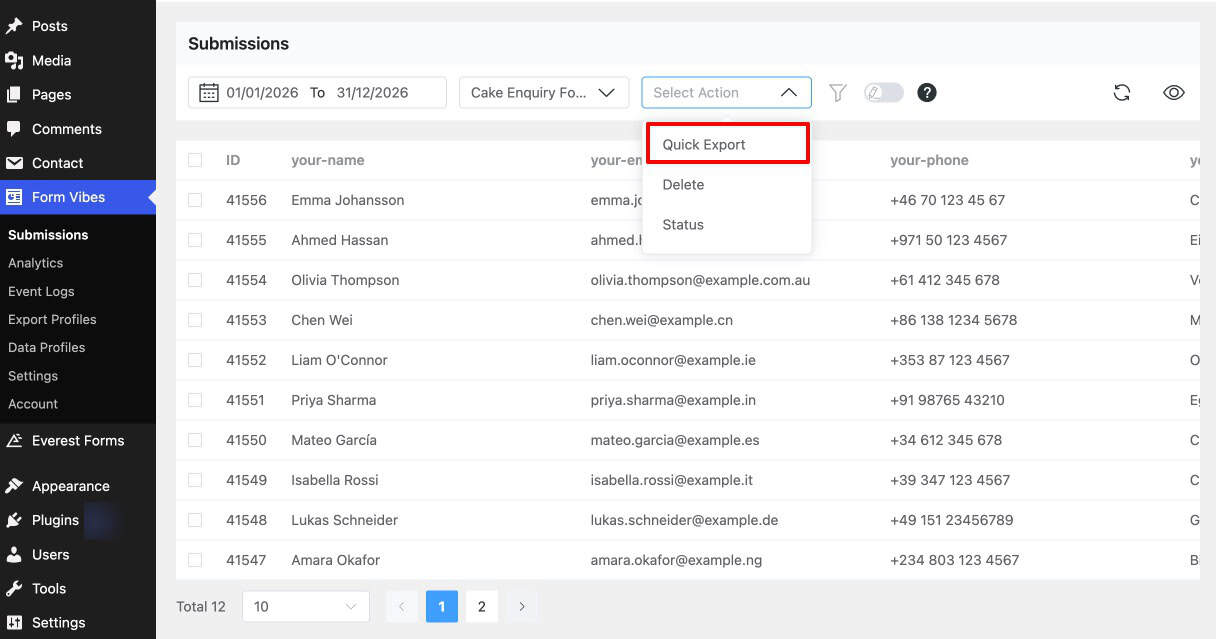
Keep this CSV somewhere safe, even after the import. It holds every field from every saved submission, including any that don’t carry across in the next step, so it works as your complete backup. With the CSV saved, your entries are ready to go into the new form.
How Do You Import Contact Form 7 Entries into Everest Forms?
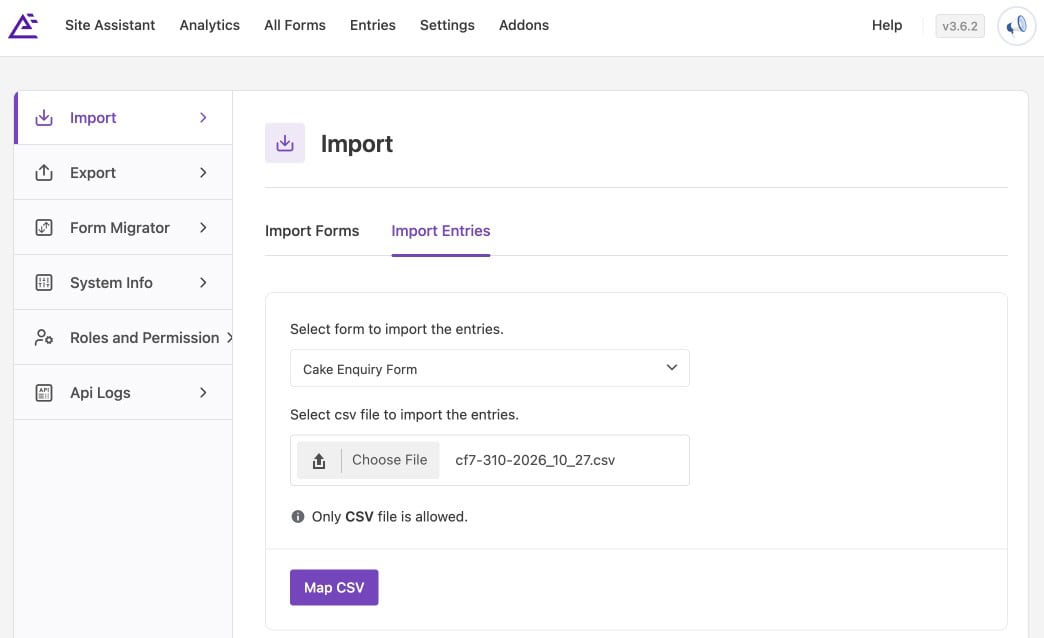
You import Contact Form 7 entries into Everest Forms with import entry settings. You upload the CSV you exported from Form Vibes, match each column to a field in the migrated form, and Everest Forms adds the entries to that form.
1
In Everest Forms, open the import screen and choose Import Entries.
2
Select the form you migrated earlier.
3
Upload the CSV file you exported from Form Vibes.
4
Click Map CSV and match each column to its field, then run the import.
The mapping screen is where the import does its real work. On one side you’ll see the columns from your CSV, named after your Contact Form 7 fields. Next to each one, you pick the matching field from your new Everest Forms form. Once you’ve mapped all the fields, click the Import Entries button.
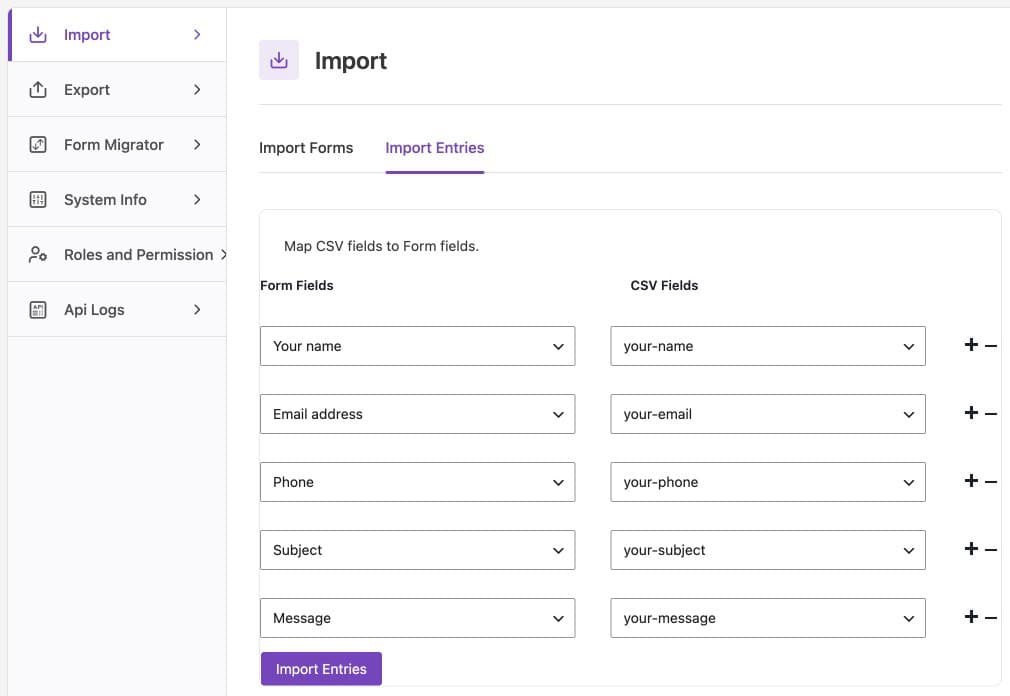
Your entries are now in Everest Forms.
Important: Don’t deactivate Contact Form 7 before you’ve exported its entries from Form Vibes. While Contact Form 7 is inactive, those entries won’t show in Form Vibes.
What Does Your Form Data Look Like After the Switch?
After the switch, your old and new entries sit together in Everest Forms. The migrated form’s Entries screen holds the entries you imported along with every new submission. In Form Vibes, the form appears under the Everest Forms section with the same form name, and it collects every new submission from the moment the switch is done.
The Contact Form 7 section in Form Vibes disappears from view once you deactivate Contact Form 7. Your old entries stay within reach in two places: the Everest Forms Entries screen, where you imported them, and the CSV you exported from Form Vibes, which remains the complete record of every saved submission.
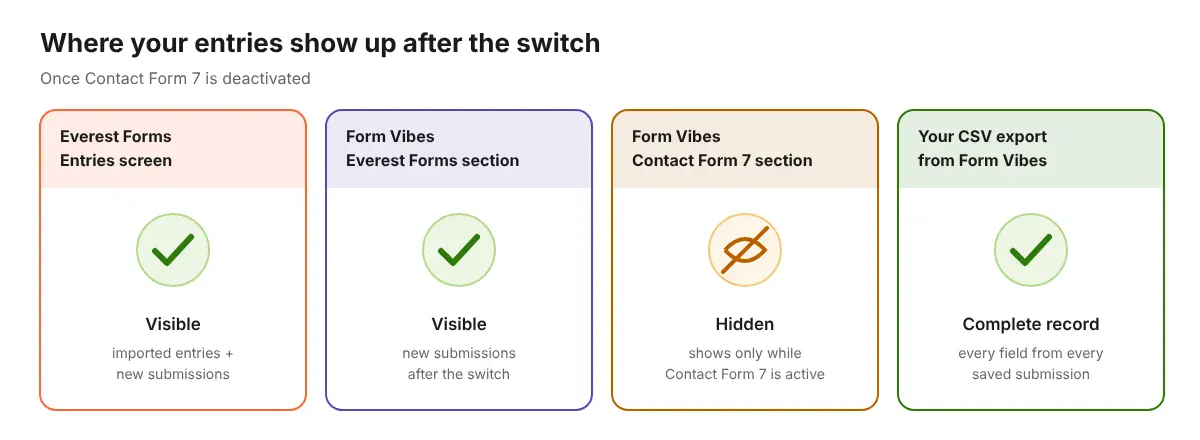
From here, Form Vibes keeps managing the form’s new submissions the way it always has, now under the form’s new home.
Conclusion
When you migrate Contact Form 7 to Everest Forms, it comes down to a few jobs done in the right order. The Form Migrator moves the form, and a quick settings check makes sure it behaves the same. Form Vibes exports the entries Contact Form 7 never kept, Everest Forms imports them, and Contact Form 7 is deactivated last.
Frequently Asked Questions
Common questions about migrating Contact Form 7 form to Everest Forms.
Does Everest Forms import Contact Form 7 entries?
No. Everest Forms’ Form Migrator moves Contact Form 7 forms but not entries, because Contact Form 7 doesn’t store submissions. If Form Vibes saved your Contact Form 7 entries, export them as a CSV from Form Vibes. Then import them into the migrated form with Everest Forms’ entry import.
What happens to Contact Form 7 entries when I deactivate it?
Form Vibes shows Contact Form 7 entries only while Contact Form 7 is active. After you deactivate it, your old entries stay in the Everest Forms Entries screen, if you imported them, and in the CSV you exported from Form Vibes. Export and import before deactivating, and keep the CSV as your complete record.
Can I recover Contact Form 7 submissions that were never saved?
Not from WordPress. Contact Form 7 sends submissions by email without keeping a copy on your site, so unsaved submissions exist only in the inbox that received them. Only entries stored in WordPress, for example by Form Vibes, can be exported and moved to Everest Forms.
Is importing entries in Everest Forms free?
Yes. Importing entries from a CSV file is available in the free version of Everest Forms, and so is the Form Migrator that moves your Contact Form 7 form. You don’t need Everest Forms Pro for any step in this guide.
Will Contact Form 7 stop working after the feature freeze?
No. Contact Form 7 still works after the feature freeze, and it continues to receive critical security and bug fixes. What stops is new features: version 6.2 is the last release to add new functionality. If your forms do what you need today, you can keep using them and switch when you’re ready.

Keep every form’s history in one place
Form Vibes works with many popular WordPress form plugins and keeps their submissions in one dashboard, with an export ready whenever you decide to switch.



Leave a Reply