How to Track Activity on Your Form Submissions with Form Vibes
You open a form submission in WordPress and a field value looks different from what you expected. Or you want to know who exported your submission data and when. Without a record of what happened, there is no way to know who made the change or why.
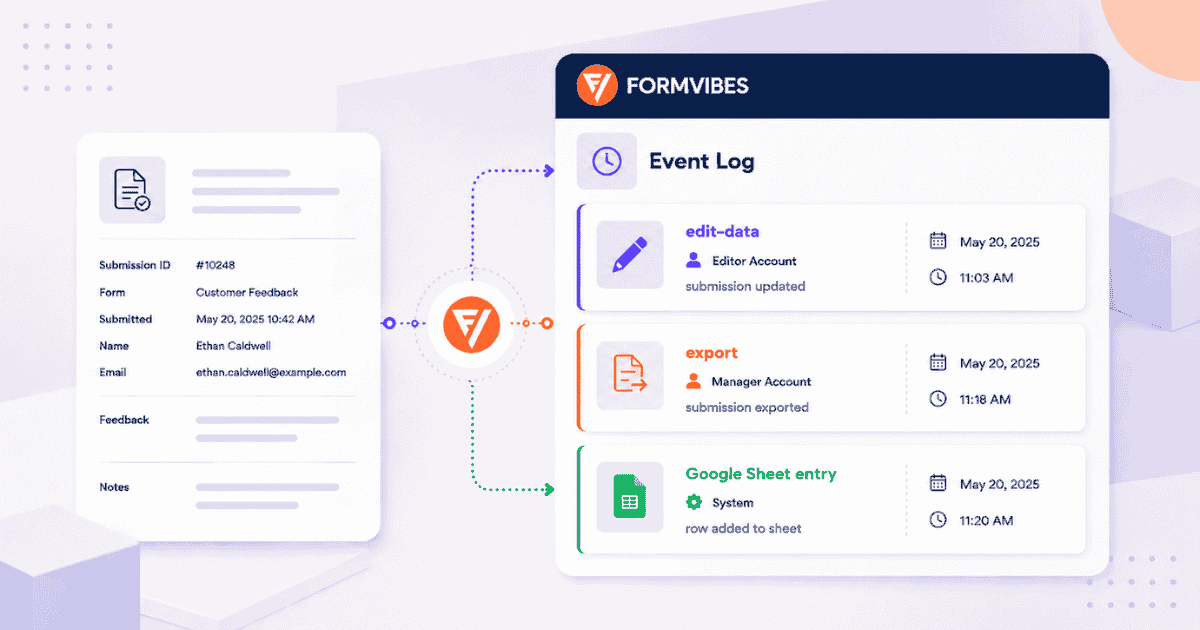
Form Vibes has a built-in feature called the Event Log. It records every change made to your form submissions field edits, CSV exports with reasons, and Google Sheets syncs each with a timestamp and the username of the person who performed the action.
This guide covers what the Event Log is, where to find it, and what it records.
What is the Form Vibes Event Log?
The Event Log is a built-in activity record in Form Vibes that tracks every logged action performed on your submitted data by form. Every entry is recorded automatically, no setup required.
For each logged action, the Event Log shows the WordPress username of the person who performed it, the type of action, a description of what changed, and the exact timestamp.
Three types of actions are recorded:
- edit-data – when a submission field is edited inside Form Vibes Pro.
- export – when a CSV export is performed with a reason entered (requires CSV Export Reason setting enabled under Form Vibes -> Settings)
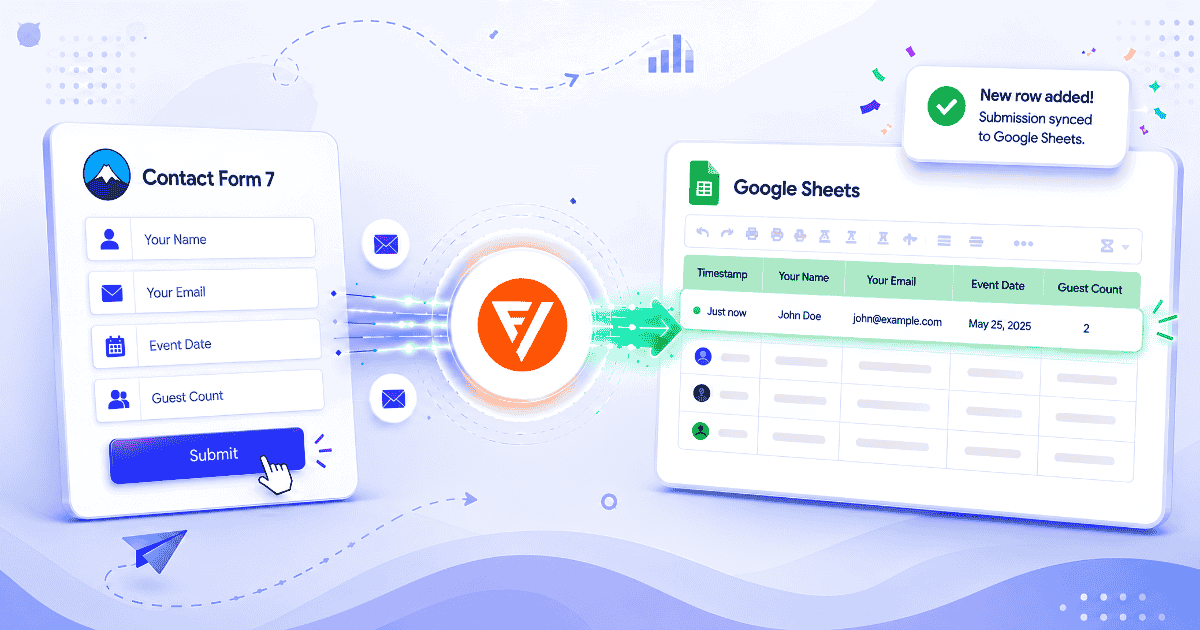
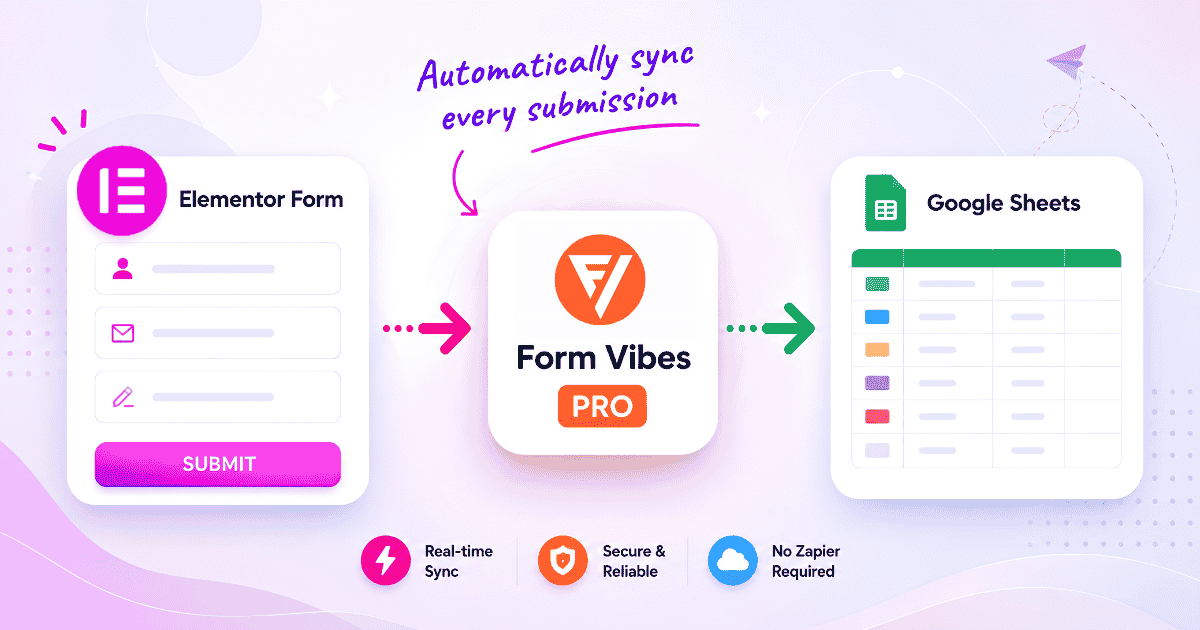
- Google Sheet entry – when a submission is synced to Google Sheets via a Form Vibes Pro Export Profile
Form Vibes automatically records export activity for every submission at no extra cost. No setup required. Compatible with WPForms, Elementor Forms, Gravity Forms, and more.
Where do you find the Event Log?
Go to Form Vibes → Event Logs in your WordPress dashboard left sidebar.
The Event Log shows all logged actions across all your forms in one centralised view. For each entry it shows the WordPress username of the person who performed the action, the event type, a description of what happened, and the exact time it occurred.
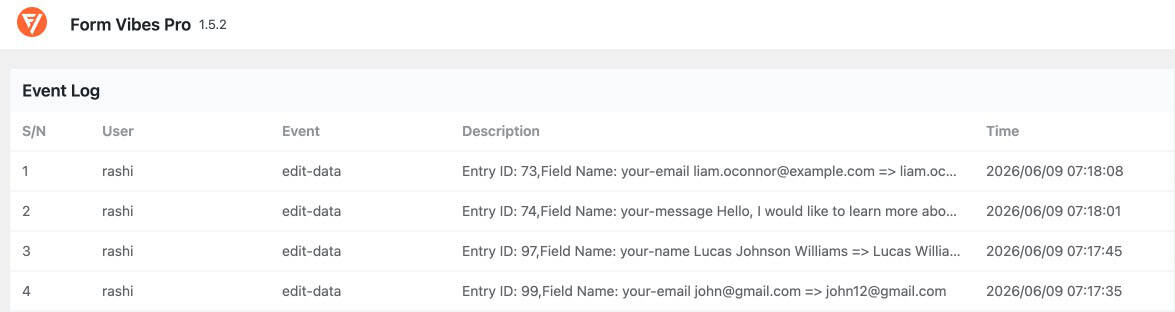
For edit-data entries the description shows the Entry ID, the field name, and the old value and new value, for example “Entry ID: 85, Field Name: Name_1 Emma Brown => Emma Williams.” For export entries the description shows the reason entered before the download.

Tips: The most recent action appears at the top of the Event Log. If you are looking a recent change, start from the first row.
What does the Event Log record?
The Event Log records three specific types of actions. Here is what each one means and when you will see it.
Edit Data
An edit-data entry appears every time someone edits a field value inside a submission in Form Vibes Pro. The description column shows exactly what changed the Entry ID, the field name, and the original value alongside the new value.
This is the most direct answer to “who changed this submission?” Go to Form Vibes → Event Logs, find the edit-data entry for the submission in question, and the description tells you exactly what was changed, by whom, and when.
Export
An export entry appears every time a CSV export is performed but only when the CSV Export Reason setting is enabled under Form Vibes → Settings.
When the setting is on, Form Vibes prompts the user to enter a reason before the download starts. That reason is then recorded in the Event Log alongside the username and timestamp for example “Sharing with client” or “For analyzing.”
When the setting is off, exports are not logged in the Event Log at all. No entry is created and there is no record of who exported or when.
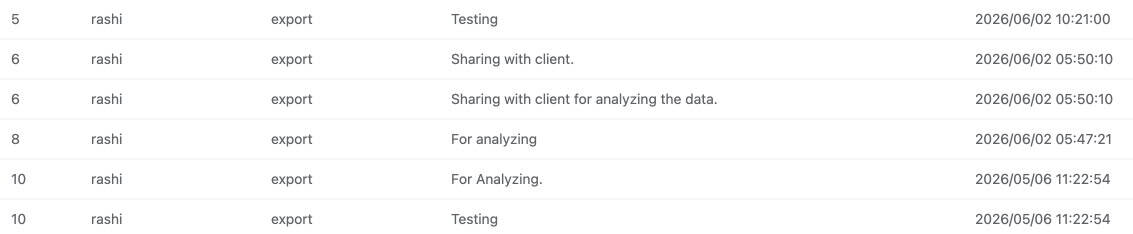
Notes: For agencies handling client data or any site with GDPR considerations, enabling CSV Export Reason gives you a transparent record of every data export who did it, when, and why.
Google Sheet entry
A Google Sheet entry appears every time a submission is synced to Google Sheets via a Form Vibes Export Profile. The log records the timestamp of when the sync occurred, confirming it completed successfully.
This is useful when you want to verify that a specific submission was pushed to a connected sheet or to troubleshoot if a submission is missing from Google Sheets. For a full guide on setting up a Google Sheets Export Profile, see the guide on how to export your form submissions in Google Sheets.
Pro: Google Sheets syncing requires a Form Vibes Pro Export Profile with Google Sheets output type configured. Google Sheet entry logs only appear for submissions synced via an active Export Profile.
Conclusion
The Form Vibes Event Log gives you a transparent record of what happened to your submission data who edited a field and exactly what changed, who exported the data and why, and when a Google Sheets sync occurred. All automatically, all visible from one place at Form Vibes → Event Logs.

Every change to submission tracked automatically
Form Vibes keeps a full activity record for every submission with the Event Log. Free to install, works with many popular WordPress form builders.
Frequently Asked Questions
Common questions about tracking form updation using Form Vibes.
Is the Form Vibes Event Log free?
Yes. The Event Log is available on the free Form Vibes plan and runs automatically no settings to enable, no Pro upgrade needed. Export reason descriptions require the CSV Export Reason setting to be enabled under Form Vibes → Settings. Google Sheet entry logs require a Pro Export Profile with Google Sheets output configured.
What does the edit-data description show?
The description for an edit-data entry shows the Entry ID of the submission, the field name that was changed, and the original value alongside the new value. This gives you the full before and after picture for every field edit.
How do I enable export reason logging?
Go to Form Vibes → Settings and turn on the CSV Export Reason toggle. When this setting is off, CSV exports are not logged in the Event Log at all. Once enabled, every export prompts the user to enter a reason before downloading that reason is recorded in the Event Log alongside the username and timestamp.
Does the Event Log work for all supported form plugins?
Yes. The Event Log works for any form plugin supported by Form Vibes including WPForms, Gravity Forms, Ninja Forms, WS Form, Elementor, and Beaver Builder. Any edit-data, export, or Google Sheet sync action is logged regardless of which plugin the form was built with.
Can I export the Event Log data?
The Event Log is viewable at Form Vibes → Event Logs. It is not currently available as a separate export. For submission data exports, use the Form Vibes Quick Export or Export Profiles feature.


Leave a Reply