An Ultimate Guide to WS Form in WordPress

WS Form is one of the most capable WordPress form builders available. With over 55 field types, multi-tab and multi-step form support, native submission analytics, a developer-friendly architecture, and a visual styler that handles layout without code, it covers a wider range of use cases out of the box than most competing plugins.
This guide covers the complete WS Form workflow from installation through to submission management, creating and styling forms, configuring actions, managing entries, and embedding forms on your site. The final section covers the specific capabilities Form Vibes adds on top of what WS Form already provides.
Before You Start
WS Form installed and activated
At least one page or post ready to embed your form on
Form Vibes installed and activated
What Do You Need to Get Started with WS Form?
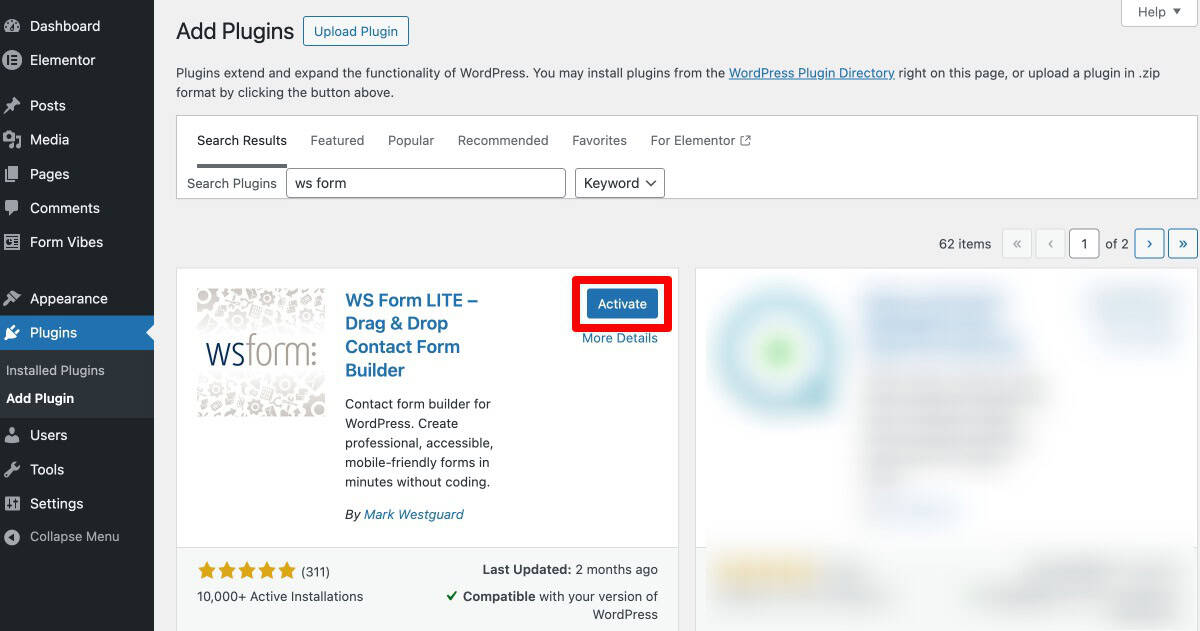
Install WS Form from the WordPress plugin directory. Go to Plugins > Add New, search for “WS Form”, click Install Now, then Activate. Once activated, a WS Form menu item appears in your WordPress admin sidebar.
How Do You Create a Form with WS Form?
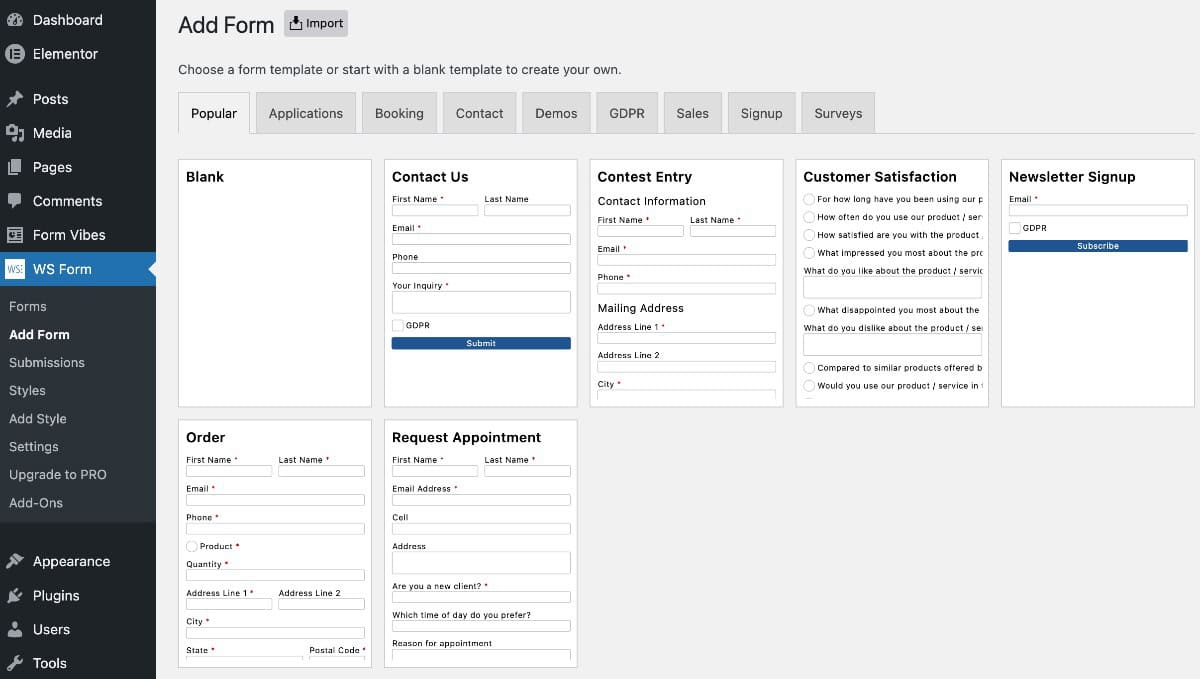
Go to WS Form > Add Form. WS Form gives you two starting options: choose a pre-built template to load a ready-made structure with commonly used fields, or start with a blank form for full control over the layout from the beginning.
1
Drag and Drop Fields
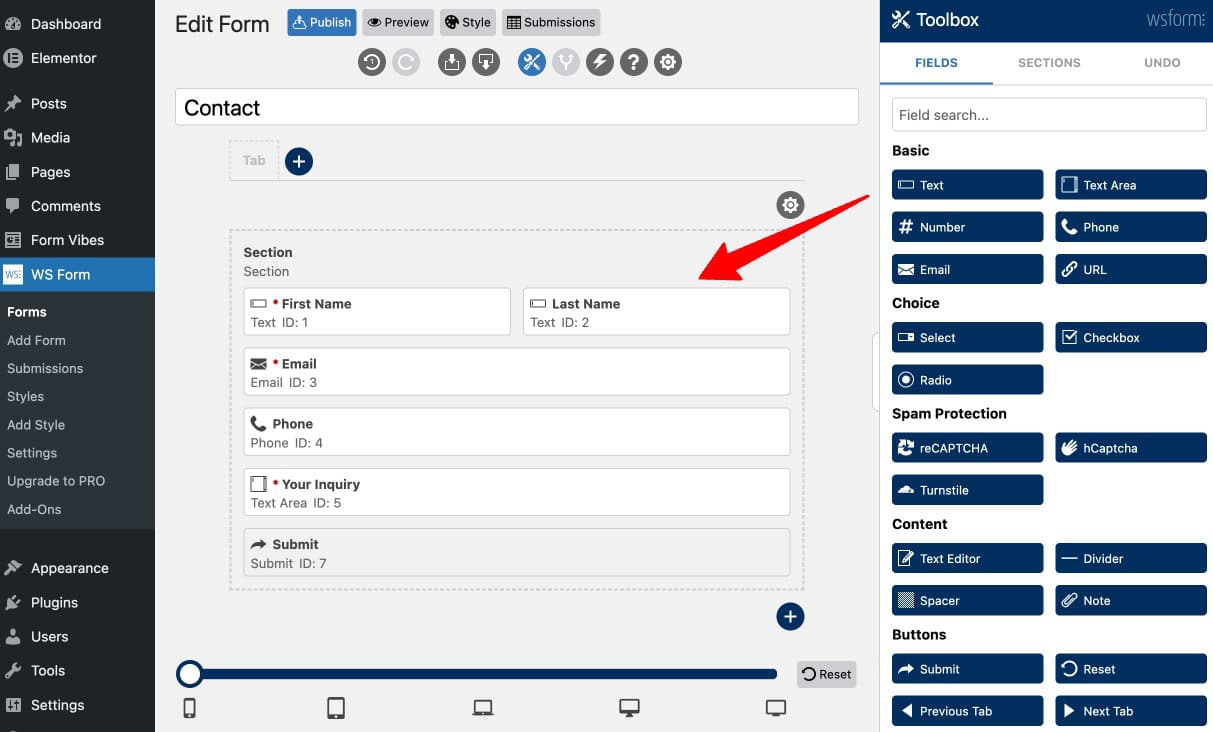
WS Form uses a drag-and-drop editor. Drag fields from the left panel onto the canvas, or click a field type to add it. Available field types include Name, Email, Text, Dropdown, Checkbox, File Upload, and many others. Rearrange fields by dragging them into the desired order. Configure each field’s label, placeholder, and validation rules by clicking on it.
2
Add Sections
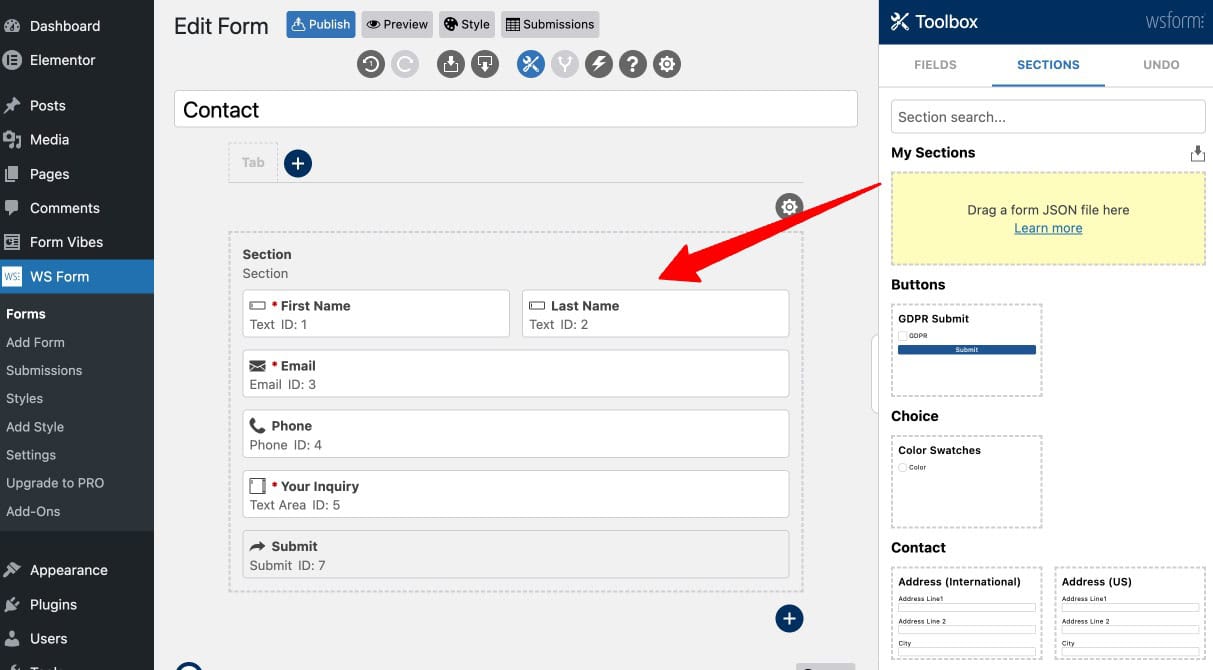
Sections allow you to group related fields together, improve readability, and create cleaner form layouts. Drag a Section element onto the canvas and then place fields inside it. Sections are particularly useful for longer forms where dividing fields into logical groups improves the experience for visitors.
3
Set Up Multi-Tab or Multi-Step Forms
WS Form supports multi-tab and multi-step form structures for longer or more complex forms. Add tabs from the form builder to divide the form into separate pages or sections that the visitor navigates through sequentially.
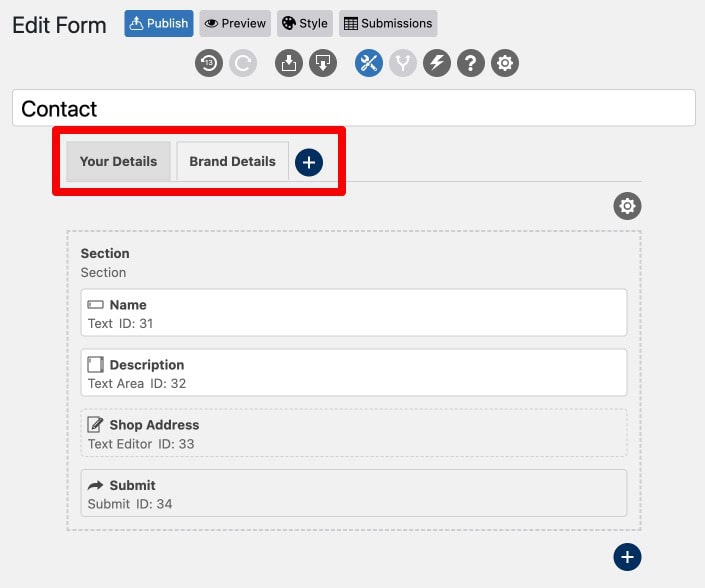
Notes: Multi-tab and multi-step support is available in the free version of WS Form. You do not need a Pro plan to build a multi-step form, it is part of the core plugin.
4
Configure Form Settings
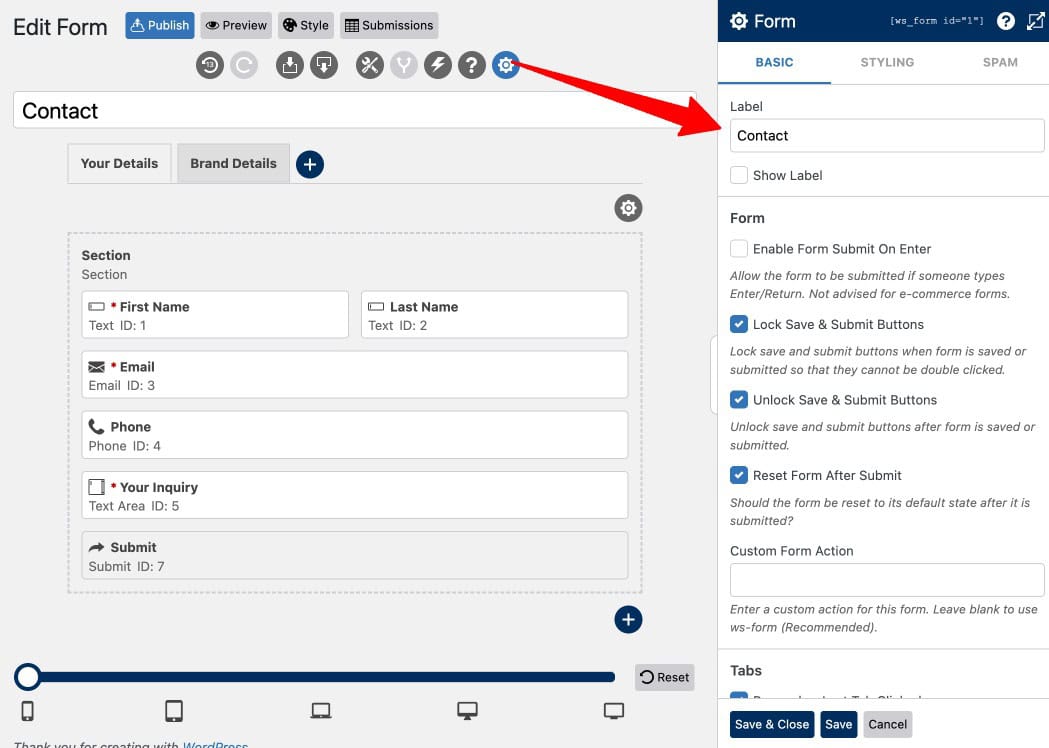
Go to the form settings panel to control form-level behaviour. Options include changing the form label, enabling or disabling submission via the Enter key, configuring field validation rules, customising error and submission messages, and other behaviour settings.
5
Style Your Form
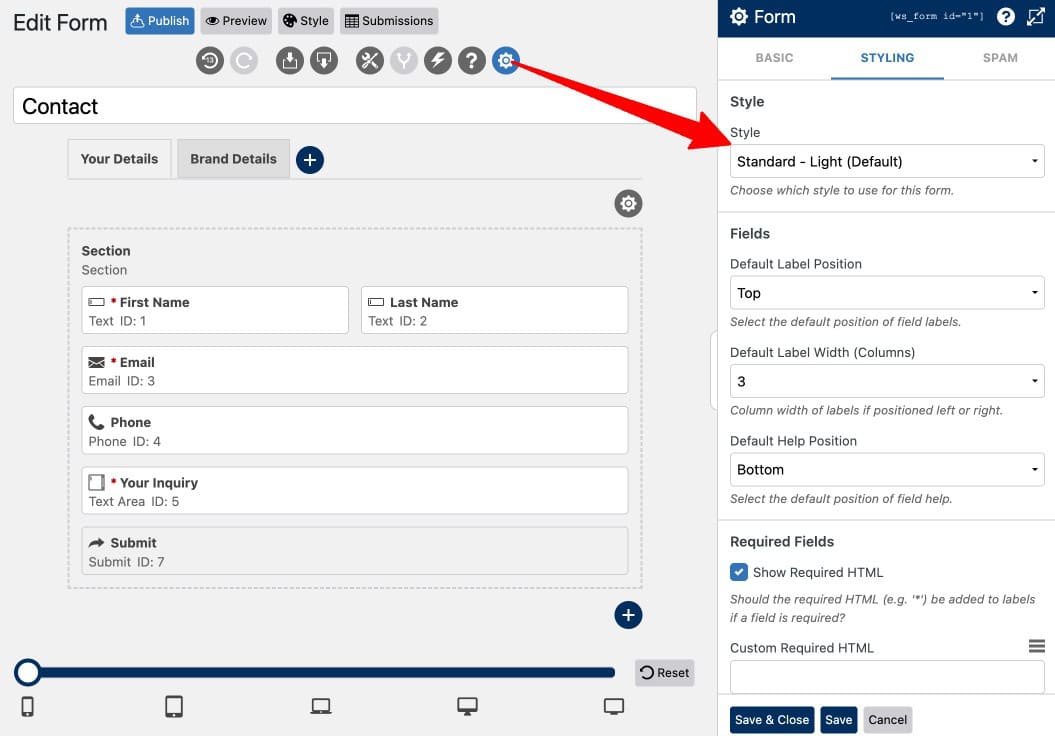
WS Form includes a visual Styler that lets you control field layout, spacing, alignment, and appearance to match your site’s design. Choose from available form styles or customise colours, typography, and field sizing without writing CSS.
6
Import and Export Forms
WS Form allows you to import and export forms, useful for migrating forms between sites, creating backups, or reusing form structures. Export a form as a file and import it on any other WordPress site running WS Form.

7
Choose Actions After Submissions
Actions define what happens when a visitor submits a form. Configure actions for sending email notifications, redirecting users after submission, saving entries to the database, displaying a confirmation message, and triggering other workflows. Multiple actions can be active on the same form simultaneously.
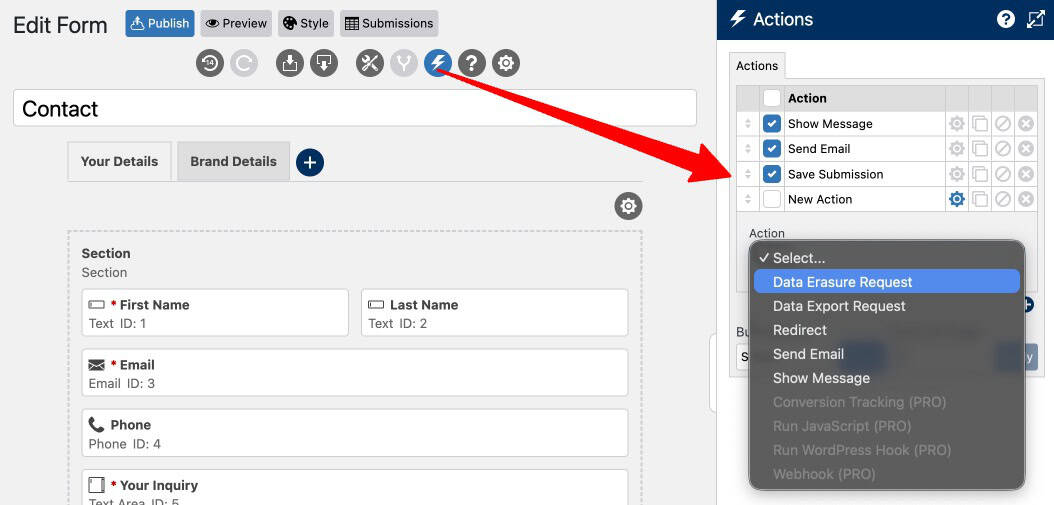
Important: Make sure you have a Save Submission action active on every form. If only an Email action is configured and email delivery fails that submission is gone with no way to recover it.
Even without a Save Submission action, Form Vibes captures every WS Form entry the moment it is submitted. It’s a safety net that works independently of WS Form’s own save settings.
What Submission Management Tools Does WS Form Provide?
WS Form stores form submissions automatically and provides a submission management view accessible from the WordPress dashboard.
Viewing Submissions
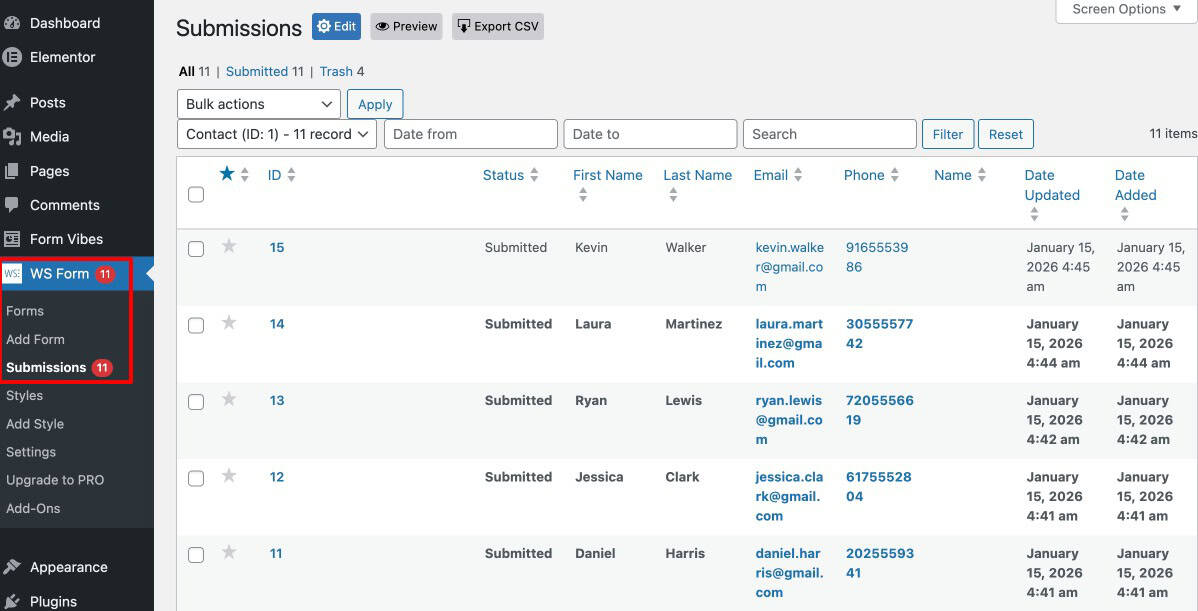
Go to WS Form > Submissions to access all entries for your forms. The submissions list shows each entry with its key field values. Click any entry to expand its full details.
Editing Submissions
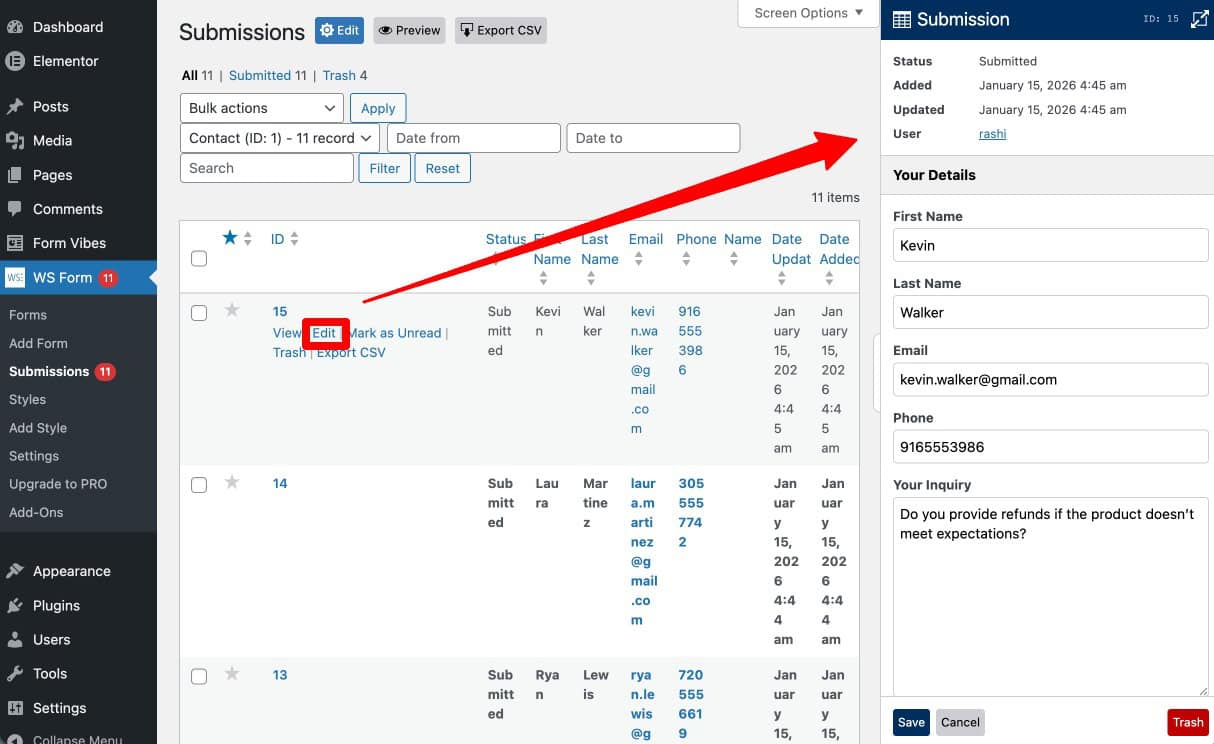
WS Form allows you to edit existing submissions directly from the dashboard. Click the Edit option on any entry, update the required information, and save. This is useful for correcting submission data or updating entries manually.
Filtering by Date
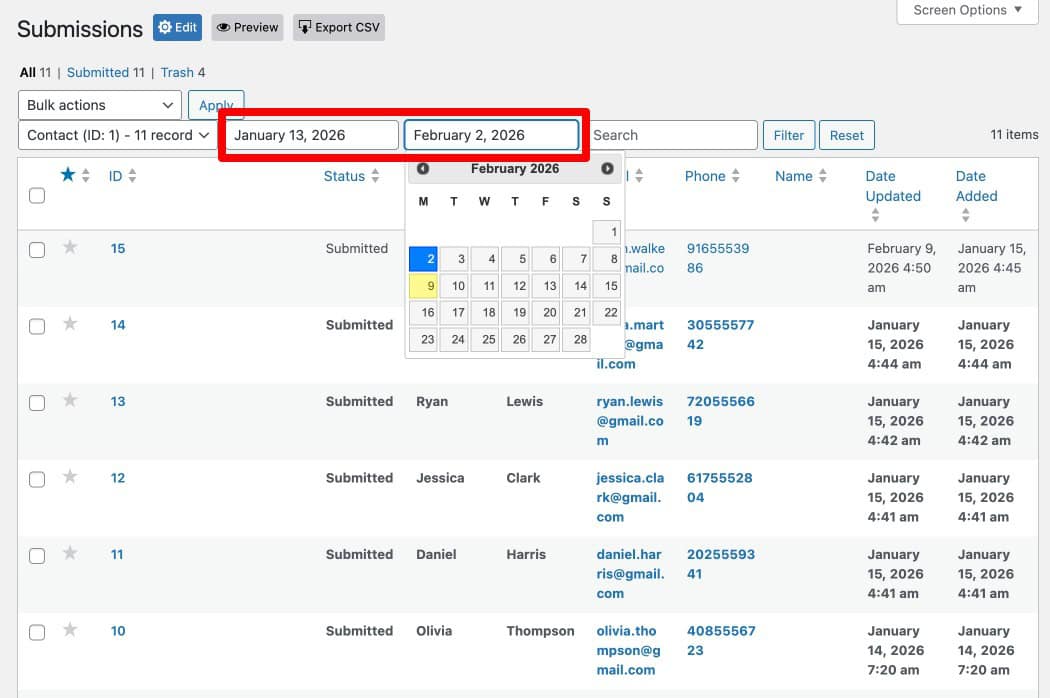
Use WS Form’s date-based filtering to narrow the submissions list to a specific period. This is helpful for reviewing entries from a campaign, checking recent activity, or preparing data for a report.
Exporting Submissions
Click the Export button on the Submissions page to download form entries as a CSV file. Exported files are suitable for backups, sharing with your team, or importing into reporting and analysis tools.

Tips: WS Form Pro adds a Statistics dashboard showing submission trends, form views, and conversion rates per form. If you are on the free version of WS Form and need submission analytics, Form Vibes provides an analytics report covering all your forms at no cost.
How Do You Display a WS Form on Your Website?
WS Form provides two methods for embedding forms on pages or posts.
Using the Widget or Block
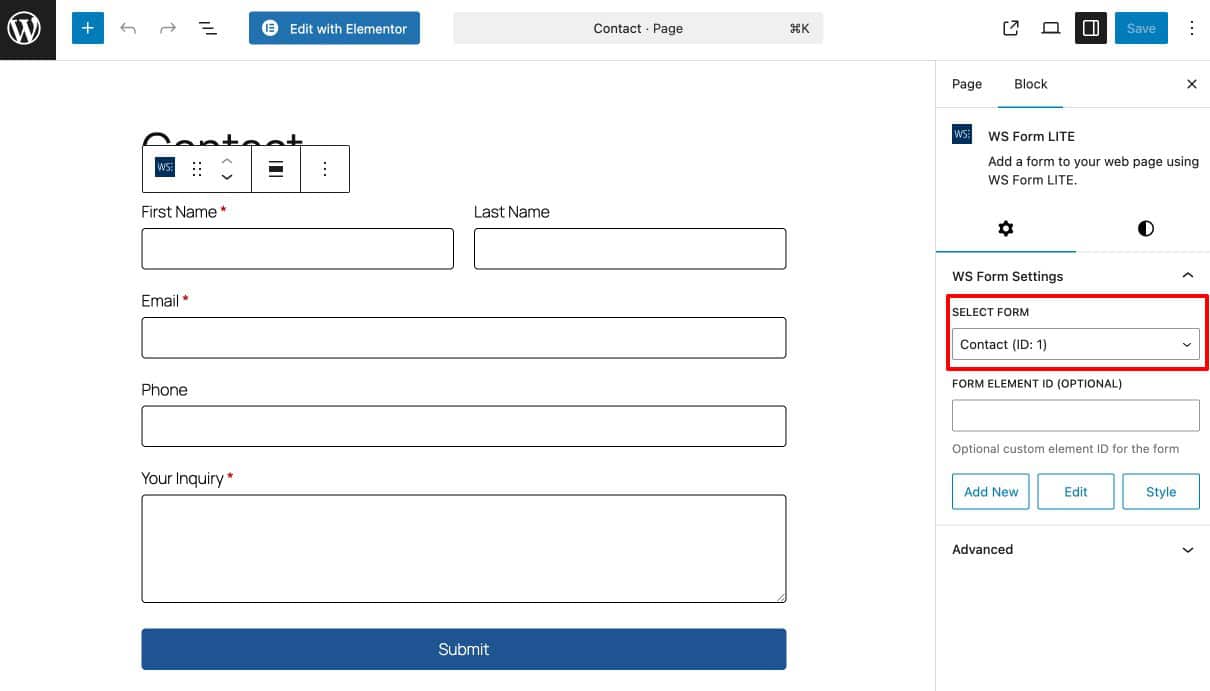
WS Form provides a dedicated block for the WordPress Gutenberg editor. Open the page or post where you want the form to appear, add the WS Form block from the block panel, and select the form from the dropdown. Update or publish the page.
Using Shortcode
Each WS Form form has a unique shortcode. Go to WS Form > Forms, copy the shortcode for the form you want to display, open the target page, add a Shortcode block, paste the shortcode, and publish. The form appears on the frontend at that location.

What Does Form Vibes Add for WS Form Users?
WS Form Pro is a capable submission management tool on its own, it stores entries natively, allows inline editing, provides date filtering, CSV export, a statistics dashboard with submission trend charts, and Read/Unread status marking on individual entries.
Form Vibes adds four specific capabilities that WS Form does not provide regardless of plan.
A Unified Dashboard for Multiple Form Plugins
WS Form’s submission management only shows WS Form entries. If your site runs Contact Form 7, WPForms, Elementor Forms, Gravity Forms, or any other supported plugin alongside WS Form, those submissions are managed separately in each plugin’s own interface.
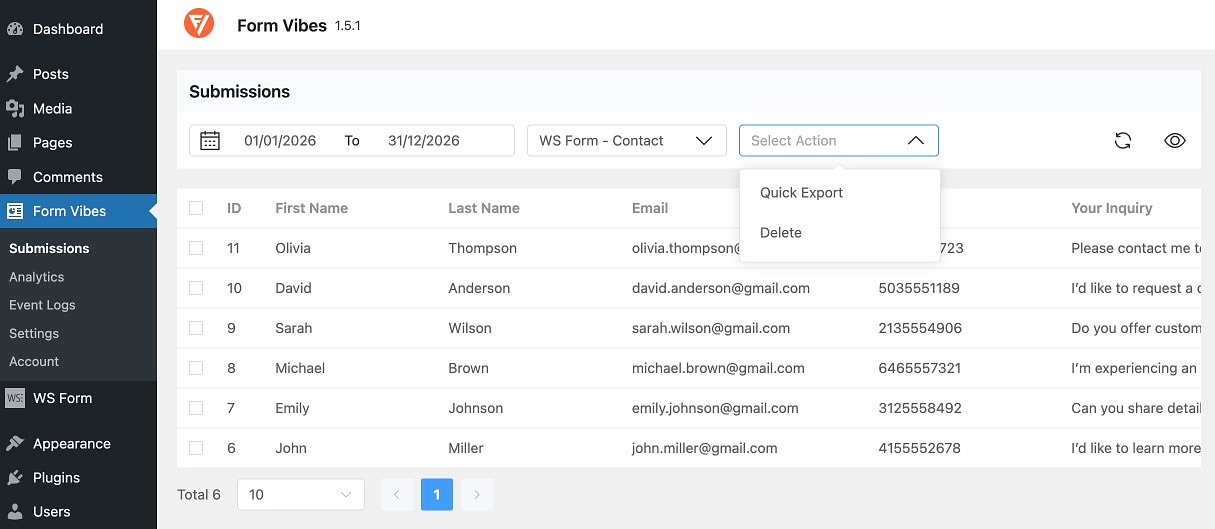
Form Vibes captures submissions from all nine supported form plugins and shows them in one unified dashboard. Switch between WS Form and any other form plugin using the form dropdown without changing tools or screens.
An Event Log for Every Submission
WS Form has no audit trail for changes made to submissions. If a team member edits an entry, there is no record of what changed or when.
Form Vibes records every action taken on a submission, including field edits, exports, and Google Sheets syncs. Each activity is logged with a timestamp and the username of the person who performed it. The Event Log is available in the free version and requires no additional configuration.
Submission Notes for Team Collaboration
WS Form has no internal annotation system for submissions. Form Vibes Pro adds Submission Notes, internal comments attached to individual entries that are visible to your whole team. Add notes like “Followed up on 3rd May”, “Awaiting client approval”, or “Duplicate of entry #47” and they stay attached to the submission record permanently.
Export Profiles for Saved, Reusable Exports
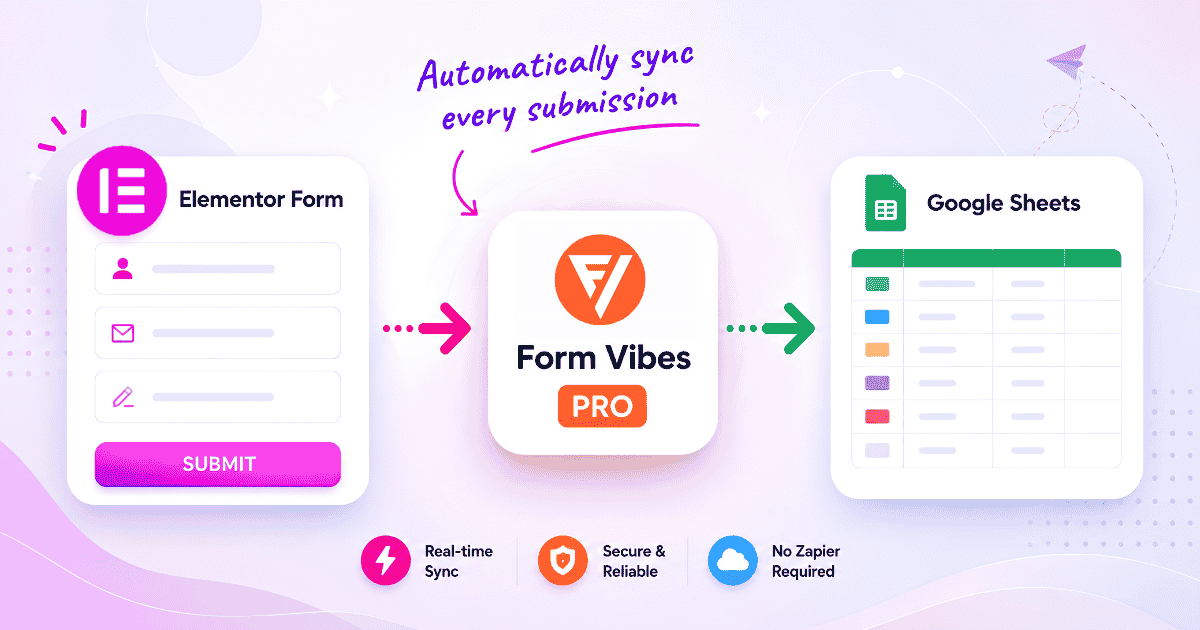
WS Form’s export is an on-demand process with no saved configuration. Form Vibes Pro’s Export Profiles let you define a complete export setup, form, date range, field filters, and column selection, save it, and re-run it in one click any time. Google Sheets sync is also available as a Profile Type for automatic real-time submission delivery to a connected spreadsheet.
For a complete guide to Export Profiles and Google Sheets sync, see how to export WordPress form submissions with Form Vibes.
Conclusion
WS Form provides a genuinely comprehensive form building and submission management workflow — drag-and-drop editor, multi-step and multi-tab support, native submission storage with editing and export, a statistics dashboard in Pro, and a visual styler that handles design without code.
Form Vibes adds the four capabilities WS Form does not include at any plan level: a unified cross-plugin submissions dashboard, an Event Log for team accountability, Submission Notes for internal annotations, and Export Profiles for saved reusable export configurations.

Simplify WS Form Submission Workflows
Form Vibes helps you organize submissions, track workflows, export reports, and manage multiple form plugins from one centralized dashboard.
Frequently Asked Questions
Common questions about WS Form in WordPress.
What is WS Form used for?
WS Form is a WordPress form builder used to create contact forms, registration forms, feedback forms, surveys, quote request forms, multi-step forms, and other form types. It includes a drag-and-drop editor, 55+ field types, multi-tab and multi-step support, a visual styler, and the native submission storage in the Pro version.
Does WS Form save form submissions in WordPress?
Yes. WS Form stores form submissions automatically in the WordPress database. Entries are accessible at WS Form > Submissions where you can view, edit, filter by date, and export them. The Pro version adds a statistics dashboard showing submission trends, views, and conversion rates.
Can I edit WS Form submissions after they are submitted?
Yes. Open any submission from WS Form > Submissions, click the Edit option, update the field values in the editor that appears, and save. This is useful for correcting submitted information or updating entry details manually without asking the visitor to resubmit.
Does WS Form allow exporting form submissions?
Yes. From the WS Form Submissions page, click the Export button to download all entries for the selected form as a CSV file. The export is on-demand and covers all stored submissions. For saved, filtered export configurations that can be re-run in one click, Form Vibes Pro’s Export Profiles feature adds this capability on top of WS Form.
Can WS Form work with Form Vibes?
Yes, WS Form integrates with Form Vibes. This integration captures WS Form submissions automatically and provides a unified dashboard for managing them alongside submissions from any other supported form plugin on the same site.




Leave a Reply