How to Save Beaver Builder Form Submissions in WordPress

Beaver Builder makes it easy to add a contact form to any page. The form looks good, the email notification arrives, and everything seems to be working. The problem only becomes visible later, when an email gets missed, a lead follows up and you have no record of their original message, or a team member needs to find a submission from three weeks ago and there is nowhere to look.
Beaver Builder contact forms send submissions by email and store nothing on your site. Form Vibes closes that gap automatically, no configuration needed.
Before You Start
Beaver Builder theme or plugin installed and active on your WordPress site
At least one Contact Form module added to a page
Form Vibes installed and active
Does Beaver Builder Save Form Submissions to the Database?
No. Beaver Builder’s Contact Form module sends submissions by email only. Beaver Builder’s official documentation states that entries from this module are not stored in the database or added to your website files, and recommends using a third-party plugin for anyone who needs a more permanent record of contacts.
This means every Beaver Builder submission your site has ever received exists only in whatever email inbox the form is pointed at. There is no record inside WordPress, no way to search past submissions, and no way to recover a lead if the email notification failed.
Not sure why saving to the database matters beyond preventing email failures? See why you should save contact form submissions in your database.
What Is the Real Difference Between Email and Database Storage?
Email and database storage serve different purposes. The honest position is that both together is better than either alone.
Email notifications are useful for immediate alerts. When a lead submits a form, an email tells you it happened. That immediate awareness is genuinely valuable.
Database storage is useful for everything that comes after that alert. Searching for a specific lead, reviewing last month’s submissions, exporting a dataset for a client, tracking whether submissions are increasing or decreasing over time, and managing a team review workflow all require submissions to be stored somewhere structured.
| Feature | Email Notifications Only | Storage with Form Vibes |
|---|---|---|
| Instant alert when form is submitted | Yes | Yes |
| Safe if email delivery fails | No | Yes |
| Searchable by date or field value | No | Yes |
| CSV export | No | Yes |
| Viewable by multiple team members | No | Yes |
| Analytics and submission trends | No | Yes |
| Submission status workflow | No | Yes |
| Cross-plugin unified dashboard | No | Yes |
Form Vibes does not replace email notifications. Both fire simultaneously. Email handles the immediate alert. Form Vibes handles the permanent record.
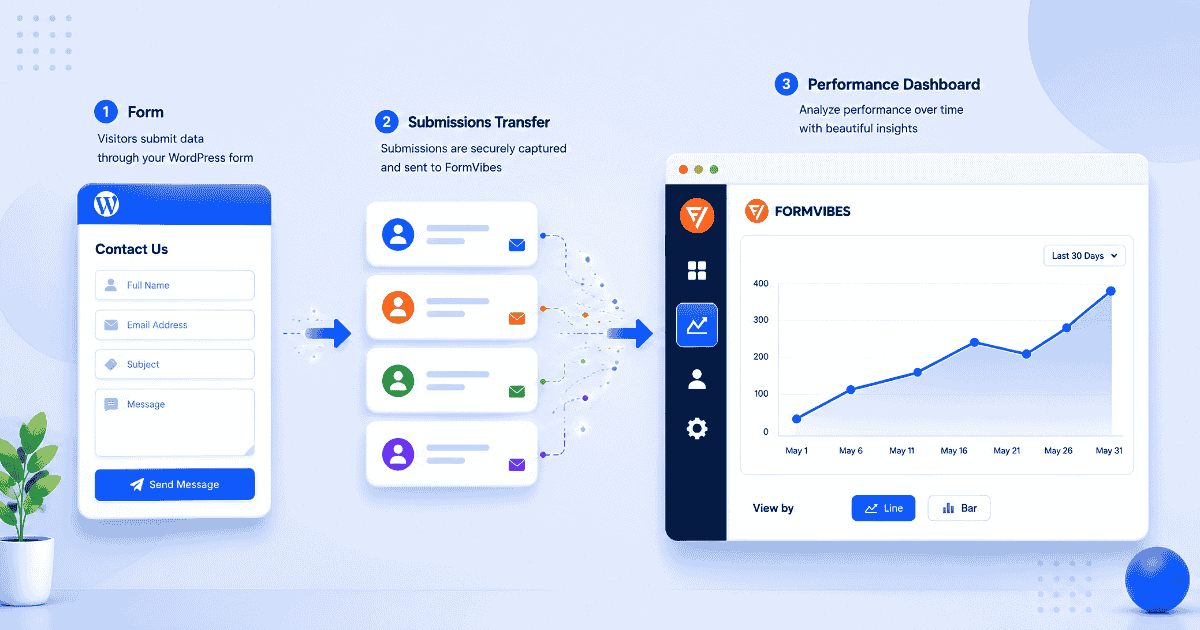
Beaver Builder can send form notifications through email, while Form Vibes helps you safely store submissions inside WordPress.
Setting Up Form Vibes with Beaver Builder
Form Vibes requires no configuration inside Beaver Builder. Install it and it begins capturing submissions from all supported form plugins automatically.
Go to Plugins > Add New in your WordPress admin. Search for “Form Vibes“, click Install Now, then Activate.
That is it. Form Vibes begins capturing Beaver Builder form submissions automatically from the first submission after activation.
Go to Form Vibes > Submissions. Click the form dropdown at the top of the page and select your Beaver Builder form. Every captured entry appears in the submissions table.
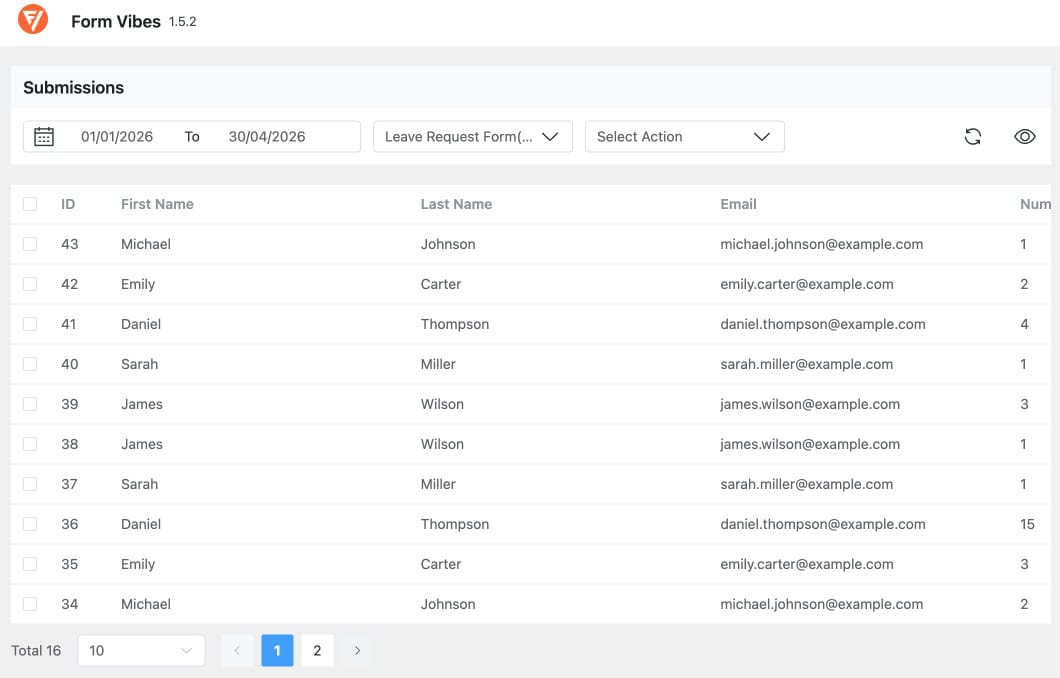
Notes: Form Vibes captures submissions from the moment it is activated. Beaver Builder entries submitted before installation are not available in Form Vibes and cannot be retrieved retroactively.
What Can You Do with Beaver Builder Submissions in Form Vibes?
Every feature below addresses something Beaver Builder cannot do natively with form submissions.
Filtering Submissions by Date and Field Value
The Form Vibes submissions table includes date range filtering with presets covering Today, Last Week, Last Month, and Last Quarter, plus a custom date picker for any specific window. Filter selections persist between sessions.
Form Vibes Pro adds advanced field-level filtering. Filter by any specific form field value using AND/OR logic between multiple conditions. This lets you build precise queries such as showing only submissions from the last 30 days where a specific field equals a specific value, something Beaver Builder has no native equivalent for.
Tips: Use the date range filter before exporting. Filtering to Last Month and then clicking Quick Export gives you a clean monthly dataset – only entries from that period are included in the download.
Exporting Beaver Builder Submissions to CSV
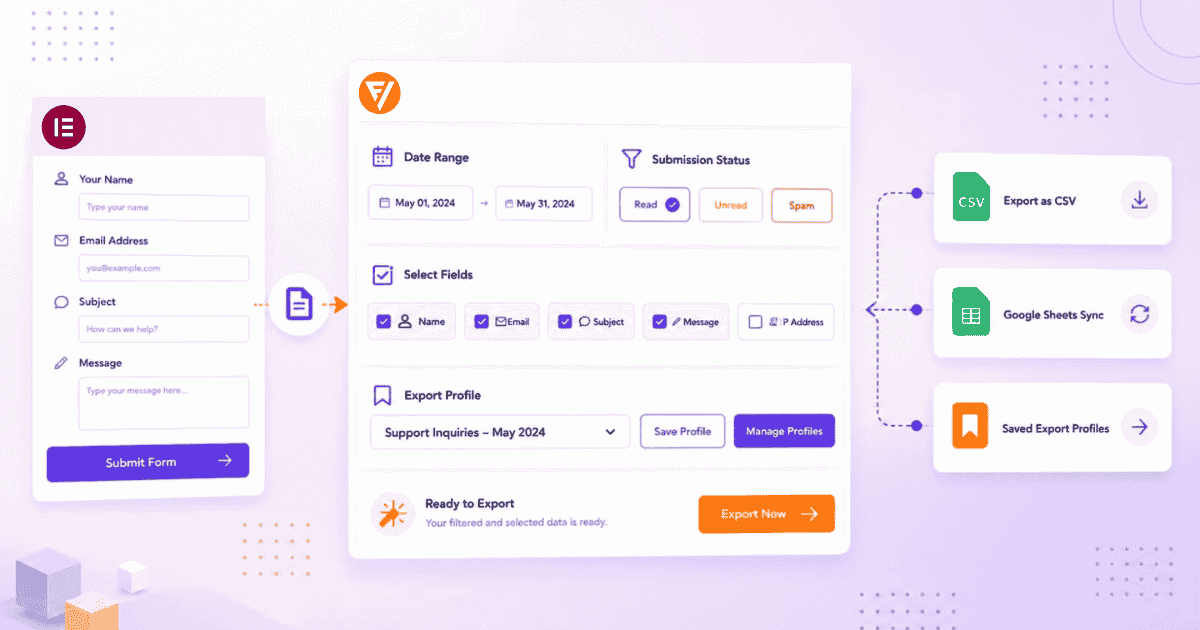
Beaver Builder provides no CSV export tool for form submissions. Form Vibes adds a Quick Export button to the submissions toolbar. Select your Beaver Builder form from the dropdown, click Quick Export, and Form Vibes downloads a CSV file immediately. The file opens directly in Excel or Google Sheets.
The free version exports up to 1,000 entries per Quick Export. Form Vibes Pro removes this limit and adds Export Profiles for saved, filtered, reusable export configurations.

Marking and Triaging Submissions by Status (Pro)
Form Vibes Pro’s Submission Status feature lets you mark any Beaver Builder entry as Read, Unread, or Spam individually or in bulk. Filter the submissions table by status to show only new entries needing attention. Work through them, mark each as Read once actioned, and flag spam before deletion.
Analyzing Beaver Builder Form Trends
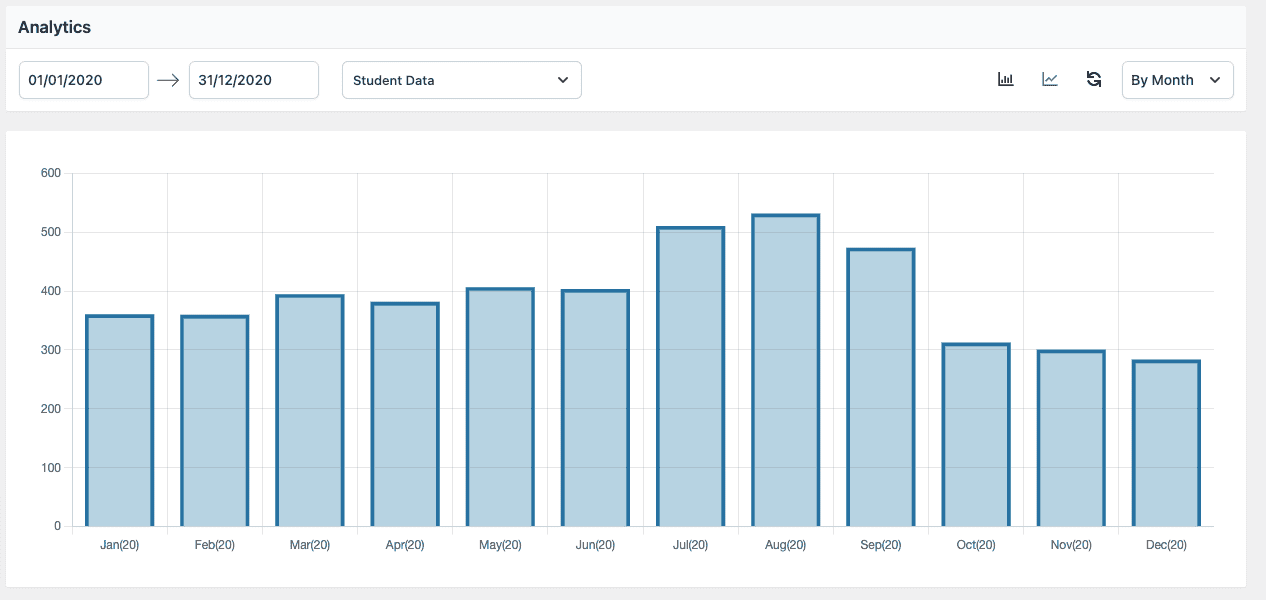
Go to Form Vibes > Analytics and select your Beaver Builder form from the dropdown. Form Vibes shows a bar chart and a line chart displaying submission volume on a daily, weekly, or monthly basis. Beaver Builder has no analytics capability for form submissions — this is the only way to see whether your forms are generating more or fewer leads over time.
The Form Vibes dashboard widget on the main WordPress admin screen gives you a quick submission count and trend line every time you log in without navigating anywhere.
Key Takeaway:
Form Vibes is not a Beaver Builder-specific plugin. It works across all major WordPress form plugins simultaneously. If you ever move away from Beaver Builder or add another form plugin, your submission history and dashboard stay exactly the same.
Conclusion
Beaver Builder’s Contact Form module does exactly what it says, it sends contact form data by email. For sites where form submissions matter beyond the initial alert, that is not enough on its own. Database storage means every submission is permanently saved, searchable, filterable, exportable, and analyzable regardless of what happens with email delivery.
Form Vibes adds that entire layer in one step, install it, activate it, and every Beaver Builder submission is captured automatically from the next form submission forward.

Store and Manage Beaver Builder Form Submissions
Capture Beaver Builder form entries inside WordPress and manage them with analytics, filtering, exports, and workflow features using Form Vibes.
Frequently Asked Questions
Common questions about saving Beaver Builder form submissions.
Does Beaver Builder save form submissions to the database?
No. Beaver Builder’s Contact Form module sends submissions by email only. It recommends using a third-party plugin for anyone who needs a permanent record. Form Vibes fills this gap by automatically capturing every Beaver Builder submission to the WordPress database from the moment it is activated.
Can I filter Beaver Builder submissions by date or field value?
Date range filtering is available in the Form Vibes. Select a preset period from the filter dropdown or use the custom date picker for any specific window.
Can I export Beaver Builder form submissions to CSV?
Yes. With Form Vibes active, go to Form Vibes > Submissions, select your Beaver Builder form from the dropdown, and click the Quick Export button. Form Vibes generates and downloads a CSV file immediately.
Can I manage Beaver Builder submissions alongside other form plugins in one dashboard?
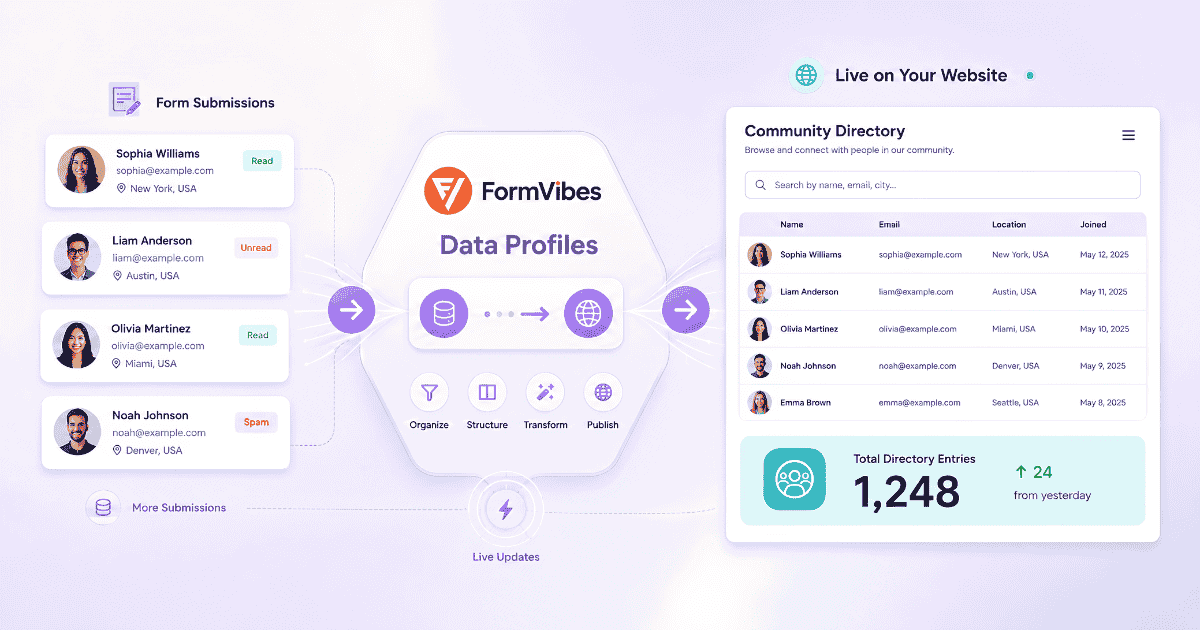
Yes. Form Vibes captures submissions from multiple WordPress form plugins simultaneously. All submissions appear in the same Form Vibes dashboard. Switch between plugins using the form dropdown without changing tools or screens.


Leave a Reply