WordPress Form Submission Not Received? Here Is What to Do

Someone filled out your contact form and you never got it. Before you start changing settings whether that submission is still recoverable depends entirely on one thing: how your form plugin handles submission data.
Some plugins save every submission to your WordPress database automatically. Some need a Save action configured on each form. Some save nothing at all. The section below tells you exactly what to do right now – find your situation and act.
What to do right now
- Check your spam and junk folder: The notification email may have arrived but been filtered before reaching your inbox. Check spam first before assuming anything is lost.
- Test the form yourself: Use a completely different browser and a different email address. Never test from the same browser where you are logged into WordPress admin, cache and cookies can affect how the form behaves.
- Check your notification address: Open your form settings and confirm the notification is going to the correct address. A typo or outdated address is more common than most people expect.
- Find out if your plugin saves submissions: Go to your plugin’s entries screen in WordPress admin. If there is no entries screen at all your plugin is email-only and stores nothing.
- If an entries screen exists Use the date range filter and search by the submitter’s name or email address. If the screen is empty despite submissions coming in the Save action was likely not configured on that form.
- If no entries screen exists or entries are empty The submission may be gone. Install Form Vibes now. Every submission from the moment it is active will be captured automatically no per-form setup required.
Missed a submission? Form Vibes saves every submission to your WordPress database automatically no matter which form plugin you use. Works with Contact Form 7, WPForms, Gravity Forms, Elementor Pro Forms, and more.
Which situation matches yours?
- Your plugin saves submissions – the entry is in your database. Some plugins save automatically, others require a Save action to be enabled per form. Go to your entries screen or check Form Vibes > Entries if Form Vibes is installed.
- Your plugin does not save submissions – nothing was written to your database. The submission may be gone. Read the email-only section below before giving up.
Does your plugin save submissions?
This is the question that determines whether your submission is recoverable or not.
When someone fills out your form and hits Submit, your plugin processes that entry. What happens next depends entirely on how your plugin is built. Some write every entry directly to your WordPress database, those submissions are safe no matter what happens to the email. Some have storage capability but only use it when a Save action is configured on each individual form. And some simply do not save submissions to the database at all.
Understanding which category your plugin falls into tells you immediately whether the submission still exists somewhere or whether it was never stored in the first place.
Your plugin saves submissions – where to find it
If your plugin stores submissions natively, the entry is in your database. Go to your plugin’s entries screen in your WordPress admin and look for it. Use the date range filter to narrow down to when the submission was expected and search by the submitter’s name or email address.
If the entries screen is empty, the Save action was likely not configured on that form. This is a very common setup gap. The form worked correctly and the visitor got a success message but nothing was configured to write that data to the database.
This is exactly where Form Vibes helps. Form Vibes does not rely on the plugin’s own Save action. It hooks directly into the submission event and captures every entry automatically regardless of whether the native Save action was ever set up. If Form Vibes was installed when the submission came in, go to Form Vibes > Entries and check there even if your plugin’s own screen is empty.
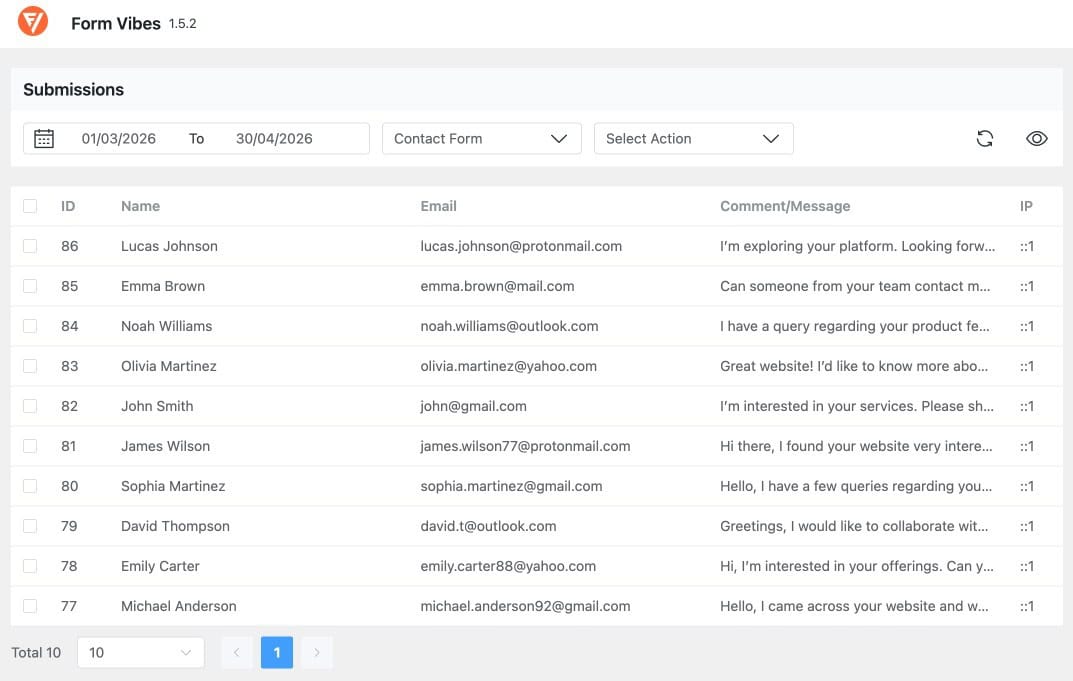
Notes: If Form Vibes was not installed at the time, the submission may not be recoverable. Enable Form Vibes now and every submission from this point forward will be captured automatically without any per-form configuration.
Your plugin does not save submissions – here is why
Some form plugins do not save submissions to your database at all. Every entry goes out as a notification and nothing is written to the database. If that notification never reached you the submission is gone. There is no record anywhere and no way to retrieve it.
Before accepting that, check every notification address configured in your form settings, look for typos or addresses that are no longer active, and if you are on WPForms Lite check whether cloud backup was enabled before the submission came in.
If none of that finds it the submission is gone. This is not a bug. It is just how some plugins are built. And it is entirely preventable going forward.
Important: If your plugin does not save submissions and you missed one it cannot be recovered. Install Form Vibes now. Every submission from the moment it is active will be saved to your WordPress database ones already missed cannot be retrieved.
How to make sure every submission is captured going forward
Install Form Vibes free. It captures every form submission automatically no per-form setup, no Save actions to remember. Works with Contact Form 7, WPForms, Gravity Forms, Elementor Pro Forms, Ninja Forms, WS Form, Bricks Builder, Beaver Builder, and Everest Forms. The free plan covers all 9 builders with no time limit.
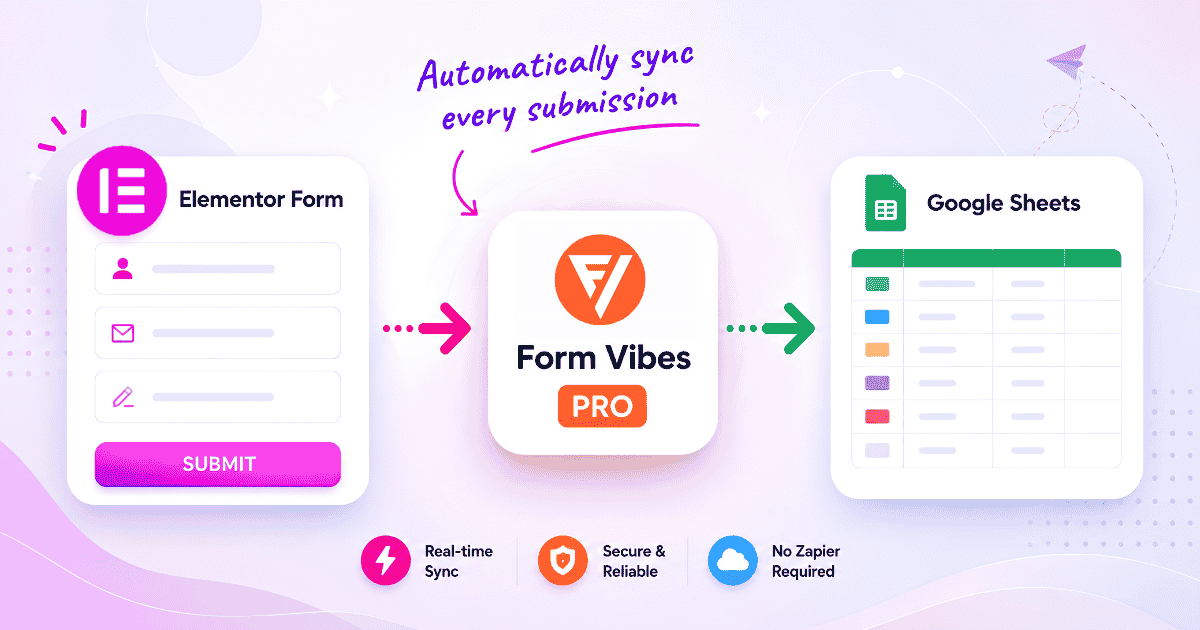
Need advanced tools – CSV export profiles, Google Sheets sync, entry editing, or team access controls? See what’s included in the Form Vibes Free vs Pro versions.
Conclusion
Missing form submissions come down to one of two things, the submission is in your database waiting to be found, or the plugin never saved it in the first place.
If it is recoverable, you now know where to find it. If it is gone the fix is straightforward. Install Form Vibes, enable your form builder in Settings, and every submission from that point forward is stored automatically. No per-form setup. No missed entries.

Never miss a form submission again
Form Vibes saves every submission to your WordPress database the moment someone hits Submit. Works with 9 form builders.
Frequently Asked Questions
Common questions about finding form submissions in WordPress.
Why did I not receive a form submission?
The most common reasons are that the notification went to the wrong address, landed in spam, or your plugin does not save submissions to the database. Check your form settings and spam folder first. If your plugin does not store submissions, the entry may not have been saved at all.
Can I recover a form submission that was never saved?
If your plugin stores submissions natively and the entry is in the database, yes – go to the entries screen and search for it. If Form Vibes was installed, check Form Vibes > Entries. If your plugin does not save submissions and nothing else was capturing them, the submission is permanently gone.
Why is my Contact Form 7 submission missing?
Contact Form 7 does not save submissions to your database by default. Every entry goes out as a notification only. If that notification did not arrive and Form Vibes was not installed, the submission is unrecoverable. Install Form Vibes alongside Contact Form 7 to save every future submission automatically.
How does Form Vibes help with missing submissions?
Form Vibes hooks into your form plugin’s submission event and writes every entry to your WordPress database the moment the form is submitted. It works regardless of whether your plugin has native storage or not, and requires no per-form configuration.
What is the difference between Flamingo and Form Vibes for CF7?
Both save CF7 submissions to your database. Form Vibes goes further – it works with 9 form builders, adds submission analytics, a unified dashboard, CSV export, Google Sheets sync, and team tools. See the full comparison.




Leave a Reply