Form Vibes allows you to connect with Google Spreadsheet to keep all your recorded submissions securely in one place. You can easily export the captured form submission to the Google Sheet and review them whenever you want. So, to export the form submissions, you need to follow the below steps:
- Go to Form Vibes >> Settings >> Google Sheet. Authenticate your Google Client ID and the Client Secret Key. (Generate the Client ID and Secret Key).
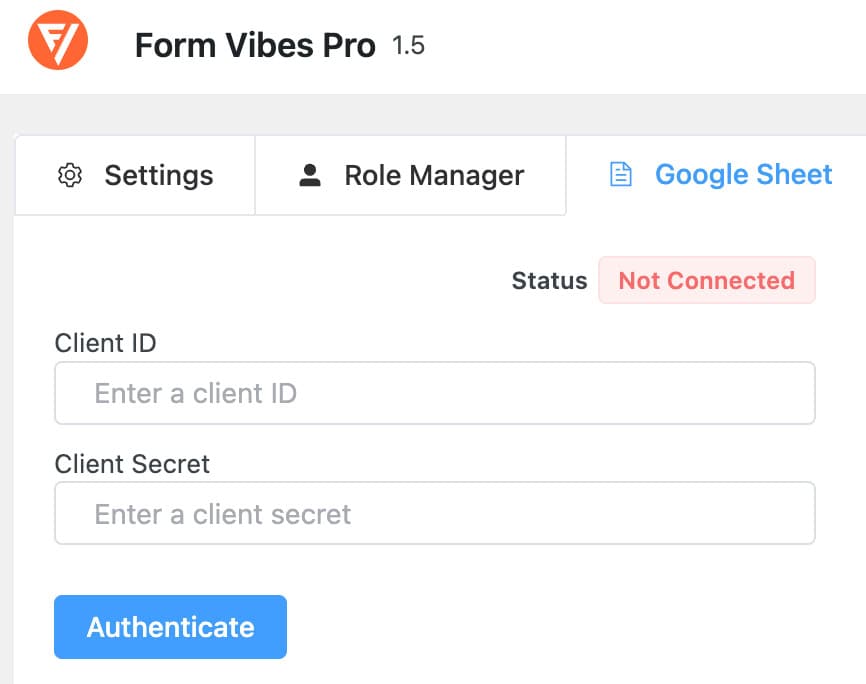
- Once your entered credentials are verified, and you are connected, go to the Export Profile feature from the Form Vibes menu.
- Add a new Export Profile, and then choose the Google Sheet option to export data to the Google Sheet. You can also download the captured submissions locally.
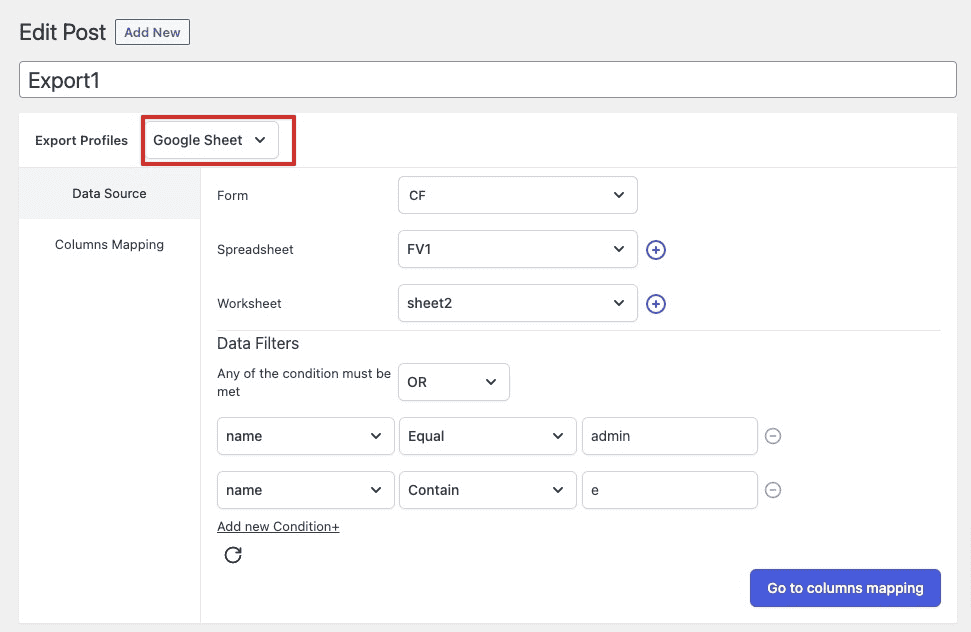
- In Data Source, choose the Form whose data you want to export and then click the plus icon to create a new Spreadsheet or select an existing one. Next, add a Worksheet; it may ask you to add columns to the sheet manually or click on the link to add directly from here.
- Next, set the data filter parameters accordingly and then go to Columns Mapping; here, you need to map the column names concerning form fields and click Confirm.
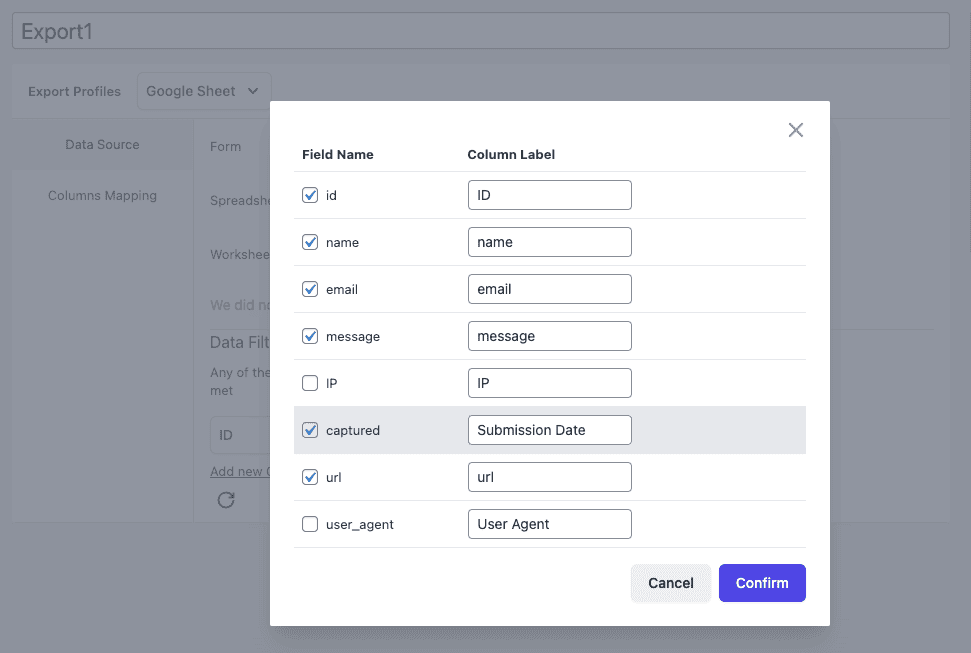
- Next, Publish the created export profile, and the data is exported directly to the Google Sheet.