How to Manage Form Submissions for Your Team with Form Vibes Pro
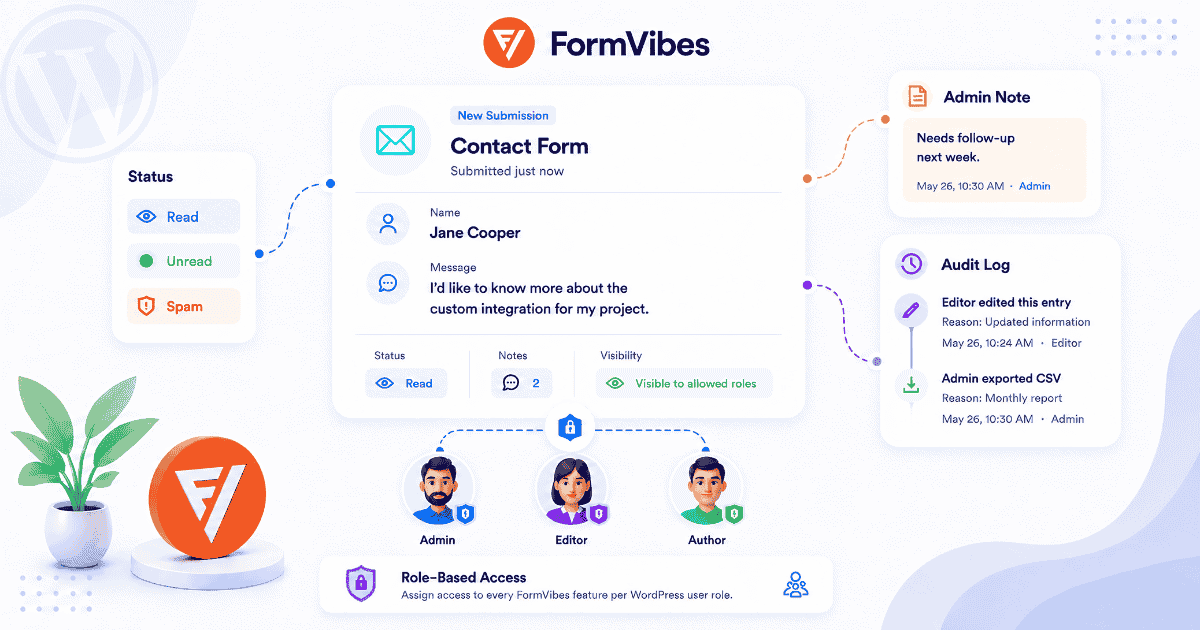
When a form submission comes in, someone on your team needs to review it, act on it, and make sure nothing gets missed. If your current process is “it lands in an inbox and whoever sees it first deals with it”, you already know what happens. Leads get missed. The same entry gets followed up twice. A client asks why no one responded and there is no record of what happened.
Form Vibes Pro gives your team a proper submission review workflow inside WordPress, status tracking, internal notes, controlled access for each person, and a full record of every action taken. This guide walks through how each feature works and how they connect into a complete workflow.
What does a team submission workflow actually look like?
Without the right tools, form submissions create more problems than they solve for teams. The same entry gets reviewed by two different people. A lead sits untouched because everyone assumed someone else was handling it. There is no way to leave a note for a colleague. No record of who changed what. No way to give a client access to their own leads without handing over full WordPress admin.
These problems exist across every WordPress form builder because form builders are built to collect data, not to manage it as a team. The submissions screen in most plugins is a flat list with no workflow layer on top.
Form Vibes adds that layer. Each feature below solves a specific part of the problem.
Notes: These workflow gaps are not unique to any one form plugin. They exist whether you use Contact Form 7, WPForms, Gravity Forms, or any other builder. Form Vibes works across all of them from one dashboard.
How does Submission Status keep your team on the same page?
Every new submission that arrives in Form Vibes is marked Unread by default. When a team member reviews and actions an entry, they mark it Read. Suspicious or irrelevant entries get flagged as Spam.
The result is a dashboard where everyone can see at a glance what needs attention and what has already been handled without asking anyone.
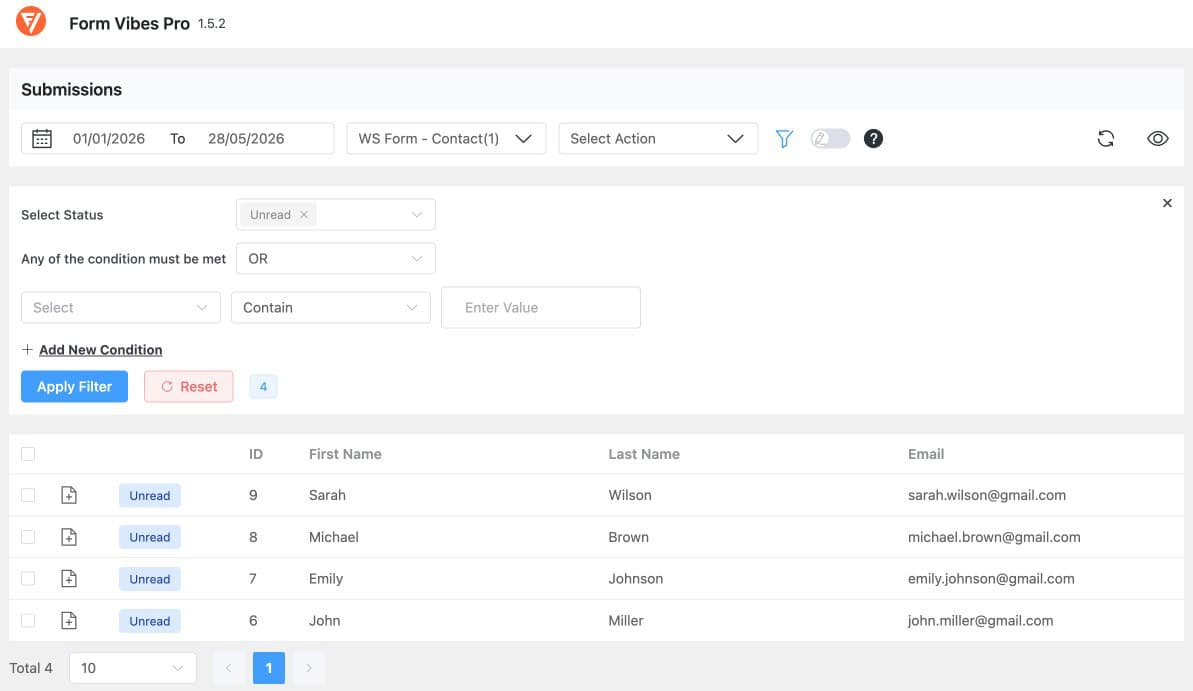
Filter the dashboard to Unread at the start of each session and you see exactly what is waiting. Work through the queue, mark entries Read as you go. The next person who opens Form Vibes sees the same clear picture of what is left.
In practice, for a team of two people reviewing enquiries, this replaces the daily “did you see this one?” message. One person filters to Unread, works through the list, marks entries as they go. The other person can see the current state of the queue any time without interrupting anyone.
Every status change is visible to the whole team immediately so there is always a clear record of who reviewed what.
Pro Tip: Filter the dashboard to Unread at the start of each day. Everything that needs attention is visible immediately, no scrolling through entries that were already handled.
Want to give your team visibility over every form submission? Activity Log is free to start – Submission Status, Notes, Role Manager, and Google Sheets sync are part of Form Vibes Pro.
How do Notes help your team act on submissions together?
When you are working through a submission and need to leave context for a colleague or record what you did for your own reference later, Notes is where that goes.
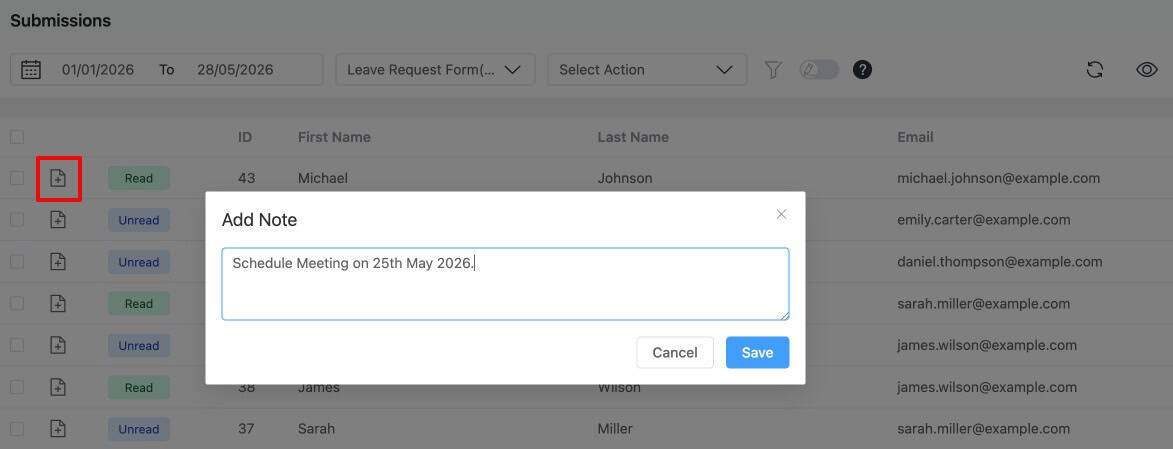
Add a note to any entry from the submission detail view. It stays permanently attached to that entry. Anyone with Form Vibes access can read it and add their own. Notes are completely private, the person who submitted the form never sees them.
The kind of notes teams actually leave:
- “Called back 15 May — left voicemail, following up Friday”
- “Quote sent — waiting on response, check again next week”
- “Duplicate of entry #142 — do not action”
- “High value enquiry — escalate to senior team before responding”
- “Client confirmed project is on hold — archive after 30 days”
Each note is timestamped and permanently attached to the entry. Anyone picking up an entry later can see the full conversation around it what happened, who said it, and when.
How do you give team members and clients the right level of access?
Not everyone who needs to work with submissions should have the same level of access. A junior team member should be able to review entries and add notes but probably should not be deleting things. A client should be able to see their own leads, but nothing else.
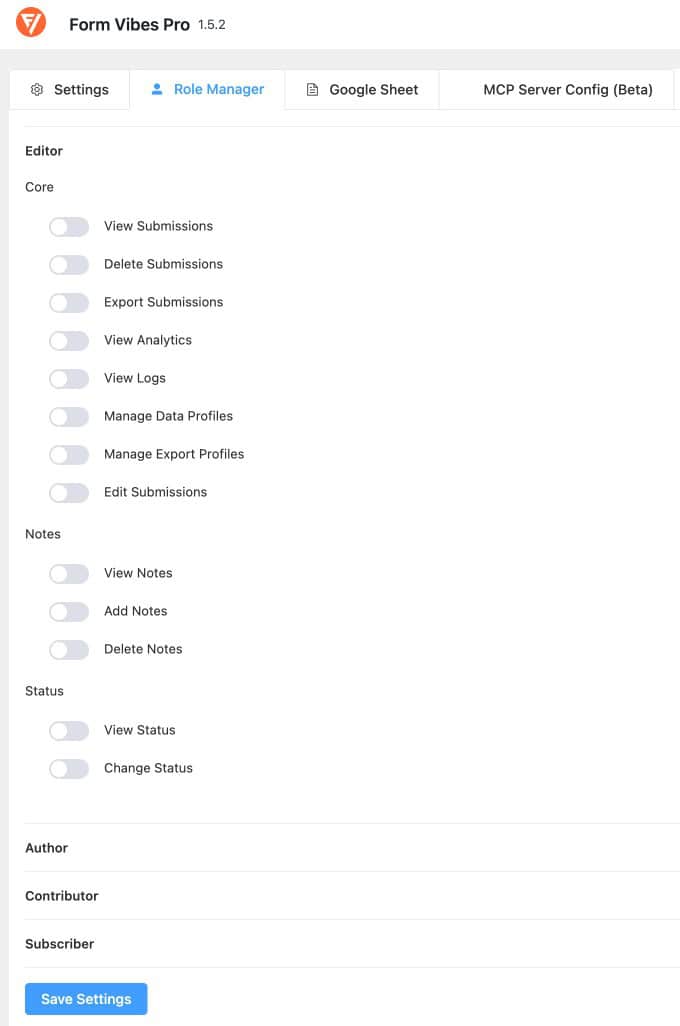
Role Manager lets you define exactly what each WordPress user role can do inside Form Vibes. Each role gets its own set of permissions toggled on or off independently. Set it once per role and it applies to every user with that role automatically.
How Role Manager works
Go to Form Vibes > Settings > Role Manager. The four WordPress user roles available are Editor, Author, Contributor, and Subscriber. Toggle permissions on or off for each role across submissions, analytics, notes, status, exports, Activity Log, and Google Sheets sync. Changes apply immediately.
Common setups for different roles
Client access — Subscriber role View submissions and analytics only. No export, no delete, no notes. They see their leads in a clean dashboard without the ability to change or remove anything.
Junior team member — Contributor role View submissions, add notes, update status. No delete, no export. They can work through the queue without the risk of accidentally removing data.
Account manager — Author role View, notes, status updates, and export. Full working access for day-to-day submission management without admin-level permissions.
Senior team member — Editor role Full access to everything in Form Vibes — submissions, analytics, exports, notes, status, and Activity Log.
Important: Role Manager controls Form Vibes access only, it does not affect what a user can do elsewhere in WordPress. A Subscriber with Form Vibes view access can still only do what Subscribers normally can in WordPress.
Form Vibes Role ManagerHow does the Activity Log keep your team accountable?
Every edit made to a submission and every export action is recorded in the Activity Log with a timestamp and the username of who made the change.
Open the Activity Log settings and see the complete history of editing made to that entry, who changed what value and exactly when.
The Activity Log also records export actions. When a team member exports submissions, they are prompted to enter an Export Reason, a short note explaining why the export was made. This reason is saved in the Activity Log alongside the username and timestamp. Over time this gives you a clear trail of who exported submission data, when, and why useful for accountability and compliance.
This matters in practice in several ways. A submission appears to have been edited, the log shows who made the change and what was altered. An export was run and you want to know why, the Export Reason tells you immediately.
The Activity Log is available on the free plan and runs automatically from the moment Form Vibes is active. There is no setup. Every edit and every export is fully tracked from day one.

How do you share submissions with someone who is not on WordPress?
Role Manager works well for team members who have WordPress accounts. But some clients or stakeholders do not have or should not have, a WordPress login at all. For them, Google Sheets sync is the cleaner option.
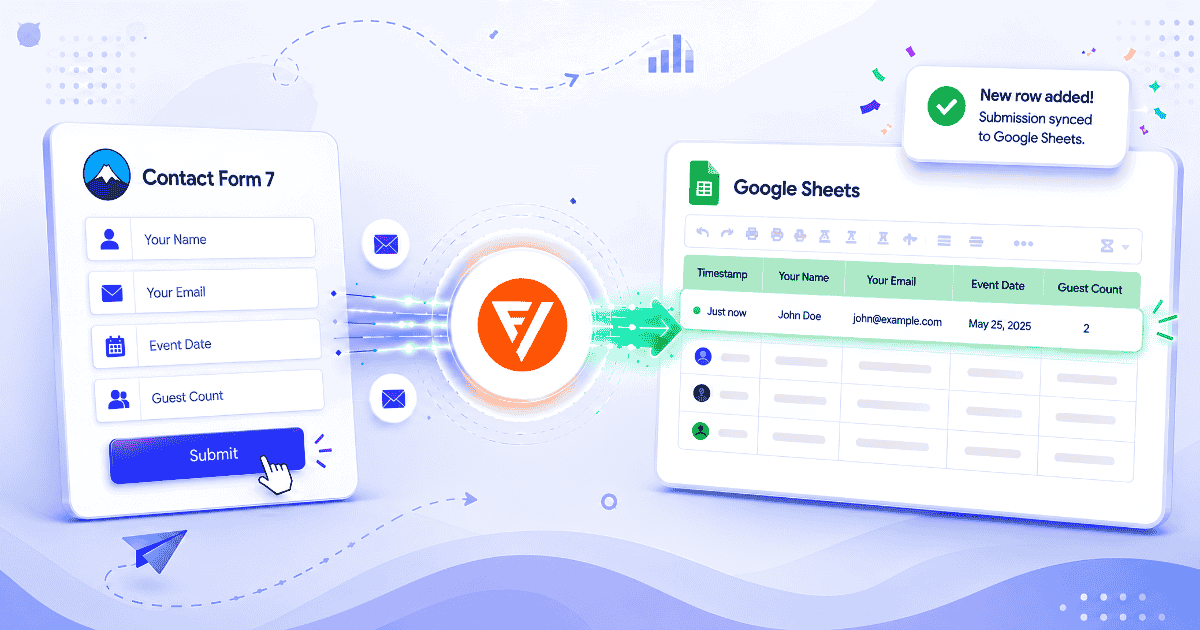
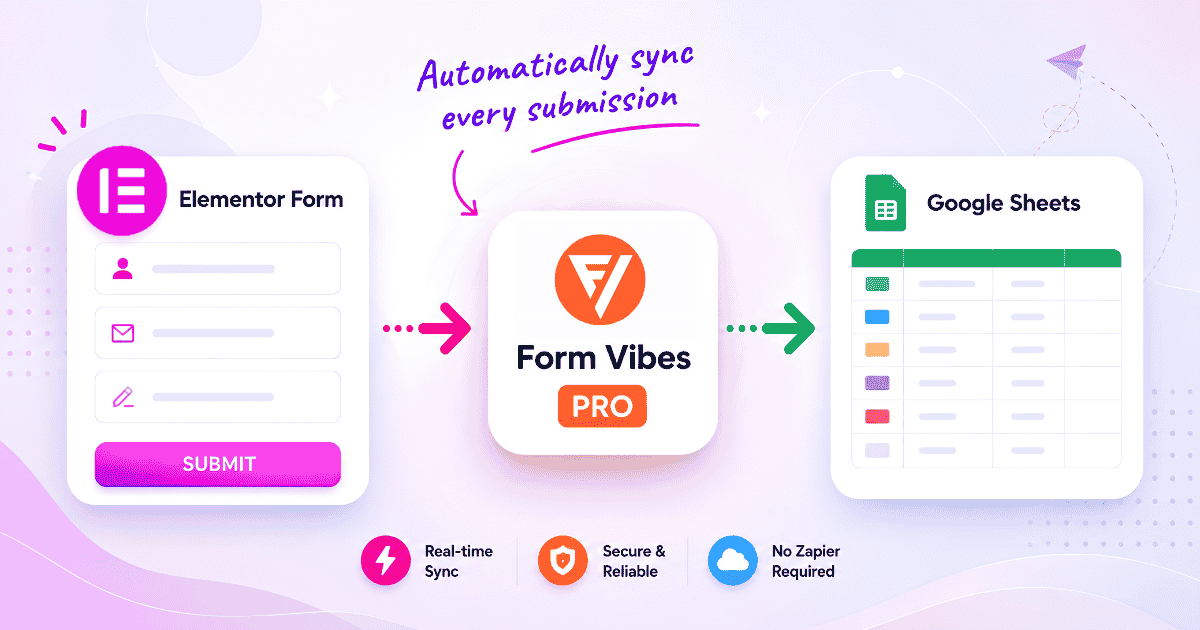
Connect Form Vibes to a Google Spreadsheet once via OAuth. Every new submission is pushed to the connected sheet the moment it arrives. Anyone with access to the spreadsheet sees new leads in real time, no WordPress login, no CSV export, no manual update.
The spreadsheet is read-only for anyone without edit access, so clients can view their data without the ability to change or delete anything. Share it the same way you would share any Google Sheet.
Between Role Manager and Google Sheets sync, there is a solution for every access situation:
- Team members with WordPress accounts → Role Manager with appropriate permissions per role
- Clients comfortable with Google Sheets → Google Sheets sync, view-only share
- Clients who prefer a WordPress dashboard → Subscriber role with view-only access via Role Manager
See the full setup guide: How to Share Form Submissions with Clients.
Conclusion
Without proper tools, team submission review is friction from start to finish, no visibility into what has been handled, no way to leave context for a colleague, no controlled access for clients.
Form Vibes solves each part of that problem with a feature built specifically for it. The Activity Log is available on the free plan giving every team a full audit trail from day one. Submission Status, Notes, Role Manager, and Google Sheets sync are part of Form Vibes Pro, adding status tracking, private team communication, controlled client access, and live spreadsheet delivery on top.

Give your team a proper submission workflow
Submission Status, Notes, Role Manager, and Google Sheets sync give your team everything needed to review, track, and share form submissions without the chaos. Activity Log is free to start
Frequently Asked Questions
Common questions about managing form submissions with team using Form Vibes.
How do I give a team member access to form submissions in WordPress?
Install Form Vibes Pro and go to Form Vibes > Settings > Role Manager. Find the WordPress user role assigned to that team member and toggle on the permissions they need, view submissions, add notes, update status, export, and so on. Changes apply immediately. The team member accesses submissions from the Form Vibes dashboard without needing WordPress admin access.
Can I give a client access to their form submissions without WordPress admin?
Yes. Create a WordPress user account for the client with the Subscriber role. Use Form Vibes Pro’s Role Manager to give Subscribers view access to submissions and analytics. The client logs in and sees only the Form Vibes dashboard with their submissions — nothing else in WordPress. Alternatively, use Google Sheets sync for clients who prefer a spreadsheet over a WordPress login.
How do I track which form submissions have been reviewed?
Form Vibes Pro’s Submission Status marks every new entry as Unread by default. Team members mark entries as Read once actioned. Filter the dashboard to Unread to see exactly what needs attention. The status of each entry is visible to the whole team immediately everyone can see what has been reviewed and what is still waiting.
Are Notes visible to the person who submitted the form?
No. Notes in Form Vibes are completely internal — visible only to users with Form Vibes access inside WordPress. The person who submitted the form never sees them. Notes are permanently attached to the entry with a timestamp showing when each note was added and by whom.
What does the Activity Log record?
The Activity Log records two types of actions – field edits and export actions. When a submission is edited, the log captures who made the change and when. When a submission export is run, the team member is prompted to enter an Export Reason, which is saved in the log alongside their username and timestamp. The Activity Log is available on the free plan and runs automatically from the moment Form Vibes is active with no additional setup required.


Leave a Reply