How to Save and Manage WS Form Submissions with Form Vibes
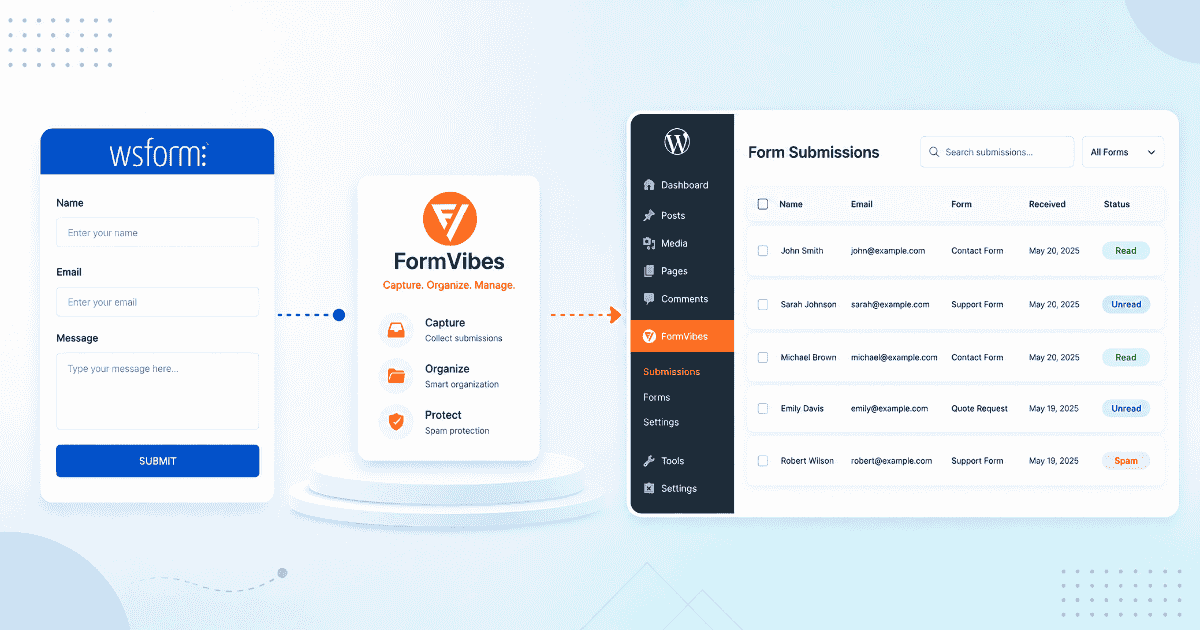
WS Form gives you a lot of control over how your forms work but that control comes with one catch that trips up even experienced users. Unlike most form plugins, WS Form does not store submissions automatically. The Save action has to be added to each form individually before entries are recorded.
Miss it on one form and those submissions are gone. No warning. No fallback.
Form Vibes solves that problem and adds several workflow features that WS Form does not cover regardless of plan. This guide covers both.
Notes: This guide assumes WS Form is already installed and active on your site. If you are new to WS Form, start with the complete WS Form guide.
What does WS Form do with submissions by default?
When a visitor submits a WS Form, what happens next depends on whether the Save action was added to that form. If it was, the entry is written to your WordPress database and accessible at WS Form > Submissions. If it was not, the submission fires, the visitor sees a confirmation, and the data is never stored anywhere.
This is the most common support question WS Form users run into. The form looks like it is working. The visitor gets a success message. But the entries screen is empty because the Save action was never configured.
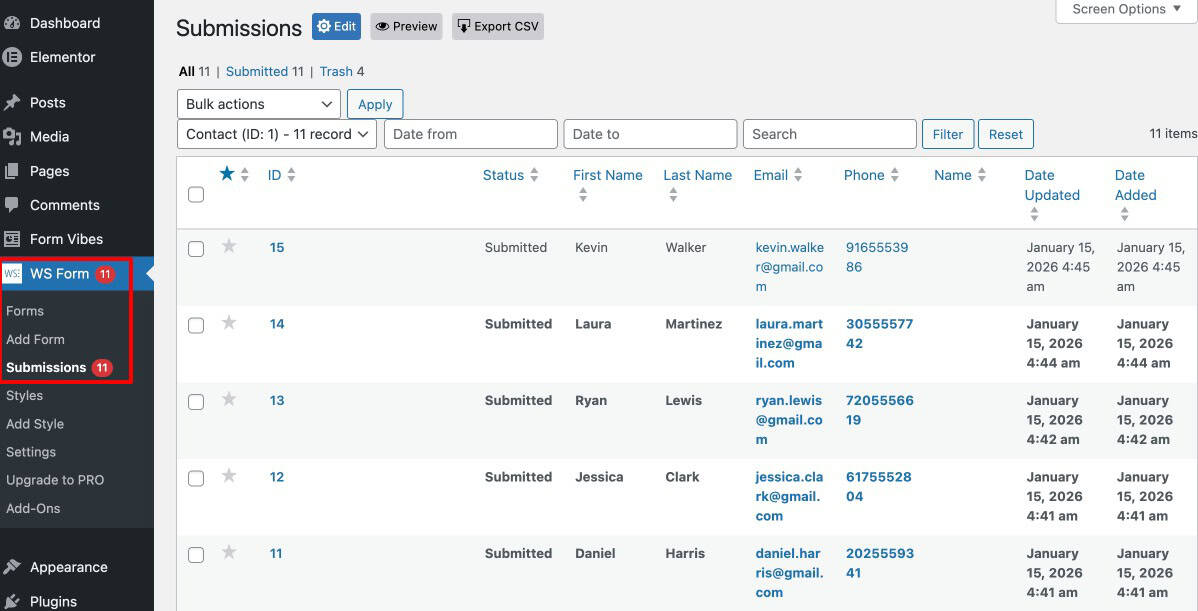
Once the Save action is in place, WS Form’s native submission management is solid. The submissions screen gives you search, date range filtering, inline field editing, Read/Unread status marking, CSV export, and bulk delete. All accessible from WS Form > Submissions in your WordPress admin.
By default only Administrators can view the submissions screen.
Important: If your WS Form entries screen is empty – go to the form’s Actions tab and confirm the Save action is present. Add it now to protect future submissions. Entries that arrived before the action was enabled are not recoverable from WS Form’s own dashboard.
What is missing from WS Form native submission management?
For a single form on a straightforward site, WS Form’s native tools are enough. The problems start when your setup gets more complex more forms, more plugins running alongside WS Form, more people who need access to the data.
- No analytics. WS Form shows you a flat list of entries. There are no trend charts, no volume data, no way to see whether a form is performing better or worse over time without pulling a CSV and building a chart yourself.
- No unified view across multiple form plugins. WS Form entries live in WS Form only. If your site also uses Contact Form 7 for one form and WPForms for another, those submissions are in completely separate screens. There is no combined view anywhere in WordPress.
- Getting data to a client is manual work. Sharing WS Form submissions means exporting a CSV, formatting it, and sending it every time. There is no way to have a client’s Google Sheet update automatically when a new submission arrives.
- Your export setup does not carry over. Each time you export you configure it from scratch. The date range, the field selection, the filters, all set manually every time. There is no way to save that configuration and re-run it next month.
- Giving a client access means giving them admin. WS Form only allows Administrator-level access to submissions by default. If a client needs to check their own leads, the options are limited without a workaround.
WS Form’s Save action not set up on every form? Form Vibes captures submissions automatically the moment it is installed – even from forms where the Save action was never configured.
How does Form Vibes work with WS Form?
Here is where Form Vibes solves the Save action problem directly. Form Vibes hooks into the WS Form submission event before the native Save action runs. This means it captures and stores every submission regardless of whether the WS Form Save action was configured on that form.
A form that was never set up to store submissions in WS Form? Form Vibes has those entries. A form that had its Save action accidentally removed during an update? Form Vibes still captured every submission.
Both plugins store entries independently. WS Form keeps working exactly as it did before. Form Vibes adds its own layer on top – same submissions, second storage location, neither affecting the other.
If your site runs other form plugins alongside WS Form – Contact Form 7, Ninja Forms, WPForms, Elementor Pro Forms, or any of the other supported builders all of their submissions appear in the same Form Vibes dashboard alongside your WS Form entries.
Pro: Form Vibes and WS Form store submissions independently. Deleting an entry in one does not remove it from the other.
How do you get started with Form Vibes alongside WS Form?
Go to Plugins > Add New in your WordPress admin, search for “Form Vibes”, install and activate it. No additional setup. No per-form configuration. Form Vibes starts working the moment it is active.
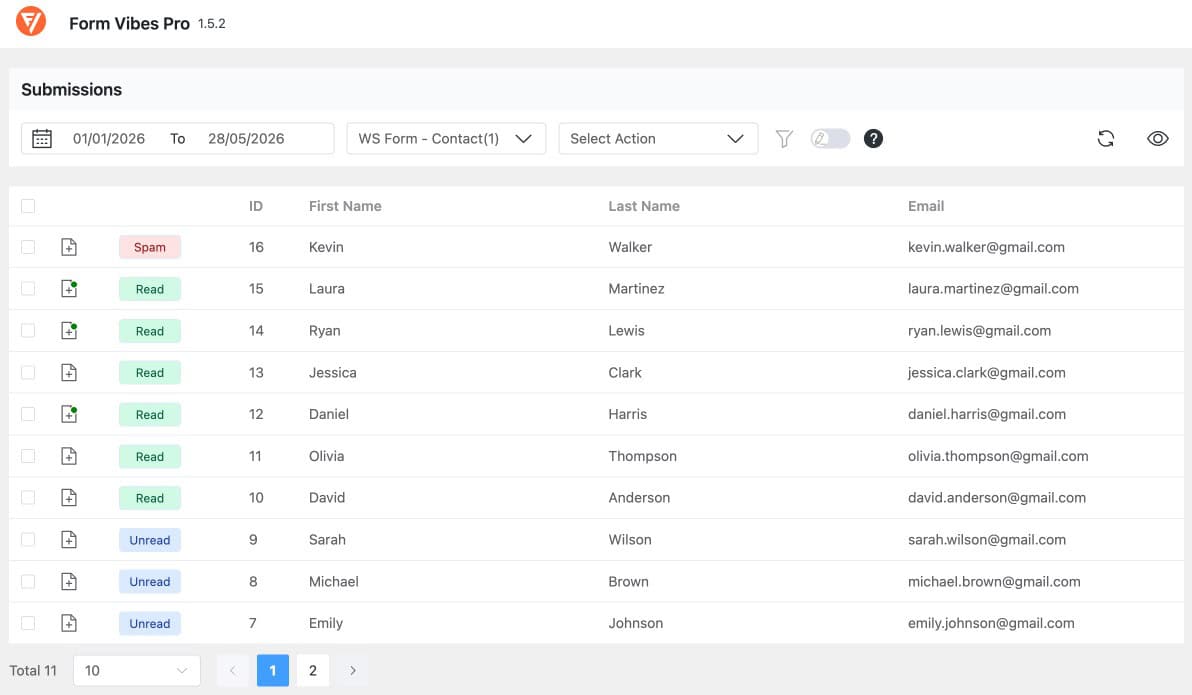
Submit a test entry through any WS Form on your site. Open Form Vibes > Entries, select the form from the dropdown, and the test submission will already be there.
Important: Form Vibes stores submissions from the moment it is installed. Entries that arrived before installation are not available in Form Vibes. If the WS Form Save action was active on those forms, those entries are still in WS Form > Submissions.
What does Form Vibes add for WS Form users?
Beyond solving the Save action gap, Form Vibes adds several capabilities that change how you work with WS Form submission data day to day.
Submission Analytics
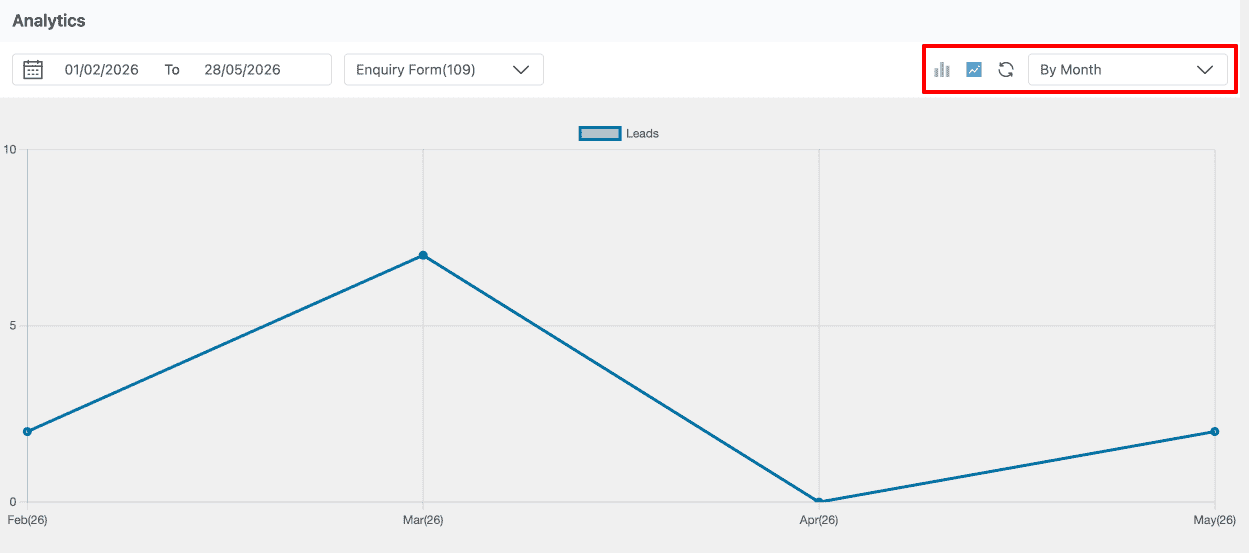
Go to Form Vibes > Analytics and select any WS Form from the dropdown. Daily, weekly, and monthly charts show submission volume trends over any date range. See which forms are growing, which are dropping off, and how this month compares to last — without touching a spreadsheet.
WS Form has no native analytics dashboard. For WS Form users, Form Vibes Analytics is the only way to see this data.
A single dashboard for every form plugin
Switch between WS Form, Contact Form 7, Ninja Forms, WPForms, and every other supported builder using one dropdown. Every submission from every plugin on your site — visible, searchable, and exportable from one screen.
For developers and agencies managing sites with multiple form plugins, this alone removes a significant amount of daily friction.
Automatic Google Sheets delivery and saved export settings
The free plan includes basic CSV export. Form Vibes Pro lets you save your complete export setup — date range, submission status filter, field-level AND/OR conditions, and which fields to include — and re-run it in one click. Every past export is saved and re-downloadable any time.
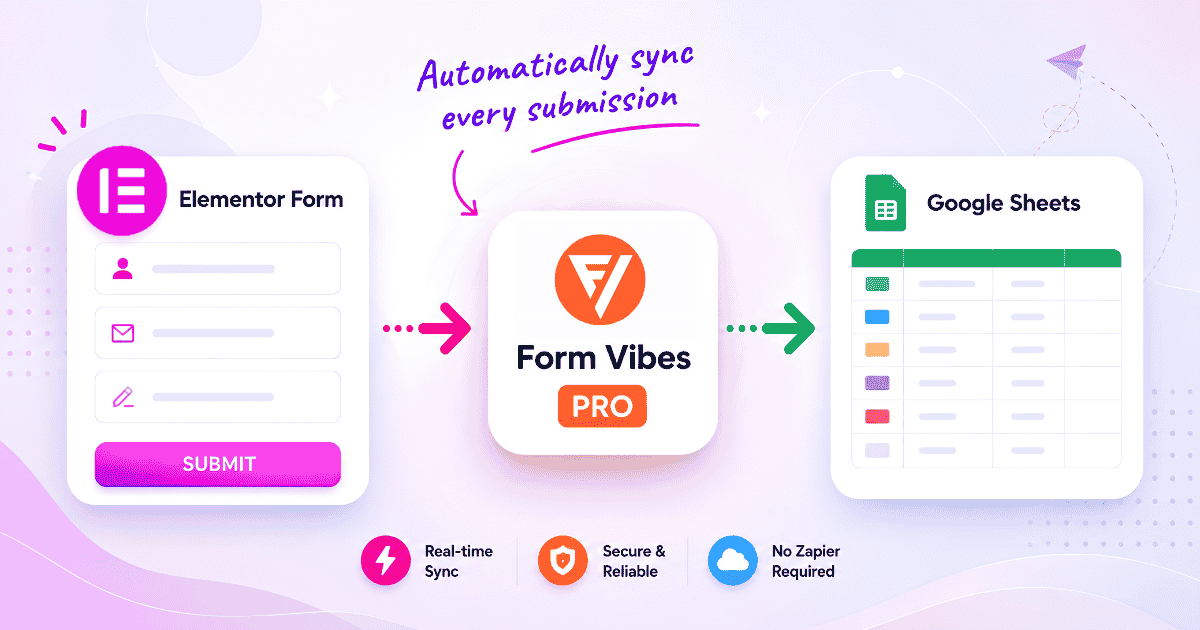
For live data delivery, Google Sheets sync sends every new WS Form submission to a connected spreadsheet the moment it arrives. No manual export, no Zapier, no delay. A client can have their leads appearing in a Google Sheet in real time without ever logging into WordPress.
For the full export walkthrough see: How to export and manage form submissions.
Team access and accountability
- Submission Status — mark entries as Read, Unread, or Spam. New submissions arrive as Unread so what needs attention is always clear.
- Notes — add internal comments to any entry. Visible to your team inside Form Vibes, never shown to the person who submitted.
- Activity Log (Pro) — every edit, status change, and note is recorded with a timestamp and the username of who made it. Full accountability across your team without any extra tools.
- Role Manager (Pro) — 13 individual permission toggles per WordPress user role. Give a client read-only access to their WS Form data. Give a team member permission to add notes but not delete. Set it once per role and it applies automatically.
Pro features: Saved export settings, Google Sheets sync, and Role Manager are all part of Form Vibes Pro. Analytics, unified dashboard, activity log, and basic CSV export are in the free plan. Full breakdown: Form Vibes free vs Pro.
Conclusion
WS Form is a powerful form builder but the Save action requirement means one missed configuration can cost you submissions permanently. Form Vibes removes that risk entirely by capturing every WS Form submission automatically from the moment it is installed.
On top of that it adds what WS Form does not cover analytics, a unified dashboard across all your form plugins, automatic Google Sheets delivery, saved export settings, and proper access control for clients and team members.
Install Form Vibes once and your WS Form submission workflow is covered completely.

Never lose a WS Form submission again
Form Vibes captures every WS Form submission automatically even from forms where the Save action was never configured. Install Form Vibes for free now.
Frequently Asked Questions
Common questions about managing WS Form submissions with Form Vibes.
Does WS Form save submissions automatically?
No. WS Form requires the Save action to be added to each form individually under the form’s Actions tab. If it was not added, submissions are not stored. Form Vibes captures WS Form submissions regardless even from forms where the Save action was never configured.
How do I export WS Form submissions to Google Sheets?
WS Form does not have a native Google Sheets sync. Form Vibes Pro adds this, install Form Vibes, connect your Google account once, set up a Google Sheets sync for your WS Form, and every new submission is delivered to the connected spreadsheet automatically.
Can I give clients access to WS Form submissions without WordPress admin?
Not with WS Form alone, only Administrators can view submissions by default. Form Vibes Pro’s Role Manager lets you assign exactly what each WordPress user role can do – view, export, add notes, or manage submissions with individual permission toggles per role.
What happens if the WS Form Save action was never set up on a form?
Form Vibes captures submissions from every WS Form on your site the moment it is installed — regardless of whether the Save action was configured. Submissions that came in before Form Vibes was installed and before the Save action was enabled are not recoverable.
Does Form Vibes work if I run WS Form alongside other form plugins?
Yes. Form Vibes supports 9 form builders including WS Form, Contact Form 7, WPForms, Gravity Forms, Ninja Forms, Elementor Pro Forms, Bricks Builder, Beaver Builder, and Everest Forms. All submissions from all plugins appear in one unified dashboard.




Leave a Reply