How to Save Bricks Builder Form Submissions in WordPress

Bricks Builder includes built-in form submission storage, making it easy to collect and review entries directly from your WordPress dashboard. However, as your website grows and you start handling more submissions, you may need advanced features like better filtering, detailed entry management, export options, and a more organized way to work with your form data.
That’s where Form Vibes can help. It enhances how you manage Bricks Builder form submissions by offering a dedicated submission management system with powerful search, filtering, export capabilities, and a cleaner interface for reviewing entries.
This guide will show you how to connect Bricks Builder forms with Form Vibes and manage your form submissions more efficiently inside WordPress.
Before You Start
Bricks Builder theme installed and active
At least one Bricks form element published on a page
Admin access to your WordPress dashboard
Form Vibes installed to your website
Does Bricks Builder Save Form Submissions Natively?
Yes, since version 1.9.2. Enable the feature under Bricks > Settings > General > Form submissions, save your settings, and Bricks creates a custom database table where every form entry is stored automatically. Submissions are viewable at Bricks > Form submissions in your WordPress admin, grouped by form name.
The native panel covers entry storage, basic deletion, role-based access control for viewing submissions, optional IP address capture, and a maximum submission limit per form. For a simple site with one contact form and one administrator reviewing entries, this covers the basics.
Not sure why saving to the database matters beyond preventing email failures? See why you should save contact form submissions in your database.
Already using Bricks Builder and capturing form submissions? Use Form Vibes to manage Bricks Builder form submissions more efficiently with date filtering, analytics, CSV export, and more.
Setting Up Form Vibes with Bricks Builder
Form Vibes captures Bricks form submissions at the plugin level. There is one setup step unique to Bricks that does not apply to any other supported form plugin, the Form Name field. This must be added to every Bricks form you want to track individually in Form Vibes.
1
Install Form Vibes
Go to Plugins > Add New in your WordPress admin, search for “Form Vibes“, click Install Now, and then Activate. Form Vibes is free from the WordPress plugin directory.

2
Add the Form Name to Your Bricks Form
Open your page in the Bricks editor and click on your form element. Enter a unique, descriptive form name for this specific form, for example “Contact Page Form” or “Footer Enquiry Form”.
This Form Name value is what Form Vibes uses to identify which form a submission came from when displaying entries in the submissions dashboard. Without it, Form Vibes cannot distinguish between multiple Bricks forms on the same site.
3
Submit a Test Entry
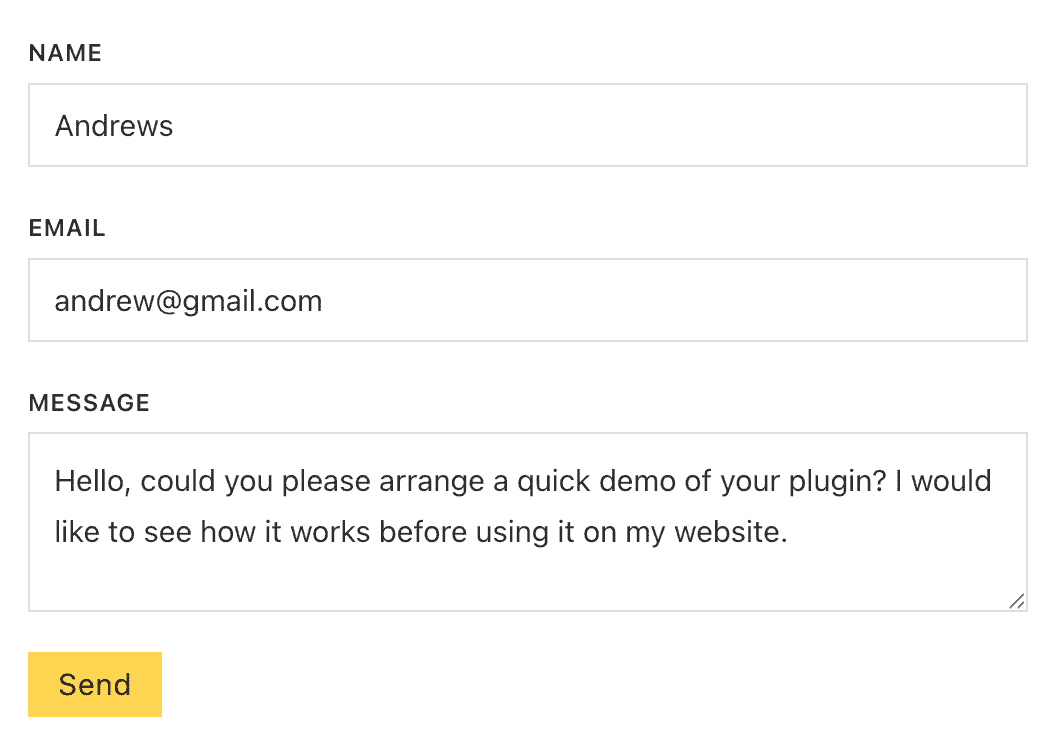
Open the page containing your Bricks form on the frontend and submit a test entry with your own details. This confirms the form is firing correctly and gives you an entry to verify in Form Vibes immediately.
4
View the Submission in Form Vibes
Go to Form Vibes > Submissions in your WordPress admin. Click the form dropdown at the top of the page and select your Bricks form by the Form Name you assigned. Your test entry appears in the table. Every future submission to that form is now captured automatically.

Notes: Form Vibes captures submissions from the moment it is activated. Entries submitted before activation are not available in Form Vibes, though they remain in Bricks’ native submissions panel if that feature was enabled at the time.
What Can You Do with Bricks Submissions in Form Vibes?
Each of the following features addresses something the Bricks native submissions panel cannot do.
Exporting Bricks Form Submissions to CSV
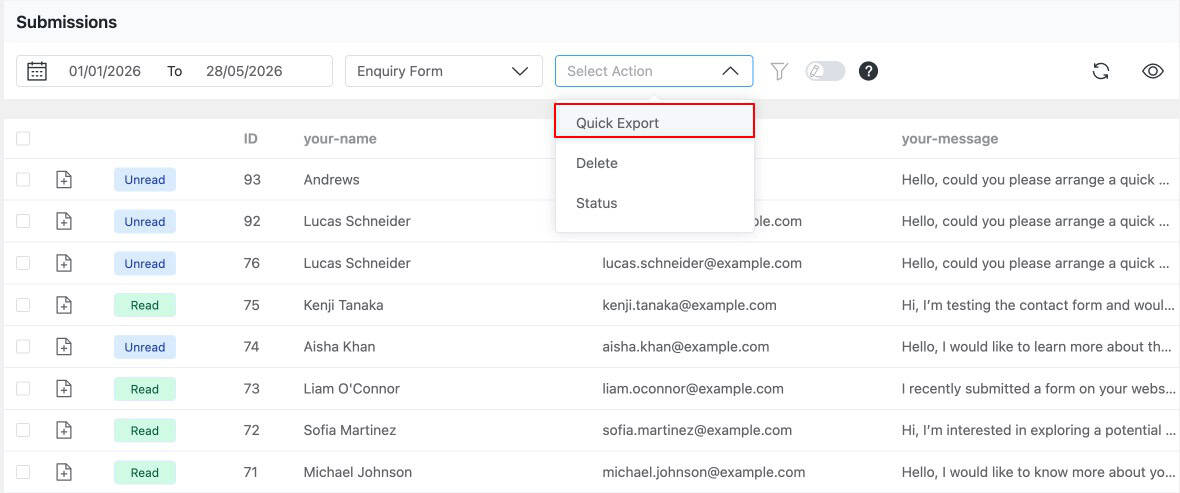
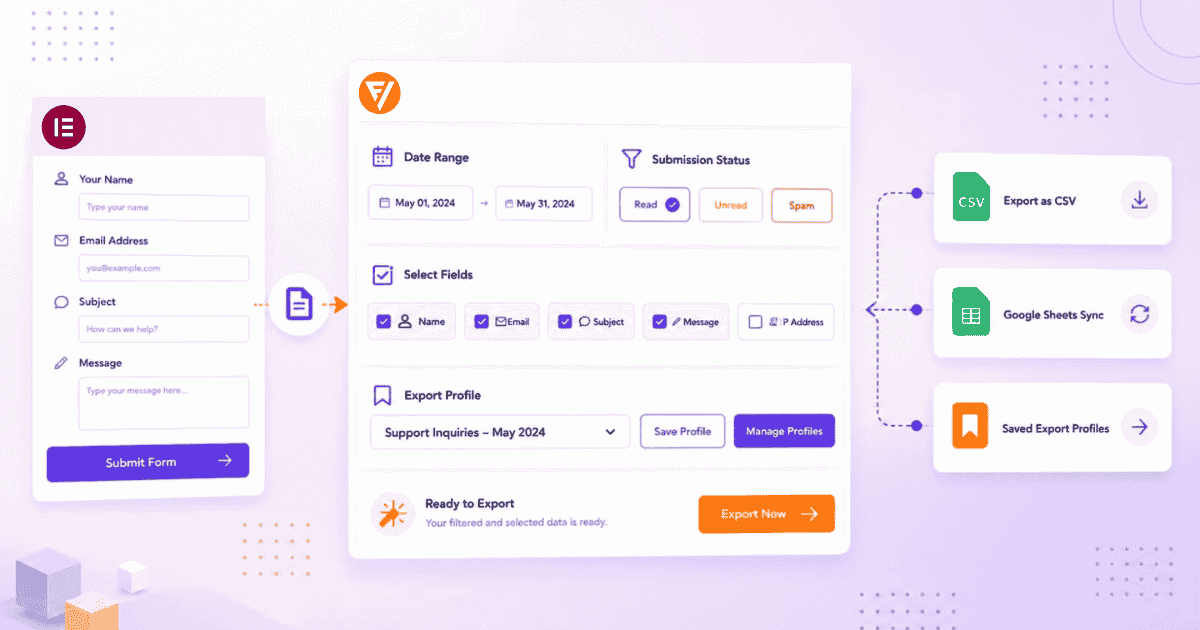
Bricks Builder has no CSV export tool in its native submissions panel. Form Vibes adds a Quick Export button to the submissions toolbar. Select your Bricks form from the dropdown, click Quick Export, and Form Vibes generates and downloads a CSV file immediately containing all entries for that form. The file opens directly in Excel or Google Sheets.
The free version exports up to 1,000 entries per Quick Export. Form Vibes Pro adds Export Profiles for saved, filtered, and reusable export configurations, see the complete guide to exporting form submissions for a full walkthrough.
Filtering and Deleting Bricks Submissions
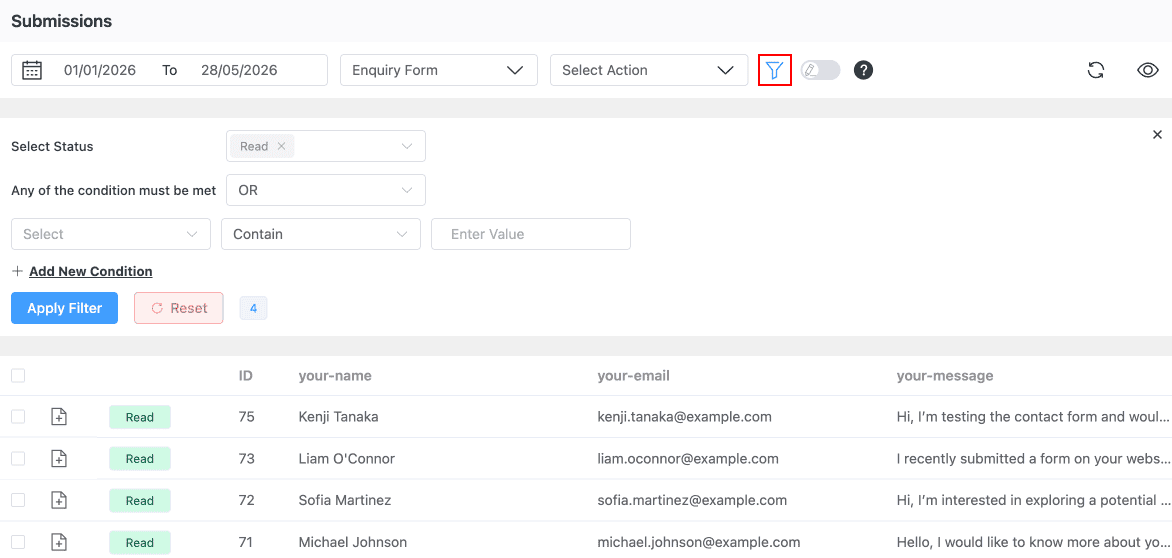
The Bricks native panel has no date filtering. Form Vibes adds date range presets Today, Last Week, Last Month, and Last Quarter plus a custom date picker for any specific window. Filter selections persist between sessions.
To delete entries, select them using the row checkboxes and apply the bulk delete action. This gives you an accountability trail that the Bricks native panel does not provide.
Marking Bricks Submissions by Status
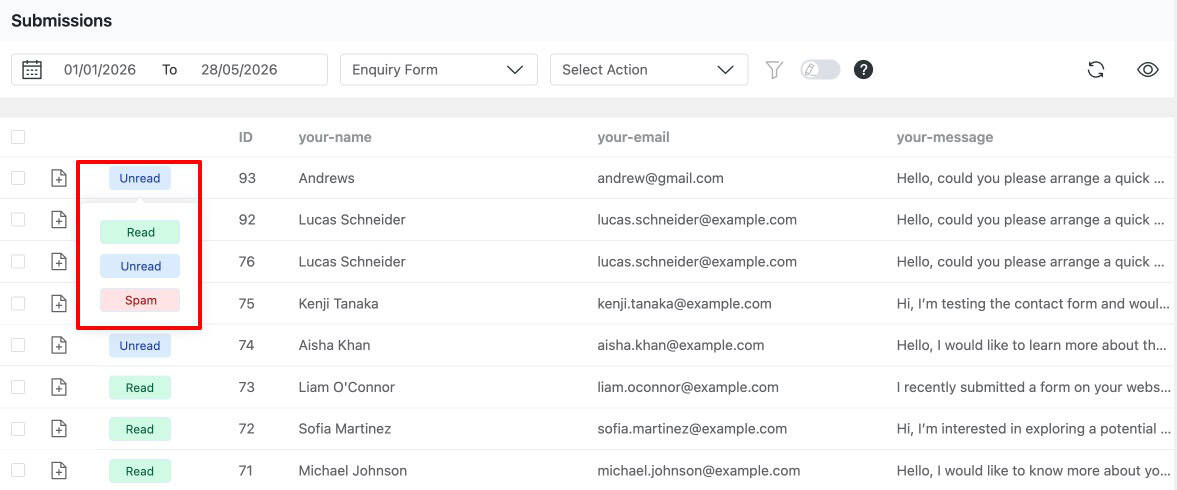
Form Vibes Pro adds a Submission Status system that lets you mark any Bricks entry as Read, Unread, or Spam individually or in bulk. Filter the table by Unread to see only new entries that need attention. Work through them, mark each as Read once actioned, and flag obvious spam before deciding whether to delete it.
Analytics for Bricks Forms
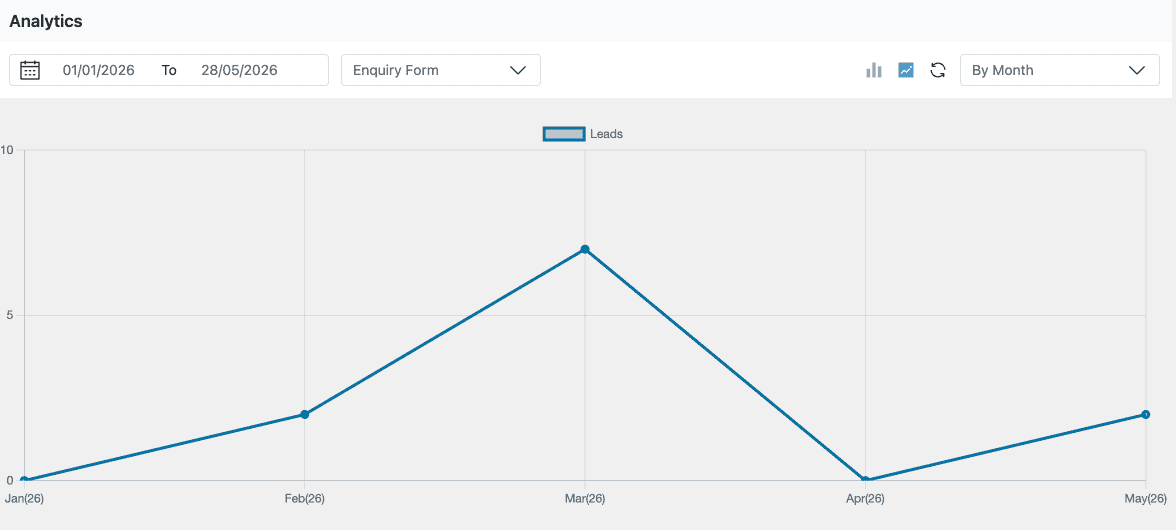
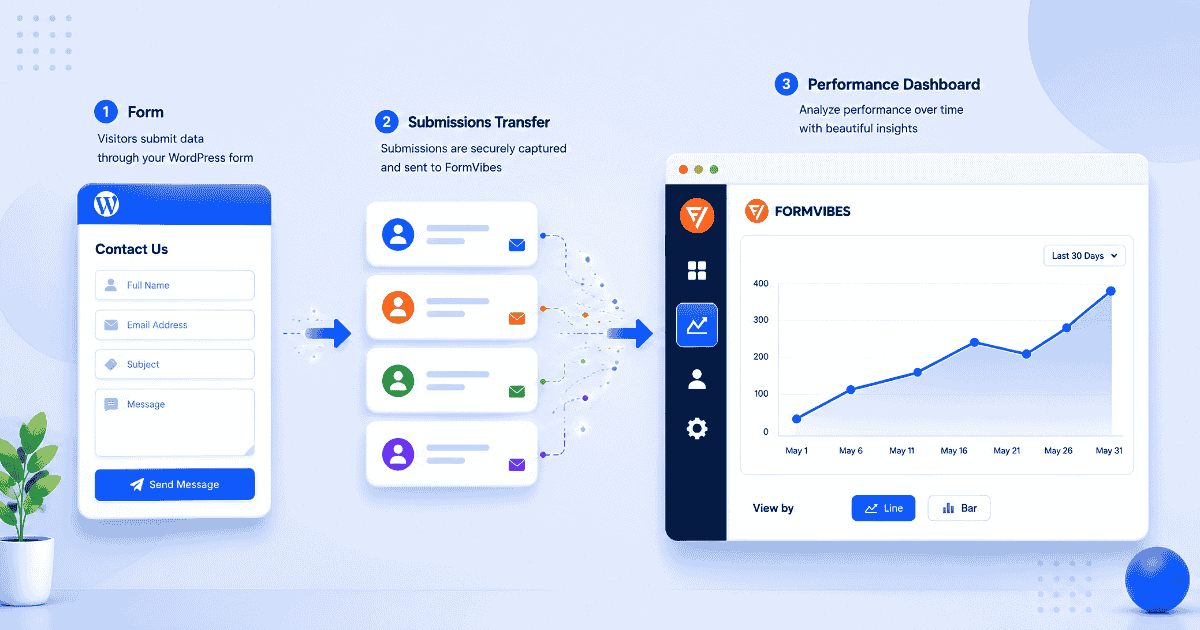
Bricks Builder has no analytics view for form submissions. Go to Form Vibes > Analytics, select your Bricks form from the dropdown, and Form Vibes displays a bar chart and a line chart showing submission volume on a daily, weekly, or monthly basis. This shows whether submissions are increasing, decreasing, or spiking around specific campaigns or content updates.
Bricks Builder vs Form Vibes – What Each One Covers
| Feature | Bricks | Form Vibes |
|---|---|---|
| CSV export | Yes | Yes |
| Date range filtering | No | Yes |
| Analytics & reports | No | Yes |
| Submission Status (Read/Unread/Spam) | No | Yes |
| Team Notes on individual entries | No | Yes |
| Activity Log | No | Yes |
| Google Sheets sync | No | Yes |
| Display submissions on frontend | No | Yes |
| Role-based access manager | No | Yes |
Conclusion
Bricks Builder’s native submission storage has improved significantly since version 1.9.2. For a basic record of entries, it works without any additional plugin. For everything beyond that, exporting to CSV, filtering by date, tracking submission trends, managing a team review workflow, or handling entries from multiple form plugins in one place, Form Vibes adds it all without touching your existing Bricks setup.
Install Form Vibes, add the Form Name field to your Bricks form, submit a test entry, and your Bricks submissions are captured and manageable from the first entry forward.
Using Bricks Builder forms for the first time? See the complete guide on how Bricks Builder forms work and how to configure them.

Manage Bricks Builder Submissions Better
Use Form Vibes to manage Bricks Builder submissions with analytics, date filtering, CSV export, activity logs, and more with your existing forms.
Frequently Asked Questions
Common questions about Saving Bricks Builder form submissions.
Does Bricks Builder save form submissions automatically?
Yes, since version 1.9.2. Enable the feature under Bricks > Settings > General > Form submissions and Bricks stores entries in a custom database table viewable at Bricks > Form submissions.
What is the Form Name field in Bricks Builder for?
The Form Name field is a hidden field you add to your Bricks form to give it a unique identifier that Form Vibes uses to distinguish between forms. Without it, Form Vibes cannot tell your forms apart in the submissions dashboard. Set a unique descriptive value for each Bricks form such as “Contact Page Form”, so each form appears separately in the Form Vibes dropdown.
Does Form Vibes work with all Bricks Builder form fields?
Yes. Form Vibes captures all field types available in the Bricks form element. All submitted field values appear as columns in the Form Vibes submissions table.
Can I export Bricks Builder form submissions to CSV?
Yes. Once Form Vibes is set up, go to Form Vibes > Submissions, select your Bricks form from the dropdown, and click the Quick Export button. Form Vibes downloads a CSV file of all entries immediately.
Can I manage Bricks Builder submissions alongside other form plugins in one place?
Yes. Form Vibes captures submissions from various WordPress form plugins, and displays them all in the same submissions dashboard. Switch between forms using the form dropdown. All analytics, filtering, and export tools work the same way regardless of which plugin the form came from.



Leave a Reply